
Apr 4, 2026
Secure Your Employee Portal With Registered Devices
Your employee portal shows payslips and schedules. Portal Device Lock makes sure that data stays on devices you manage, not on any phone with the link.
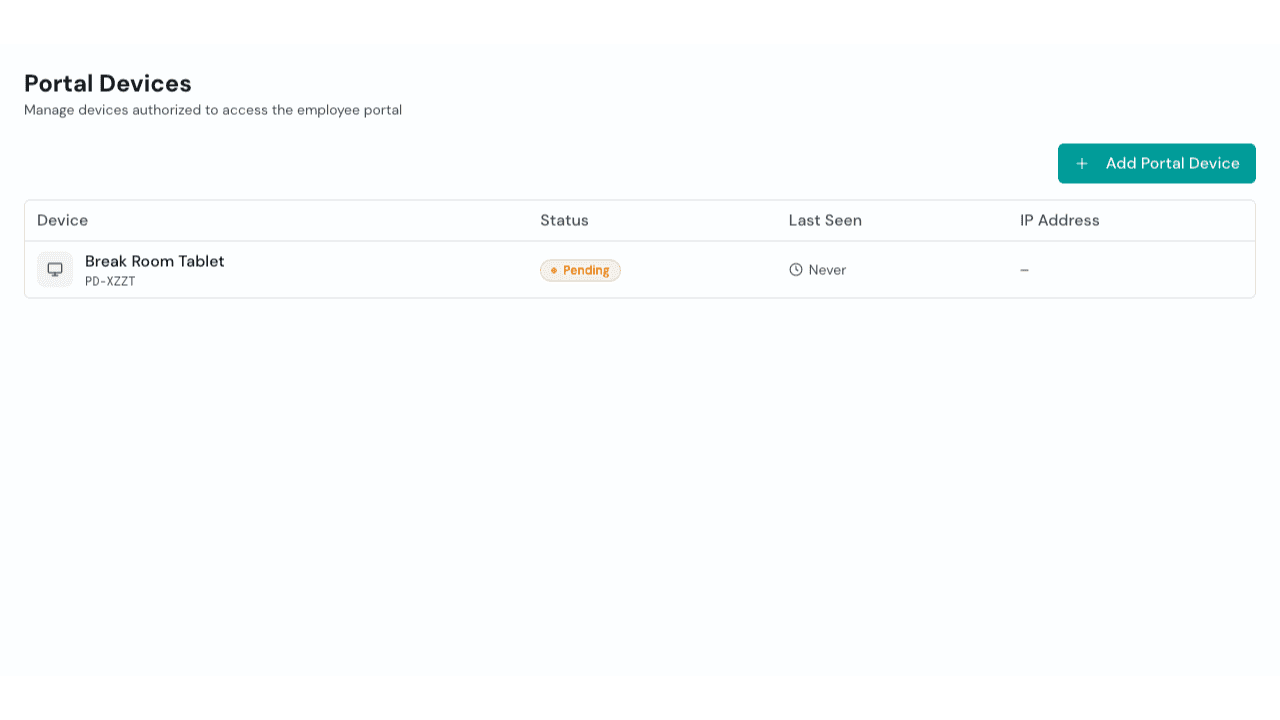
You share a portal link with your team so they can check their schedules and payslips on their own. That's the whole point of having an employee portal. Less "boss, when's my next shift?" and more self-service.
But that link works on any device. A staff member checks their payslip on a friend's phone and forgets to log out. Someone opens it at a computer shop. Payslips show salary, deductions, SSS numbers, personal info. That's data your team trusts you to protect.
If you want the portal to only work on devices you've approved, like your employees' personal phones or a shared tablet at the shop, you can now do that. Portal Device Lock lets you register specific devices. Only those devices can access the portal. Everyone else sees an activation screen they can't get past.
Step 1: Turn on Portal Device Lock
Go to Account Settings and open the Kiosk tab. Scroll down to the Portal Device Lock section and flip the "Require Device Activation" toggle on.
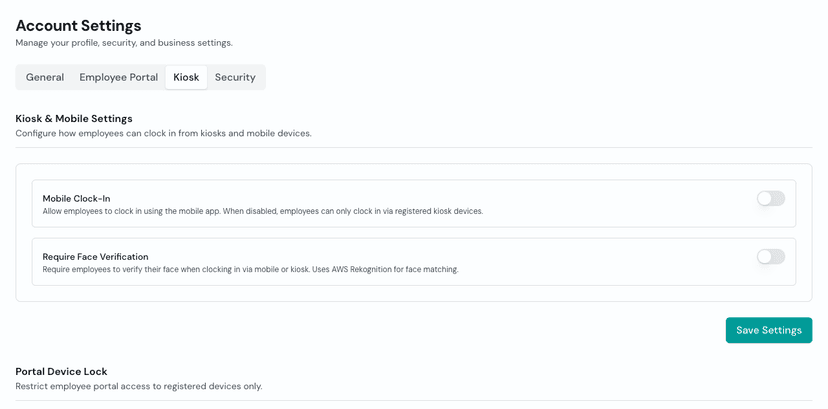
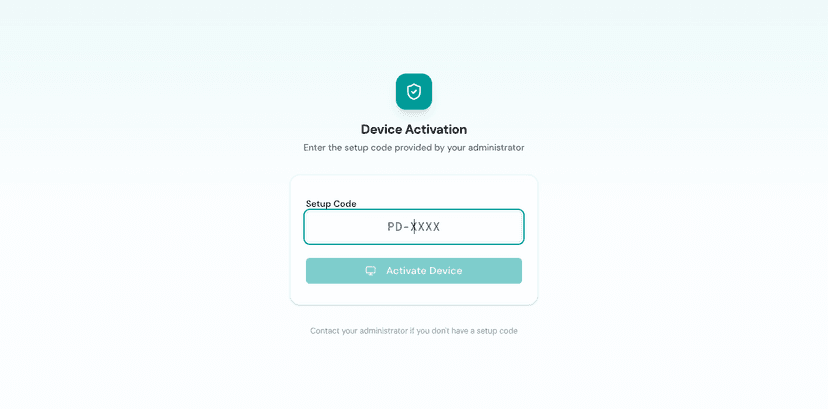
Once enabled, anyone who opens the portal on an unregistered device will see a Device Activation screen instead of the PIN login. They can't get to anything without a valid setup code.
Step 2: Add a portal device
Head to Portal Devices in your sidebar. Click Add Portal Device and give it a name. You can name it after the employee who'll use it, like "Juan's Phone" or "Maria's Tablet," so you always know which device belongs to who.
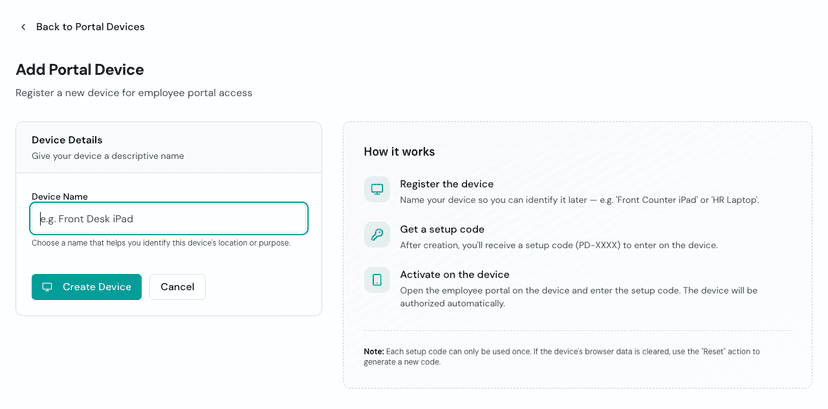
Timekeep creates the device and generates a one-time setup code (it looks like PD-XXXX). You'll use this code to activate the physical device in the next step.
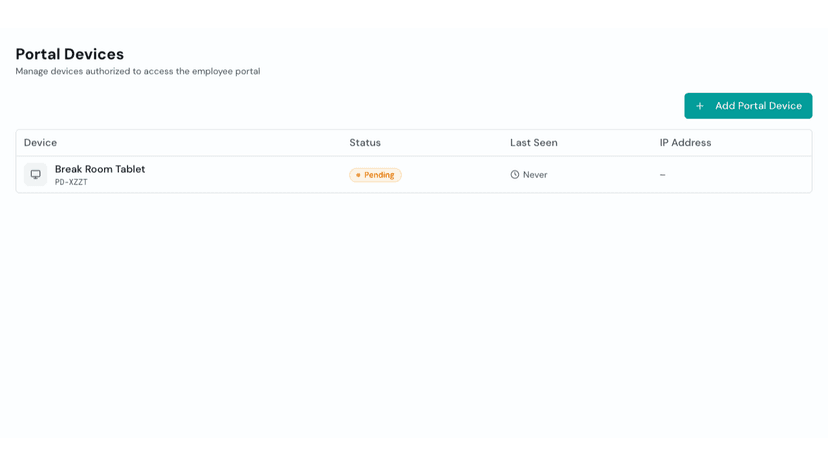
Step 3: Activate the device
Open the portal URL on the device you want to register. Since device lock is enabled, you'll see the Device Activation form instead of the normal PIN login.
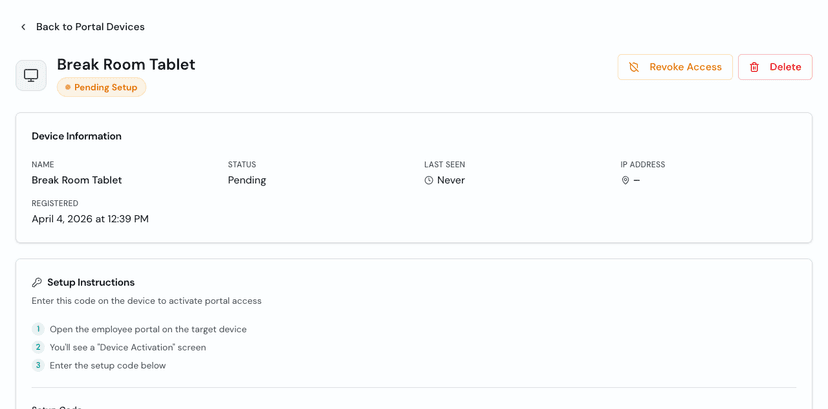
Enter the setup code from the device detail page. The code works once. After activation, that device is registered and the code is cleared.
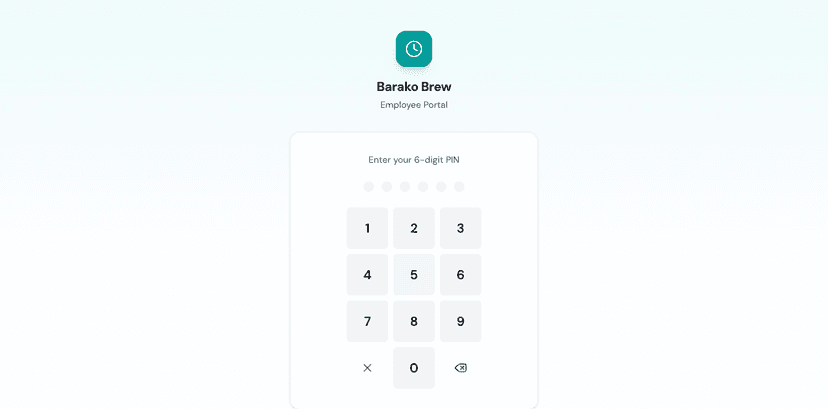
From then on, that device goes straight to the PIN login like normal. Your team uses it to clock in, check schedules, and view payslips, just like before. The only difference is that the portal now only works here.
Managing your devices
Once a device is registered, you have three options from the device detail page:
Revoke cuts off access immediately. The device can no longer reach the portal. Use this if a device is lost, stolen, or compromised. You can revoke first, ask questions later.
Reset generates a new setup code so you can re-activate the device. This is useful if someone cleared the browser data, or if you swapped hardware but want to keep the same device record.
Delete removes the device record entirely. If you no longer need it, clean it up.
Your team's data, on your terms
Portal Device Lock is about taking care of your people. Your employees trust you with their personal information. Their payslips, their schedules, their leave balances. Keeping that data on devices you manage is how you protect that trust.
It takes five minutes to set up. Register a device, enter a code, done. Your team won't notice a difference in how they use the portal. But you'll know their data isn't floating around on random phones and public computers.
Try it free for 30 days at timekeep.ph.