
How to manage leave requests and balances in Timekeep
Handle leave requests, track vacation and sick leave balances, and approve or decline requests from your dashboard. No group chat threads needed.
Apr 4, 2026 / 4 min read
It usually starts with a text. "Boss, pwede ba mag-leave next week?" You reply asking for the dates. They send the dates. You check if those days are covered. You say okay. A week passes and you've forgotten to note it anywhere. Payroll time comes and you're trying to remember which days they were out and whether they were on leave or just absent.
Or there's the version where the group chat becomes the leave request system. Fifteen messages between the request and the approval, buried in between updates about supplies and shift reminders.
Timekeep gives your staff a way to file leave requests from their phone and gives you a dashboard where you approve or decline with one tap. Both sides see exactly what's been requested, approved, and remaining.
What is leave management in Timekeep?
Leave management in Timekeep covers three things: setting how many Vacation and Sick days you offer, handling requests from your team, and tracking each policy's balance. Your staff file requests through the employee portal. You review and act on them from the admin dashboard. Every approved leave is reflected in payroll automatically.
Setting up leave
Open Payroll Settings and scroll to Leave. Set the days per year for Vacation and for Sick. Those days accrue through the year, and each policy keeps its own balance. For example, 10 vacation days and 5 sick days is a common starting point for small businesses.
When employees file a leave request, they pick Vacation or Sick. Approved days come off that policy's balance, not a shared pool.
How your team files leave requests
Your staff open the employee portal on their phone and go to the Leaves section. They can see their available balance and submit a new request.
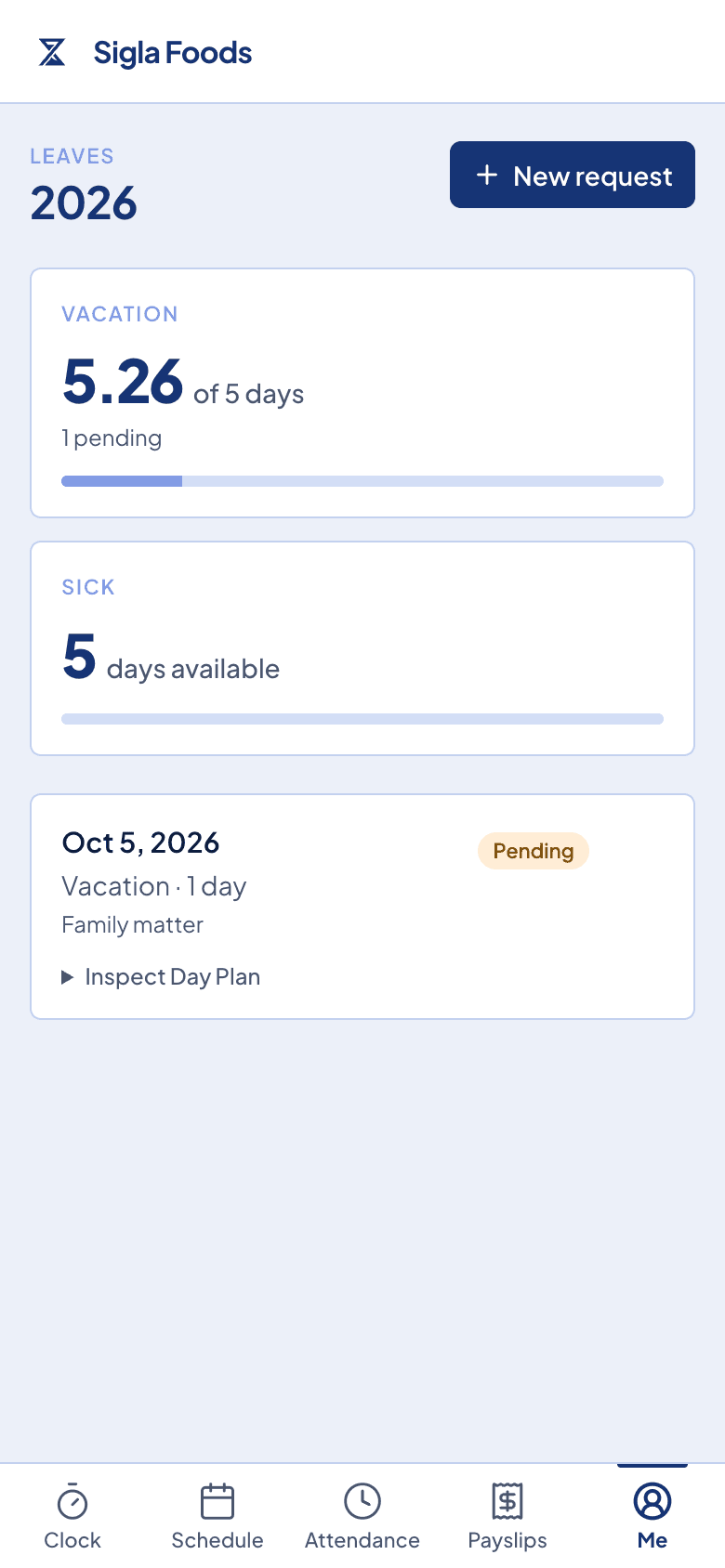
To file a request, they pick the leave policy, select the start and end dates, and optionally add a reason. The request is submitted and you're notified.
No group chat thread. No follow-up messages. One form, one submission.
How you approve or decline
In your Timekeep dashboard, go to Leaves. You'll see all pending requests from your team with the employee name, leave policy, dates, and reason if provided.
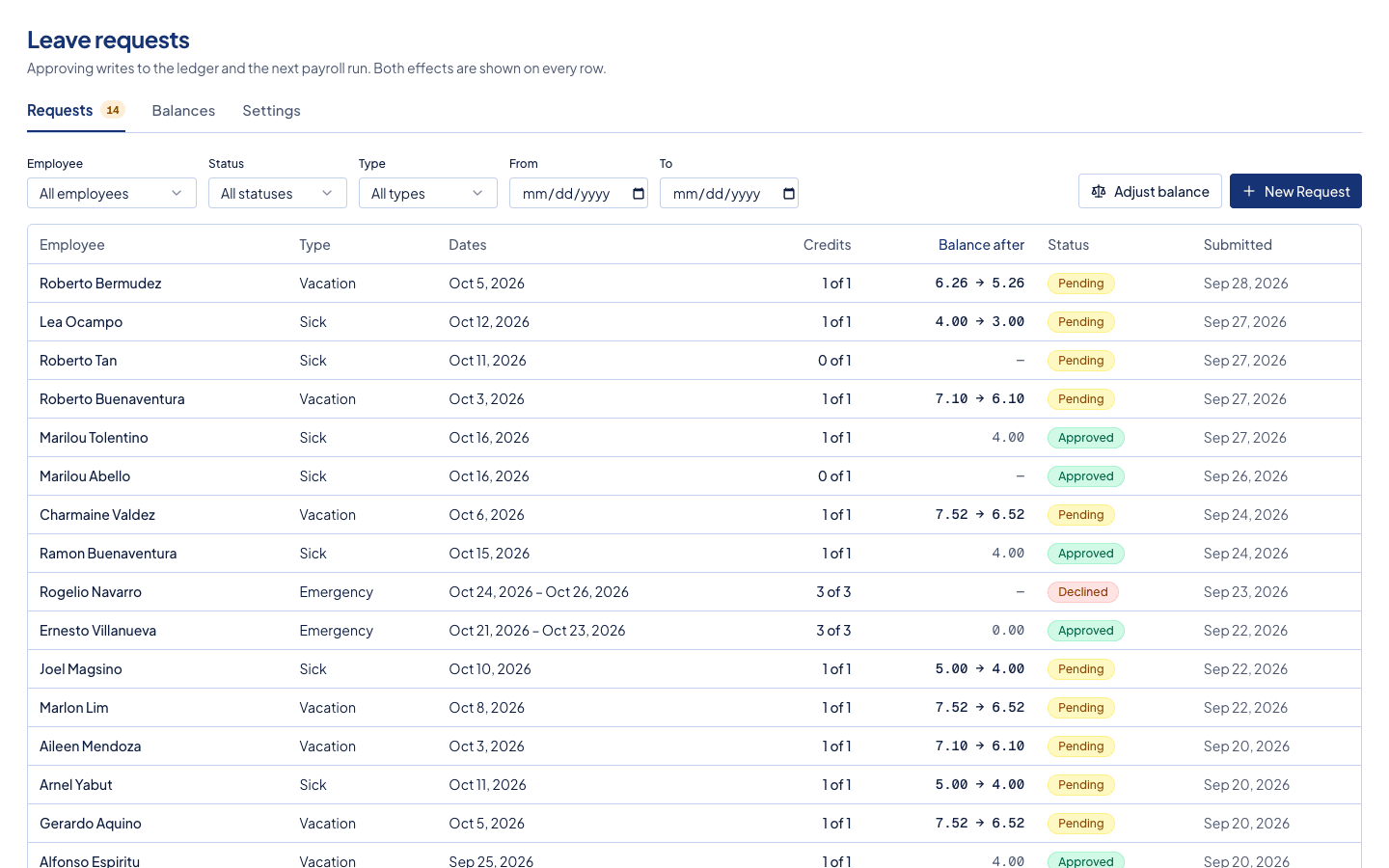
Approve or decline with one tap. The employee sees the updated status immediately in their portal. If you decline, they see the request marked as declined.
Approved leave days are blocked on the schedule so you can see coverage at a glance. If someone is on leave on a day they were scheduled to work, it shows in the schedule view.
Leave balances
Each employee's leave balance is tracked automatically. When a request is approved, the days are deducted from their balance. They can see their remaining balance in the portal at any time.
The balance view shows, per policy: days credited, days used, days pending approval, and days remaining. Your staff know exactly where they stand without asking you.
You can see the same summary from the admin dashboard, per employee, for any year.
Leave days in payroll
When you run payroll for a cutoff period, approved leave days in that period appear as a line item on the payslip. Leave days are paid at the employee's daily rate. The payslip shows the number of leave days and the amount added to their gross pay.
If a staff member took 2 days of vacation leave in a cutoff, those 2 days are paid instead of counted as absent. The deduction for absence doesn't apply to approved leave.
Leaves and payroll
Approved leave days are paid at the employee's daily rate. Days where someone didn't clock in and didn't file leave simply have no attendance record, so no pay is generated for those days. The distinction matters: leave days add to the payslip, missing days don't.
The end of leave request chasing
Managing leaves in a group chat works until it doesn't. A thread gets buried. A request gets missed. You approve something verbally and forget to note it. The balance gets muddled.
When requests go through Timekeep, there's a record. You can see what was requested, what was approved, and what the current balance is. Your staff can see the same thing on their end. No one has to ask or remember. It's all there.
Try it free for 30 days at timekeep.ph.
Quick answers
Frequently asked questions
- What types of leave can I track in Timekeep?
- Vacation and Sick. Each policy has its own days for the year and its own balance. You set those days under Payroll Settings → Leave.
- How do employees file a leave request?
- Employees submit leave requests from the portal on their phone. They pick the leave policy, select the dates, add an optional reason, and submit. You get notified and can approve or decline from your dashboard.
- How is leave pay computed in the payslip?
- Approved leave days are paid at the employee's daily rate. When payroll is generated, leave days appear as a separate line item on the payslip.
- Can employees see how many leave days they have left?
- Yes. The portal shows each employee their leave balance: how many days were granted, how many have been used, and how many remain. They can check it any time without asking you.
- What happens to unused leave at the end of the year?
- Each policy keeps its own balance for the year. Credits accrue through the year from the annual days you set. A new year starts a new balance; unused days stay on last year's record.
Make the next payday the easy one.
Set up in an afternoon, run your first cutoff, and see every peso explained on the payslip.
30 days free, no credit card. Then ₱999 a month for up to 10 employees.