
Run your first payroll
Create a payroll run, check the payslips, lock it, and mark it paid.
Updated Sep 21, 2026
Before you start
A payroll run uses only the records already in Timekeep, so check these four things first.
- Everyone you are paying has a pay rate on their record in Staff.
- Schedules cover the dates you are paying for. Timekeep measures pay against the schedule.
- You have reviewed attendance for those dates in Attendance. Follow Review incomplete attendance before payroll to find days that still need work.
- Approved leave is recorded in Leaves. Overtime is approved with Approve OT in the actions menu of each attendance row.
Steps
Go to Payroll and click New Payroll.
Choose the Period, either Semi-monthly or Weekly.
For semi-monthly, choose the Cutoff, either 1st Cutoff or 2nd Cutoff. Timekeep then fills in Start Date and End Date. These are the attendance dates the run covers. For weekly, Start Date must be the first day of your payroll week, and End Date is locked to six days later.
Set the Payout Date, the day your staff actually get paid. Timekeep needs it before it can create the run. It is not an attendance date, so it often falls in the next month.
Choose who is included. Employee group starts at All active employees. Pick a saved group instead, or tick names in the list on the right. Save this selection as a new group keeps the same set of people for next time.
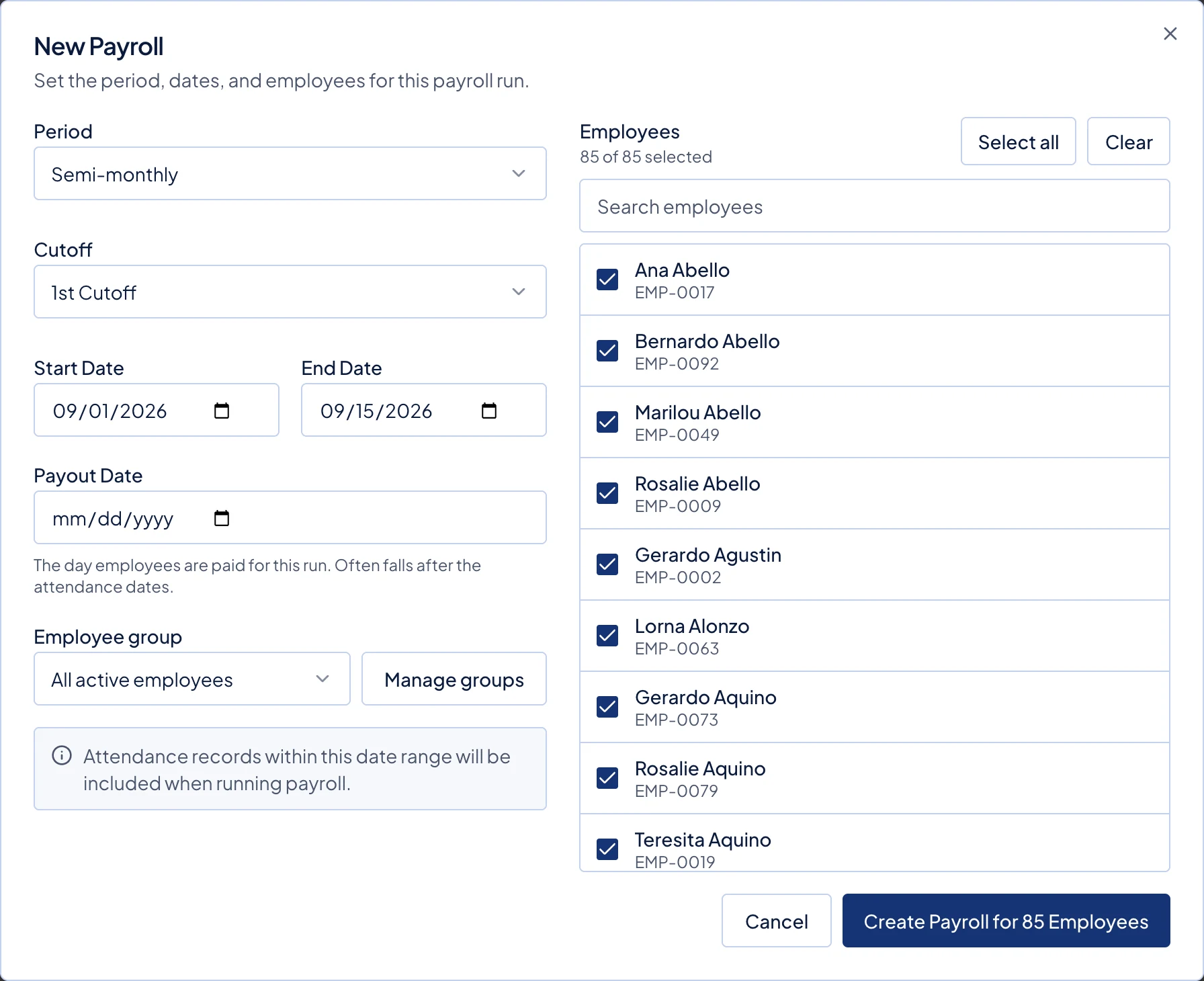
The New Payroll dialog. Attendance dates are on the left with the Payout Date below them, and the employee list is on the right. Click the create button. Its label shows how many people you picked, such as Create Payroll for 12 Employees.
Click Run Payroll. This step builds the payslips. If Incomplete attendance found appears, follow Review incomplete attendance before payroll, then come back and run it again.
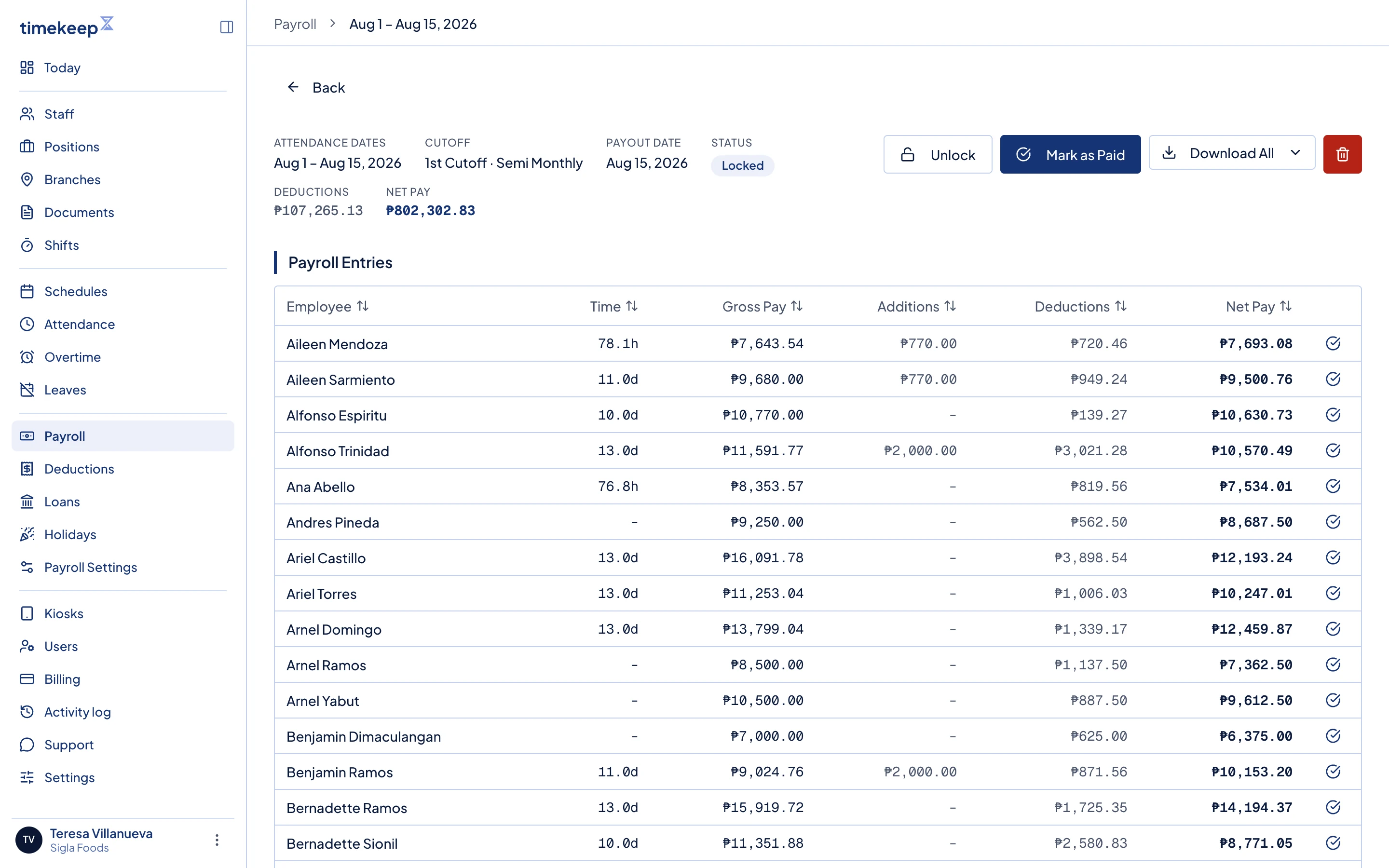
A draft payroll run. Run Payroll, Lock and Download All sit above Payroll Entries. Check the payslips. Payroll Entries lists Gross Pay, Additions, Deductions and Net Pay for each employee. Click a row to open the payslip, then use View Calculation if a figure surprises you. Add Earning and Add Deduction cover one-off items such as a bonus or cash advance.
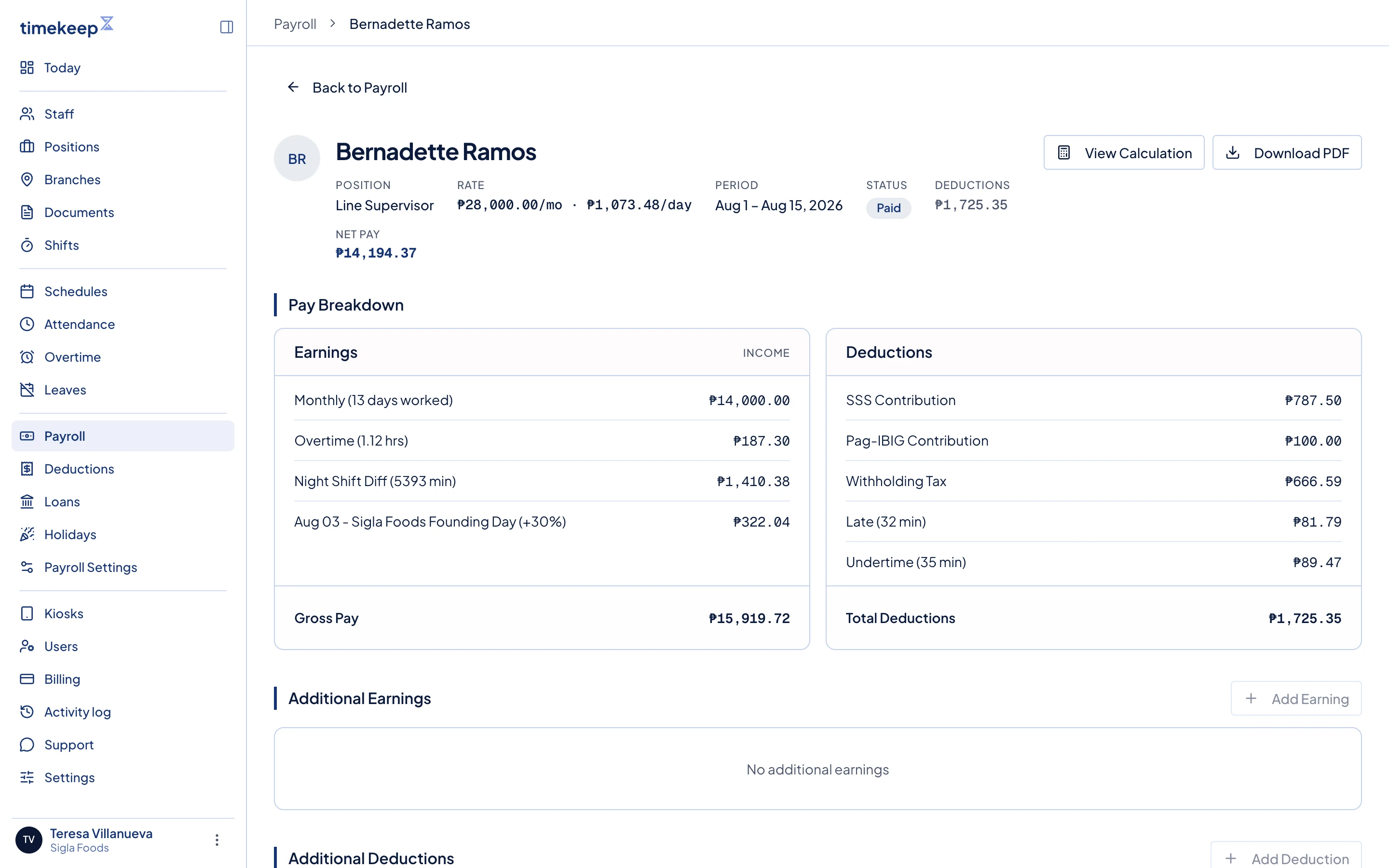
A payslip, with Earnings on the left and Deductions on the right. If a figure is wrong, follow Rerun a draft payroll after you correct its source record.
When the figures are right, click Lock. Then click Mark as Paid, tick I have reviewed all payslips and confirm this payroll is correct, and click Confirm. Read Lock and unlock a payroll run and Mark a payroll run paid before you do this for a real payout.
What happens next
A payroll run moves from Draft to Locked to Paid. Your staff can see their payslips once the run is locked. A paid run cannot be unlocked.
To download, click Download All and pick PDF (ZIP) or CSV. A single payslip has its own Download PDF button.
Employees see the payslip on the Payslips page of the portal as soon as the run is locked. They do not wait for it to be marked paid.
Common problems
- Run Payroll stops with a dialog. Follow Review incomplete attendance before payroll to find and correct the records.
- Someone is missing from the New Payroll list. It is usually the pay frequency. A weekly run lists only daily and hourly staff on weekly pay. A semi-monthly run leaves out anyone on weekly pay. Deactivated staff never appear.
- Mark as Paid is not there. The run must be locked first.
- A change is needed after paying. A paid run cannot be unlocked, so include the correction in a later payroll run.
Share Log in to the employee portal and View your payslips with your staff so they can find their payslips.