
Excuse late time or undertime
Mark recorded late or undertime minutes so they are not deducted in payroll.
Updated Sep 20, 2026
Before you start
Only the business owner can excuse attendance from this page. Use this when the recorded times are correct but the employee should not receive a deduction. Undertime means minutes short of the expected work time.
If a clock or break time is wrong, correct the attendance record instead. The excuse controls appear only when the row has late or undertime minutes.
Steps
Go to Attendance.
Set the date range and use the employee filter to find the record.
Open the menu at the end of the employee's row.
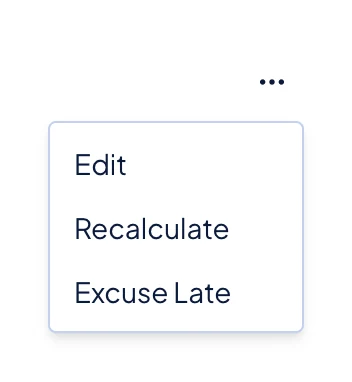
The attendance row menu. An excuse option appears below Edit and Recalculate when the record has minutes to excuse. Click Excuse Late or Excuse Undertime. If the record has both, open the menu again to excuse the other one.
What happens next
The minutes stay in the table, so you can still see what was recorded. Timekeep crosses them out and marks them as excused. It keeps the original clock times and calculated minutes. The next time Timekeep calculates payroll, it does not deduct the excused late or undertime.
This does not rewrite a payslip that already exists. If a payroll run already contains this attendance, review the run states in Run your first payroll before you recalculate its payslips.
To reverse the decision, open the row menu and click Unexcuse Late or Unexcuse Undertime.
Common problems
- The excuse option is missing. It appears only when that record has more than zero late or undertime minutes. Only the business owner can see it.
- The minutes themselves are wrong. Correct the times or recalculate the attendance rather than excusing it.