
Find and read attendance records
Filter the Attendance page, read each column and badge, and open a record's details.
Updated Oct 9, 2026
Attendance lists every clock-in session your staff recorded, newest first. Each row is one session, from clock-in to clock-out, with its breaks and the minutes Timekeep worked out against the schedule.
Before you start
- Owners, managers, supervisors and schedulers can open Attendance. If you turned on Restrict supervisors to assigned employees in Settings, a supervisor sees only their own team.
- Late, overtime and undertime need a schedule for that day. See Create shifts and schedules.
Steps
Go to Attendance. The page opens on this week, from Monday to today.
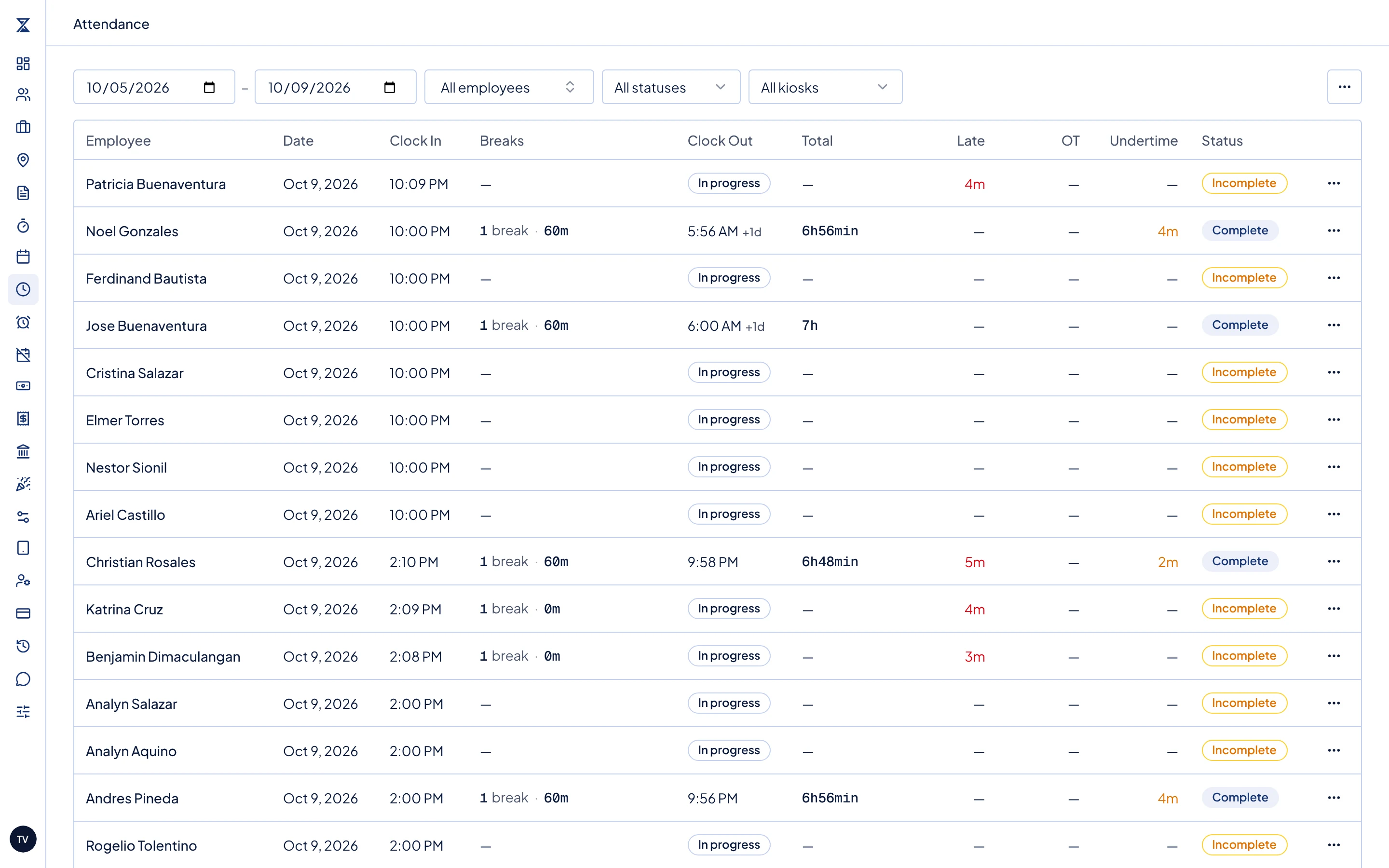
The Attendance page with the date, employee, status and kiosk filters above the table. Use the filters above the table:
- The two dates set the range. A record belongs to the date of its clock-in.
- All employees opens a list where you tick one or more people. Search by name, or use Select all and Clear. The table updates when you close the list.
- All statuses narrows the table to Complete, Incomplete or With OT records.
- All kiosks shows only punches from one kiosk. It appears only when your business has a kiosk.
The columns are Employee, Date, Clock In, Breaks, Clock Out, Total, Late, OT, Undertime and Status:
- Clock In and Clock Out are the punch times. "+1d" means the time fell on the next day, as on an overnight shift. In progress means the person has not clocked out yet.
- Breaks shows how many breaks and their total minutes.
- Total is the time from clock-in to clock-out, minus breaks. Only finished breaks are subtracted, and Total is blank until the person clocks out.
- Late (red) and Undertime (amber) are minutes counted against the schedule. Undertime means leaving before the shift ended. A crossed-out number has been excused.
- OT is overtime. Green means it is approved. Amber means it is not approved yet.
- Status is Complete when the record has a clock-out, and Incomplete when it does not. Staff with Full Day Clock In turned on (a setting on the employee that counts one clock-in as a full day, with no clock-out needed) show Complete from their clock-in alone.
Check the Total row at the bottom. It adds up breaks, worked time, late, overtime and undertime for the rows shown in the table (at most 500). The CSV export covers the same rows.
Click a row to open Attendance Details.
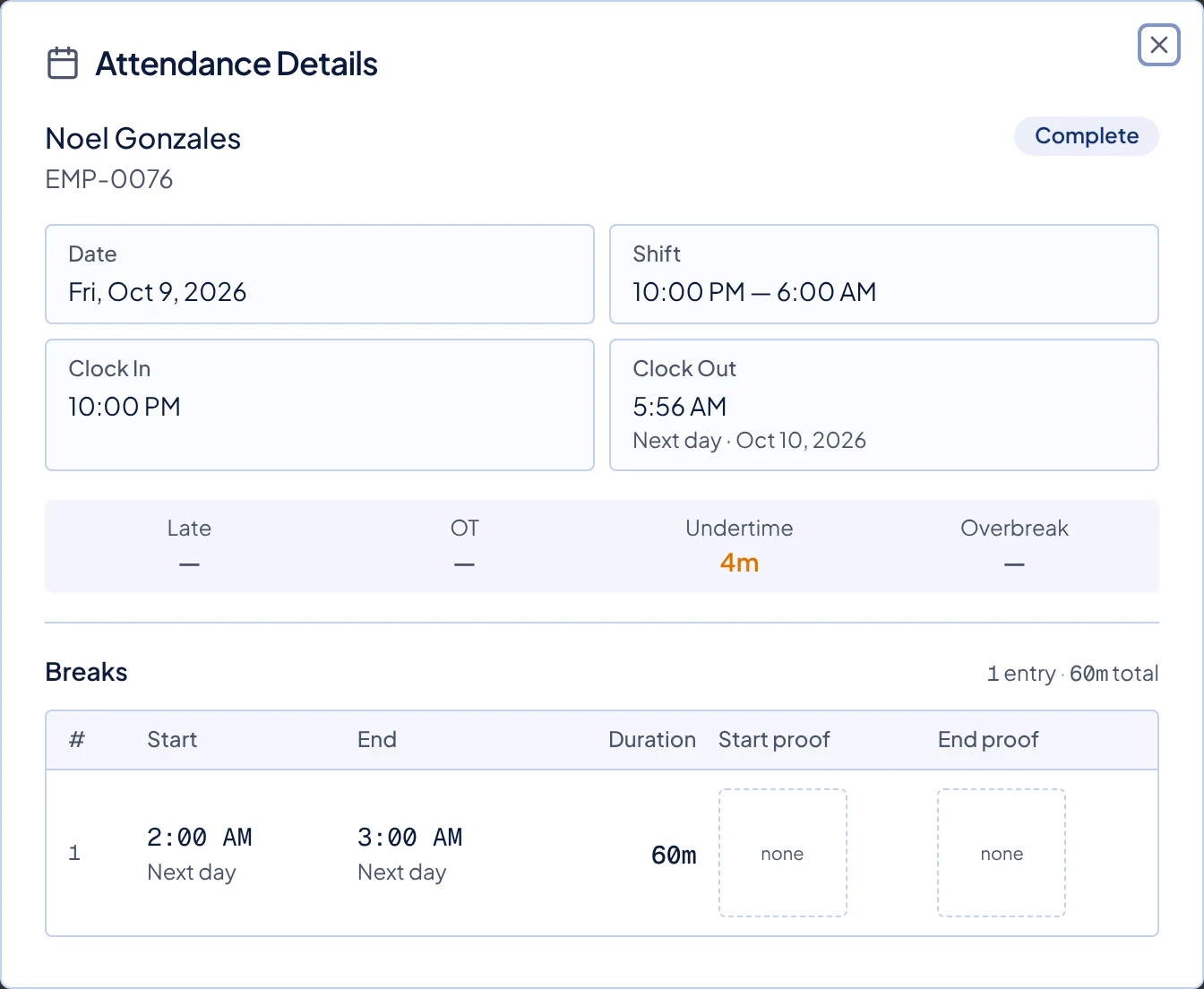
Attendance Details for an overnight shift, with the shift, punch times, minutes and breaks. Read the details:
- Shift shows the scheduled times, "Rest day", or "No linked schedule".
- After clock-out, the strip under the times shows Late, OT, Undertime and Overbreak, which is break time past what the schedule allows.
- OT Approved or OT Pending appears beside the status when the record has overtime.
- Breaks lists each break with its start, end and duration. Start proof and End proof show the photo taken at that punch, or "none".
- Clock photos appears when the kiosk or phone took a photo. Click it to see the clock-in and clock-out photos. The percentage on a photo is its face match score. It is a guide, not proof of who clocked in, so look at the photo too. Punches made on a kiosk while it was offline have a photo but no percentage. Click a photo to enlarge it.
- View location appears only when the punch captured coordinates, such as a clock-in from a phone. Click it to open the punch location on a map.
What happens next
This page is where you fix records too. The menu at the end of a row holds the actions your role allows. See Correct an attendance record, Excuse late time or undertime and Approve or decline overtime requests. To record a punch that never happened, add a missing attendance entry.
Common problems
The table says No attendance records. Nobody clocked in within the dates and filters you chose. Widen the date range, or set the other filters back to All employees, All statuses and All kiosks.
Late, OT and Undertime are empty for a record. The record probably has no linked schedule, so Timekeep has nothing to compare with. Open the record and check Shift.
Someone is missing from the employee filter. The list shows active staff only. Deactivated staff do not appear in it.
A record or day I expect is missing. The page shows at most the 500 newest records in your filters. Narrow the dates or pick fewer employees until you see fewer than 500 rows. The Total row covers only the rows shown.
I need the records of someone I deactivated. Their records are kept. Leave the employee filter on All employees, set the dates around the time they worked, and look for their name in the Employee column. They do not appear in the employee list itself.