
Edit an employee
Change an employee's details, pay, government numbers and payroll switches from their page in Staff.
Updated Oct 9, 2026
Before you start
You must be an owner, manager or supervisor. A supervisor can change personal details, government numbers, Shift Mode and Mobile Clock-In. A supervisor cannot change pay, deductions, Full Day Clock In, Holiday Pay or Night Shift Differential. If your business limits supervisors to their assigned employees, a supervisor sees only those employees.
Steps
Go to Staff and click the employee's row. Their page opens with their photo, employee number and PIN at the top.
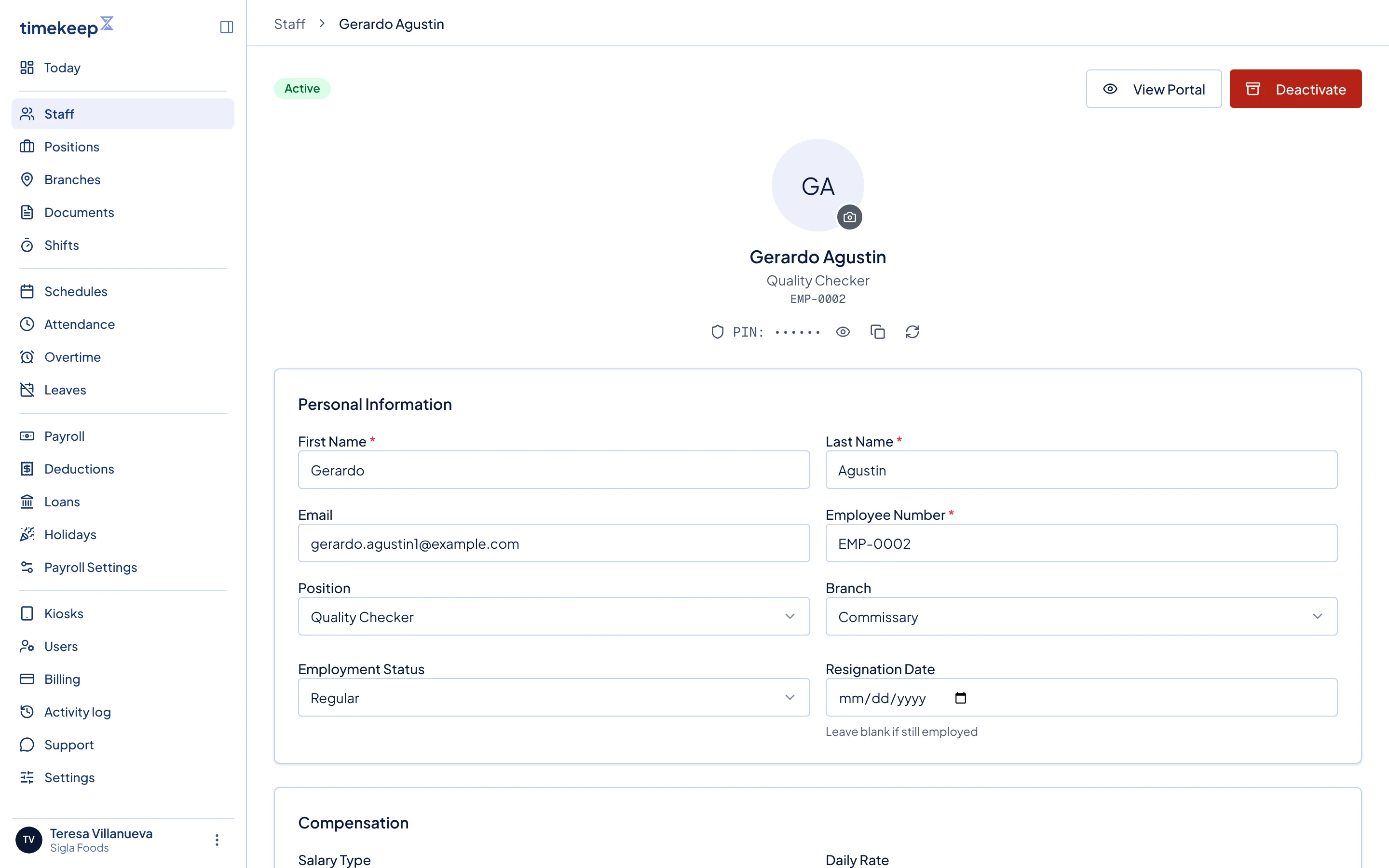
The top of an employee's page, with the Personal Information and Compensation cards. In Personal Information, change the name, Email, Employee Number, Position, Branch or Employment Status. Leave Resignation Date blank while the person still works for you.
In Compensation, change the Salary Type, the rate, or the Pay Frequency. The rate fields change with the salary type, as explained in Add your staff.
In Government IDs, type the SSS Number, PhilHealth Number, Pag-IBIG Number and TIN.
In Deductions, choose the Government Contribution Schedule, the cutoff that SSS, PhilHealth and Pag-IBIG are taken from. Use Company Default follows Payroll Settings. Then turn each contribution and Withholding Tax on or off. A contribution that is on takes an optional fixed monthly amount, used in place of the computed one.
In Settings, check the switches:
- Shift Mode decides how long a full day is for this person.
- Full Day Clock In shows for Daily and Monthly employees only. It counts one clock-in as a full day, with no clock-out needed.
- Holiday Pay and Night Shift Differential add holiday pay and the extra pay for work between 10pm and 6am.
- Mobile Clock-In lets this person clock in from the employee portal.
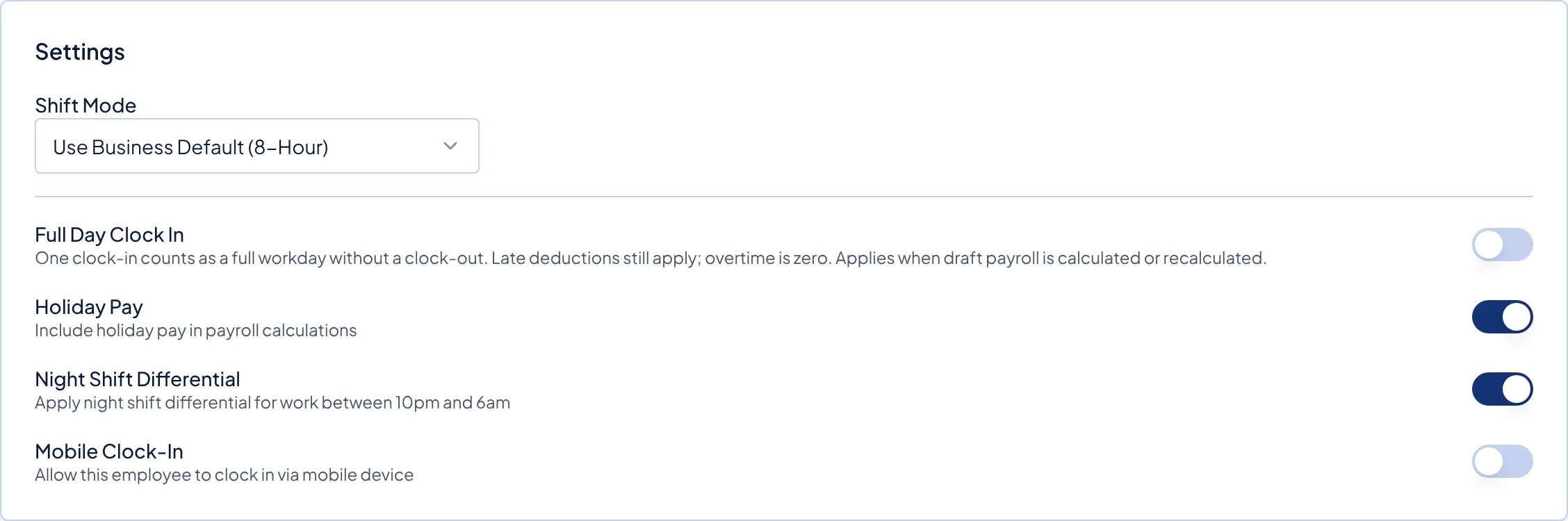
The Settings card, with Shift Mode at the top and the switches below it. A Save Changes bar appears at the bottom of the screen once you change anything. Click Save Changes. The message "Changes saved" shows.
The Allowances and Leaves cards further down are not part of this form.
What happens next
Timekeep uses the new details the next time a payroll run is generated. If a draft run already covers this employee, follow Rerun a draft payroll to update it. Locked and paid runs keep their figures. Each change is recorded in the Activity log.
Common problems
- Pay Frequency is greyed out. Fixed Semi-Monthly and Monthly employees stay on the two cutoffs. Only Daily and Hourly employees can be paid Weekly.
- Mobile Clock-In is greyed out. It stays greyed out until an owner turns on Mobile clock-in in the Kiosk card in Settings.
- It says "Employee number already exists for this business". Another employee, possibly a deactivated one, already has that number. Choose a different number.
- I changed the Salary Type on someone who was already paid. Paid and locked runs keep their old figures. Only the next generated run, or a draft you rerun, uses the new type.