
Turn on face verification
Add a photo to an employee. Then the kiosk and the portal compare the face of the employee with the photo at each punch.
Updated Oct 6, 2026
There is no switch for face verification in Settings. Face verification starts for an employee when you upload a photo of that employee. An employee without a photo clocks in with a 6-digit PIN.
A punch is one clock-in, break or clock-out action.
Before you start
- You must have the owner, manager or supervisor role. Other roles cannot see the camera button.
- Get a clear photo of the employee. The photo must:
- Show the face from the front.
- Show only that employee.
- Have good light.
- Timekeep compares the face at each punch with this photo. A bad photo causes failed matches.
- Use a JPEG, PNG or WebP file. The file must be smaller than 4MB.
- The kiosk must have a camera. For the portal, the employee must have a phone with a camera.
Steps
Go to Staff.
Open the employee.
Click the camera button on the corner of the photo. The Upload Photo window opens.

The camera button on the corner of the staff photo, at the top of the staff page. Click the dashed box.
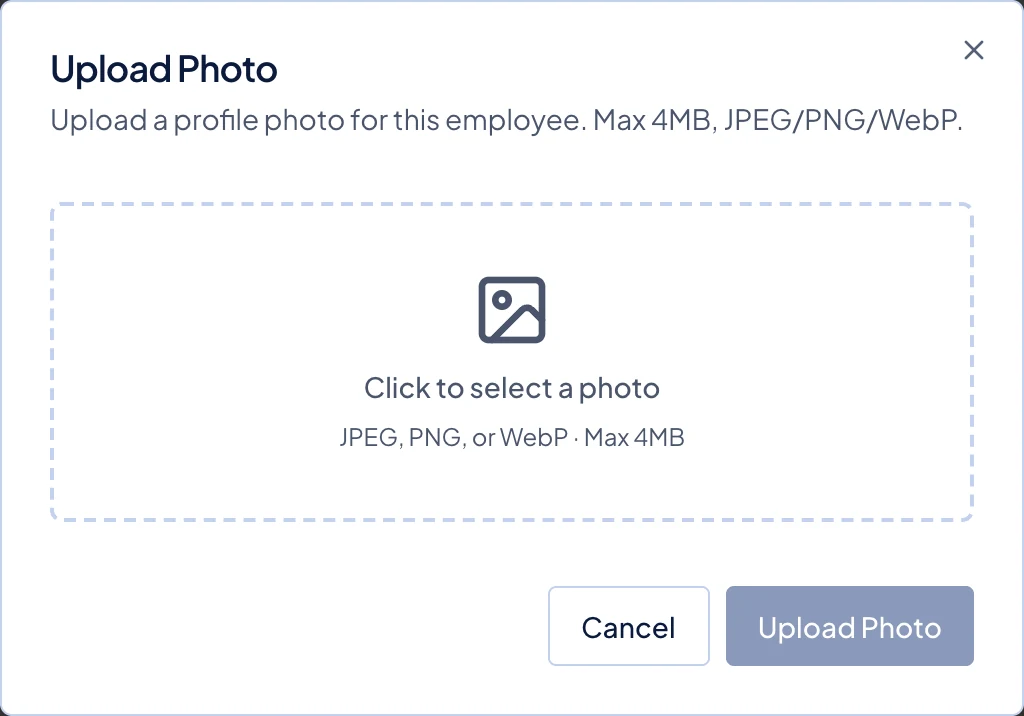
The Upload Photo window, before you select a file. Select the photo file. A round preview shows.
Click Upload Photo. The message "Photo uploaded successfully." shows. Face verification is now on for this employee.
Do steps 1 to 6 again for each employee who must use face verification.
On the kiosk, tap the refresh button in the top bar. The kiosk gets the new photos immediately. If you do not tap the button, the kiosk gets the photos in approximately 30 seconds.
Test the kiosk with the employee. The employee taps their name, puts their face in the frame, and taps Capture.
Test the kiosk with a different face. Make sure that the kiosk does not accept it.
What happens next
At the kiosk, an employee with a photo sees the camera. The kiosk does not show the PIN pad. The employee taps Capture, and the kiosk compares the face with the photo. When the face matches, the employee can tap Clock In or a different punch. The employee has 3 attempts. After 3 attempts, the employee taps Try Again to start again.
When the kiosk shows Offline, it cannot compare faces. The employee taps Capture and then types the PIN. Give a PIN to each employee. Employees with a photo also need a PIN.
In the employee portal, an employee with a photo sees "A quick selfie is required to clock in." The selfie must match the photo. If the selfie does not match, Timekeep does not save the punch. Mobile clock-in must be on for the portal. See Set up a kiosk.
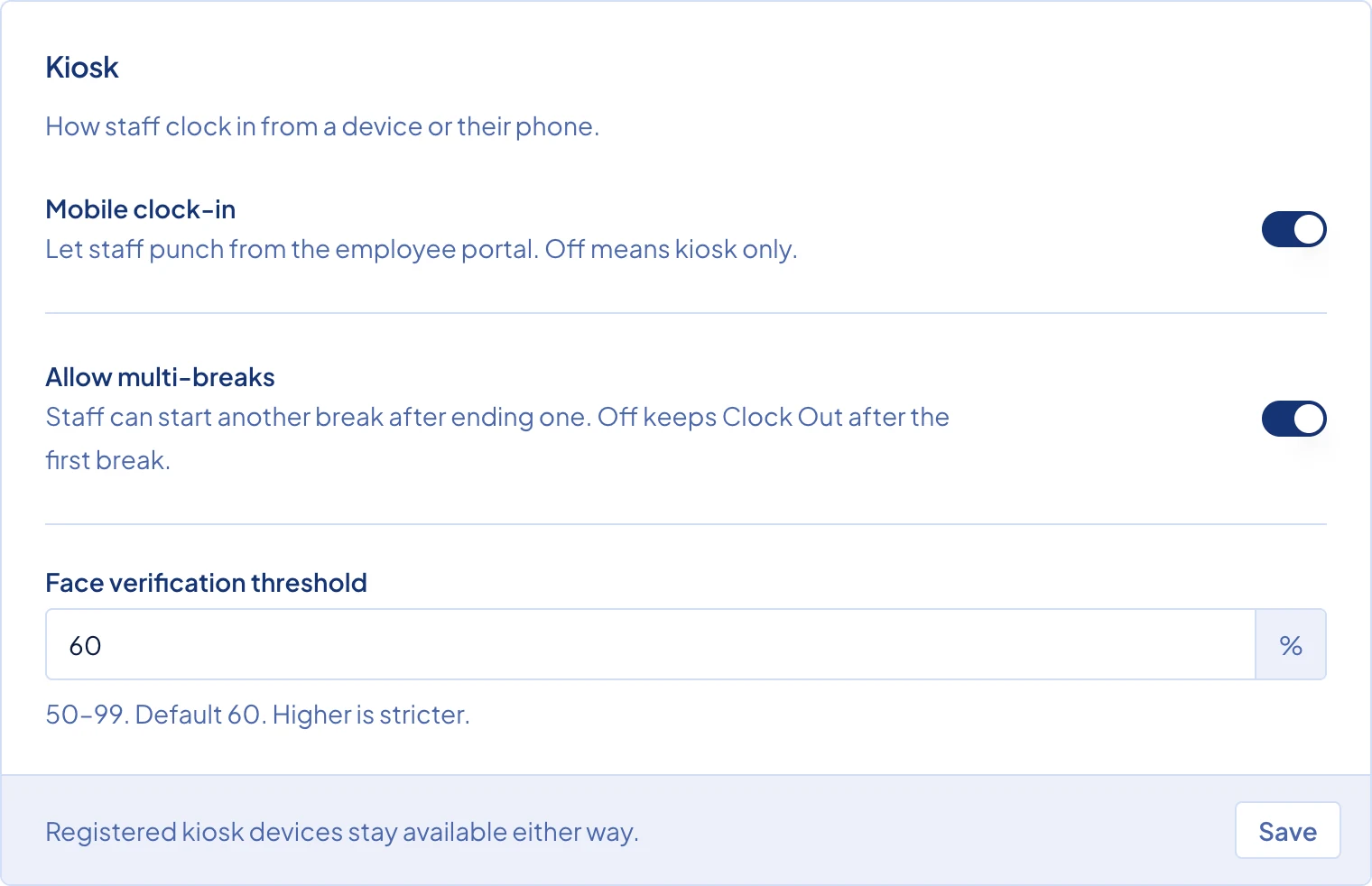
Owners can change how strict the face match is:
- Go to Settings.
- In the Kiosk card, type a number from 50 to 99 in Face verification threshold.
- Click Save.
The default is 60. A higher number makes the match stricter. A lower number makes the match less strict.
Common problems
- The kiosk asks for a PIN, not a face. The kiosk does not have the new photo. Tap the refresh button in the top bar. When the kiosk shows Offline, it always asks for a PIN.
- The kiosk says "Face not recognized after 3 attempts". Usually, the photo on file is the cause. The photo is dark, old, or shows the side of the face. Upload a better photo. If many employees cannot pass, make the Face verification threshold a little lower.
- The kiosk says "We couldn't verify using the photo on file." Timekeep cannot find a face in the photo. Upload a new photo that shows the face clearly.
- One employee cannot pass face verification. You can turn off face verification for that employee. Open the employee in Staff. Click the camera button. Click Remove Photo. The employee then clocks in with the PIN. To turn on face verification again, upload a new photo.