
Check how a payslip was calculated
Open View Calculation on a payslip to see the working behind each figure, then find and fix the record behind a figure that looks wrong.
Updated Oct 9, 2026
Before you start
You must be an owner, manager or supervisor. A bookkeeper can open payslips but does not see View Calculation.
The payroll run must already have payslips, which means someone has clicked Run Payroll on it.
Steps
Go to Payroll and click the payroll run in By Period.
In Payroll Entries, click the employee's row to open their payslip.
Click View Calculation at the top right, beside Download PDF.

A payslip header with View Calculation and Download PDF at the top right. Read Calculation Breakdown from top to bottom. The badge beside the title shows the salary type. Each line shows its working in the middle and the result on the right. On a phone-sized screen only the result is shown.
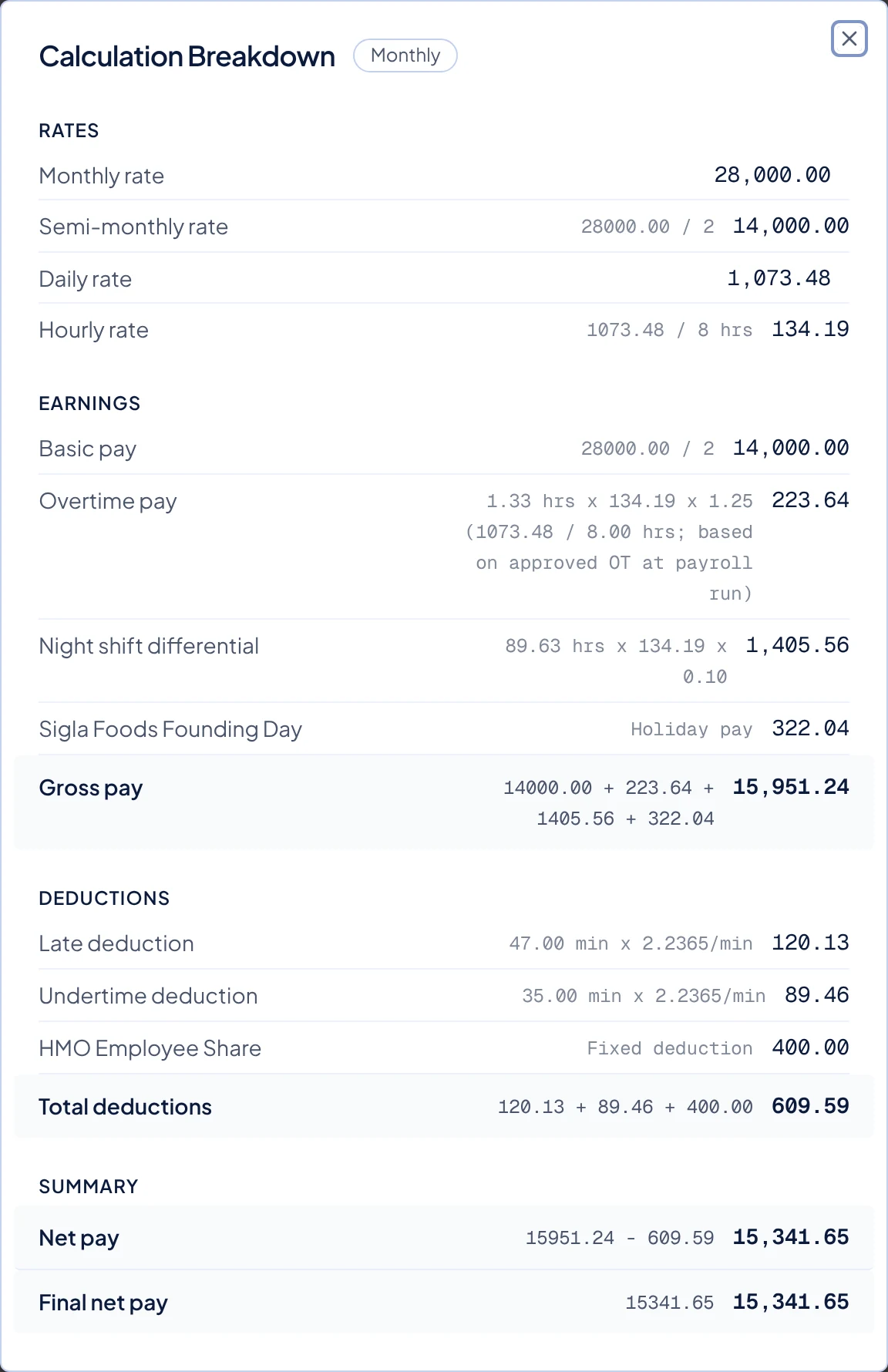
Calculation Breakdown for a monthly employee, from Rates down to Final net pay. - Rates shows the rates that were saved on the payslip when the payroll was run.
- Earnings shows Basic pay, then overtime, night shift differential and each holiday by name, then Gross pay. For a daily employee, the days in Basic pay include paid leave days. Taxable allowances count toward Gross pay but have no line here. You can find them in the Earnings card on the payslip.
- Deductions shows late, undertime, overbreak and absent deductions, government contributions, withholding tax, and loan and monthly deduction lines marked "Fixed deduction". Lines marked "Additional deduction" are not part of Total deductions.
- Summary shows Net pay, which is Gross pay minus Total deductions. Then additional earnings and allowances that are not taxed are added, and additional deductions are subtracted again from Net pay, to reach Final net pay.
Find the source of a wrong figure
Find the line that looks wrong, then correct the record it comes from:
- Days, minutes or hours in a line's working come from attendance. See Correct an attendance record, Add a missing attendance entry, Excuse late time or undertime or Approve or decline overtime requests.
- A rate under Rates comes from the employee's pay details. See Edit an employee.
- Leave days come from approved leave. See File a leave for an employee.
- A holiday line comes from your holiday list. See Set up your holidays.
- SSS, PhilHealth, Pag-IBIG and tax lines are explained in How government contributions and tax are taken.
- A "Fixed deduction" line comes from a loan or a monthly deduction. See Pause, cancel or delete a loan or Set when a monthly deduction starts and ends.
- Additional earnings and deductions are added on the payslip itself. See Add a one-off earning or deduction to a payslip.
To understand a formula rather than fix it, read How late, undertime and absences reduce pay or How overtime and night differential are paid.
What happens next
Additional earnings and deductions change the payslip as soon as you add them. Correcting any other record does not change a payslip that already exists. Follow Rerun a draft payroll to rebuild it, then open View Calculation again. A locked run must be unlocked first, as described in Lock and unlock a payroll run. A paid run cannot be rerun or edited.
Fix a mistake in a paid run
A paid run cannot change. To correct a mistake, add a one-off earning or deduction in the next payroll run. See Add a one-off earning or deduction to a payslip.