
Change or remove a schedule
Change one person's hours for a day, turn a day into a rest day, or delete a schedule, and see who changed it.
Updated Oct 9, 2026
Before you start
- You need the owner, manager, supervisor or scheduler role. Only these roles see Schedules in the sidebar.
- The schedule must already exist. To put people on the calendar for the first time, see Create shifts and schedules.
- Each day on the calendar is its own schedule, so you change one person on one day at a time.
Steps
Go to Schedules and find the day. Use the Month, Week and Day buttons in the row under the date to pick a view, and the arrows beside Today at the top left to move between dates. To see one person only, pick them in All employees.
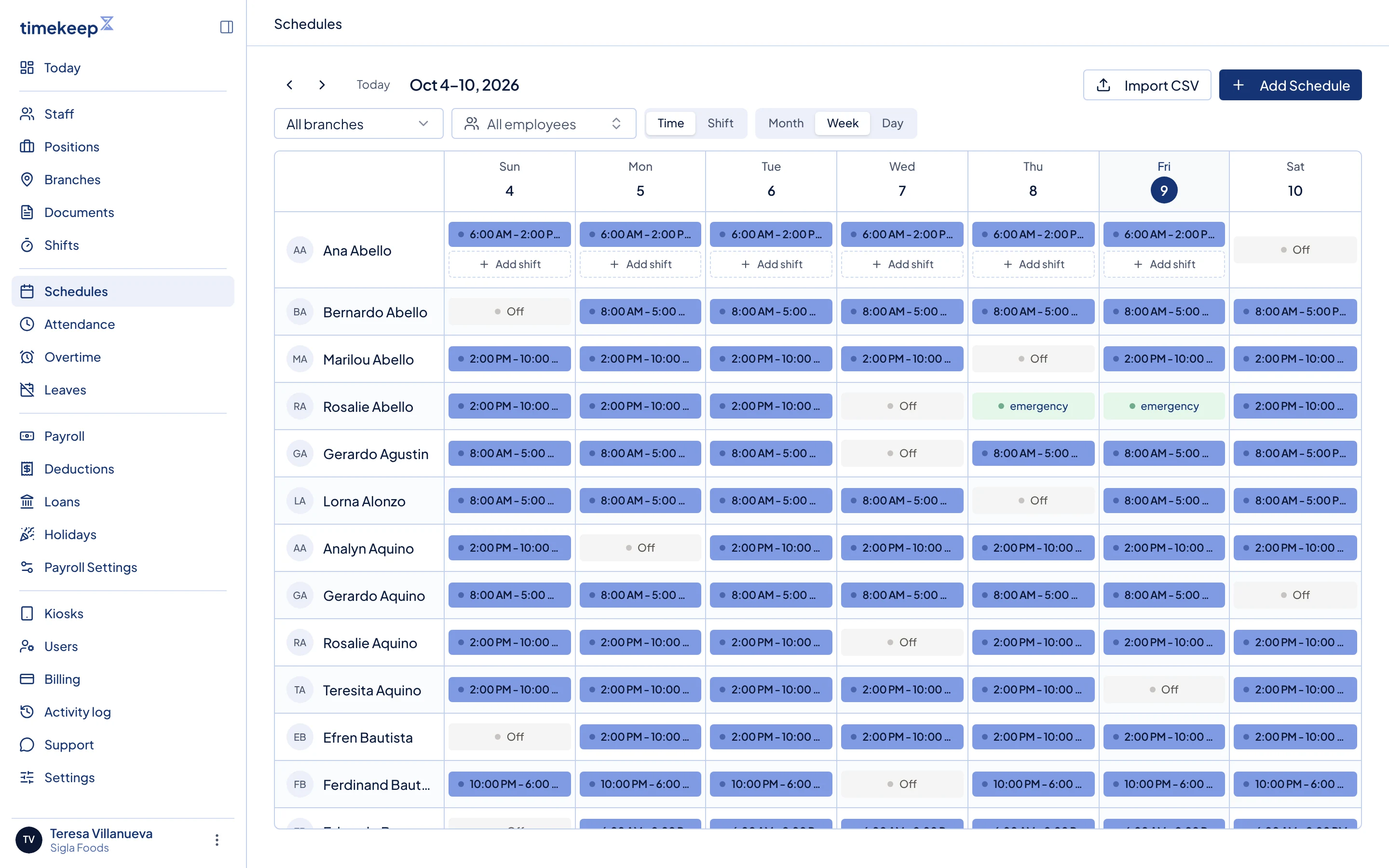
The Schedules calendar in week view, with one schedule for each person on each day. Click the person's schedule on that day. Edit Schedule opens, with the person's name and the date at the top.
Make the change you need.
- To change the hours, set Start Time and End Time. To copy the hours of a saved shift instead, pick it under Shift Template.
- Branch (optional) sets the branch shown on the person's schedule, if you use branches.
- Adjust Break Duration (minutes), or tick Fixed break time to set Break start and Break end.
- To make the day a rest day, turn on Rest day (off day). The time fields disappear.
- To make a rest day a working day, turn Rest day (off day) off and set the hours.
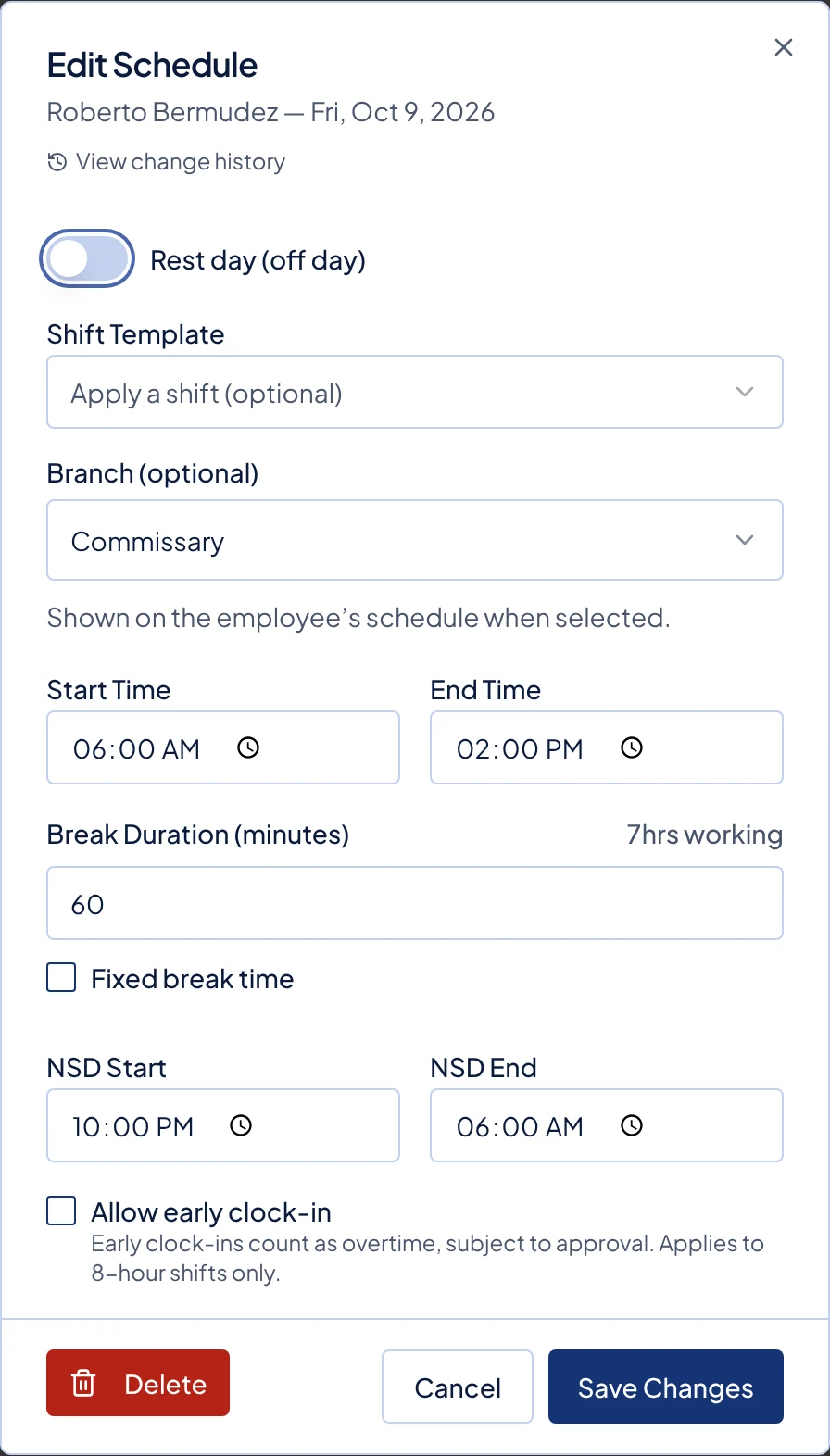
The Edit Schedule dialog, with Delete at the bottom left and Save Changes at the bottom right. Click Save Changes.
To remove the day instead, click Delete, then Delete again in Delete Schedule to confirm. This cannot be undone. The day is left with no schedule, which is different from a rest day.
What happens next
Timekeep works out attendance for that day again against the new hours, so late minutes, undertime and overtime follow the change. The message after you save says how many attendance records were recalculated, when any were.
Payroll runs you already created keep their figures. If the day falls inside a draft payroll run, follow Rerun a draft payroll so the payslips pick up the change.
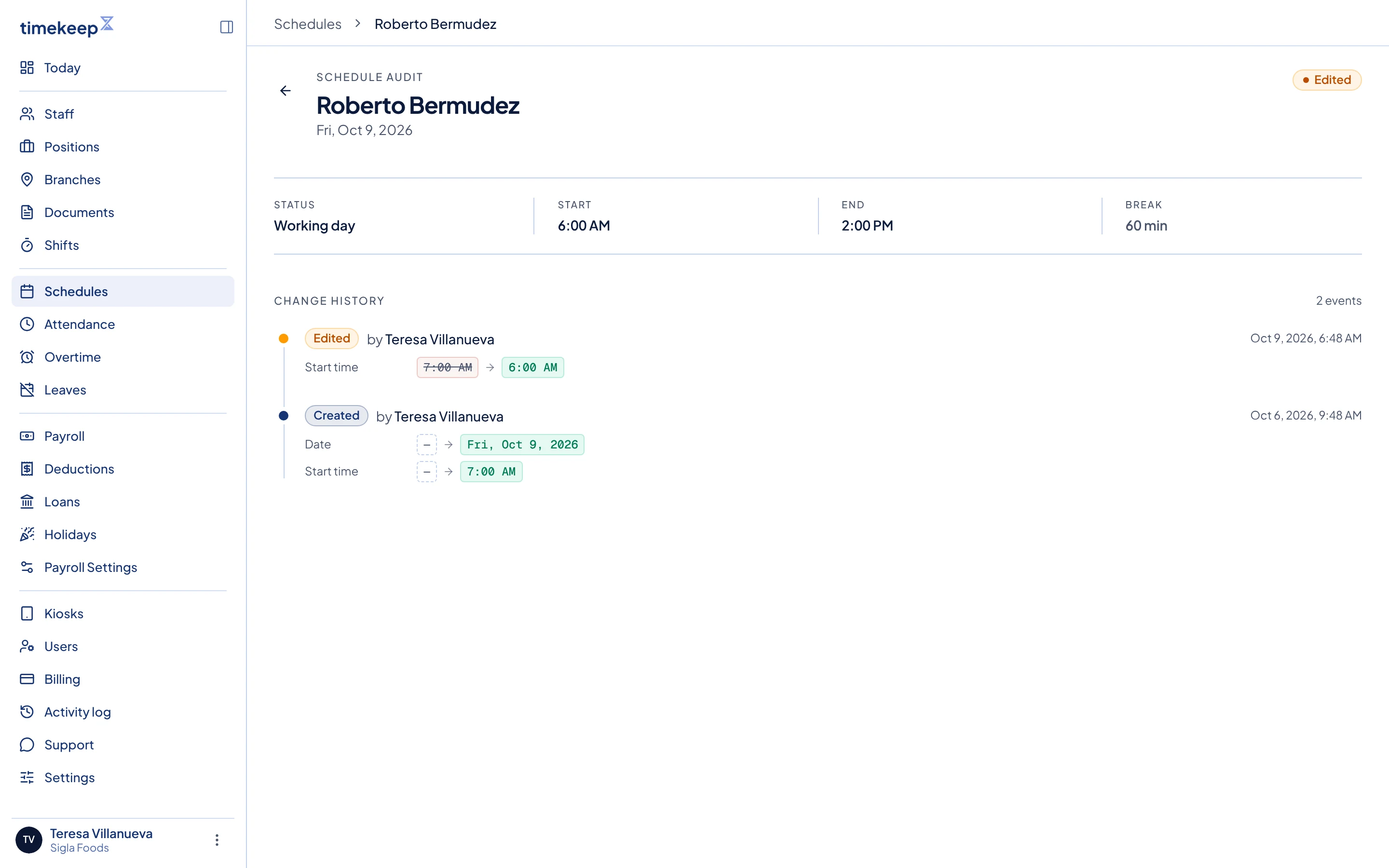
A schedule that was changed shows a small history button on the calendar. Click it, or View change history in Edit Schedule, to open its history. The page lists each change, who made it and when, with the old and new values.
Common problems
- I need to change many days at once. There is no bulk edit. Change each day in Edit Schedule. Adding a schedule over a day that already has one is refused, and an import skips those rows, so delete the old days first if you want to schedule them again with Add Schedule or Import CSV.
- Saving shows "A schedule already exists for employee on" a date, or "Schedule overlaps with existing schedule". The person already has another schedule on that day, or one that overlaps these hours. Change or delete the other one first.
- I changed a shift and the calendar stayed the same. Changing a shift in Shifts does not change schedules already made from it. Edit those days here, or pick the updated shift under Shift Template.