
Change your password and login
Update your name, sign-in email and password in Settings, and reset a forgotten password from the login page.
Updated Oct 9, 2026
This article is about your own dashboard login. Employees sign in to the portal with a 6-digit PIN instead, which you change for them in Staff.
Before you start
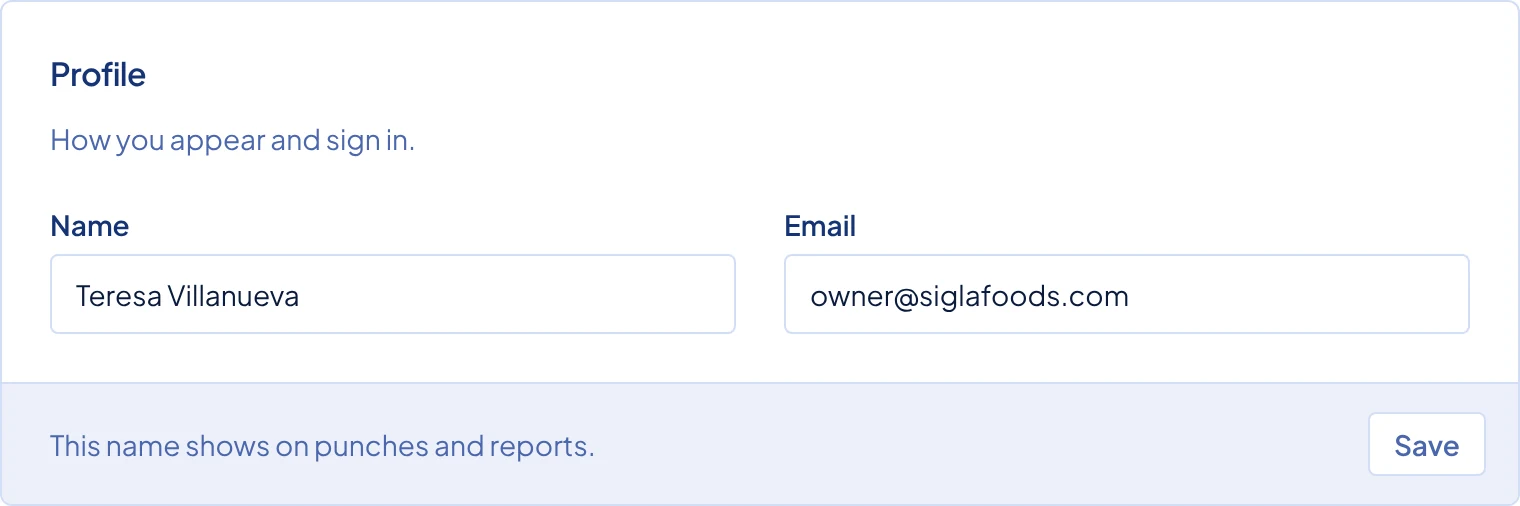
Every role can change their own name, email and password. Go to Settings, the last item in the sidebar. You see the Profile card at the top and the Security card at the bottom. The owner also sees the business cards between them, which Set up your business explains.
Steps
To change your name or sign-in email:
- Go to Settings.
- In the Profile card, change Name or Email. Your name shows on the dashboard and activity log.
- Click Save. The message "Profile updated." shows.
A new email takes effect at once, and you use it the next time you sign in. Timekeep does not send a confirmation email, so check the spelling before you click Save.
To change your password:
Go to Settings and scroll down to the Security card.
Type your Current password.
Type a New password of at least 8 characters. It must be different from your current password.
Type it again in Confirm new password. The eye button in each field shows what you typed.
Click Save. The message "Password changed." shows, and you stay signed in on this device.
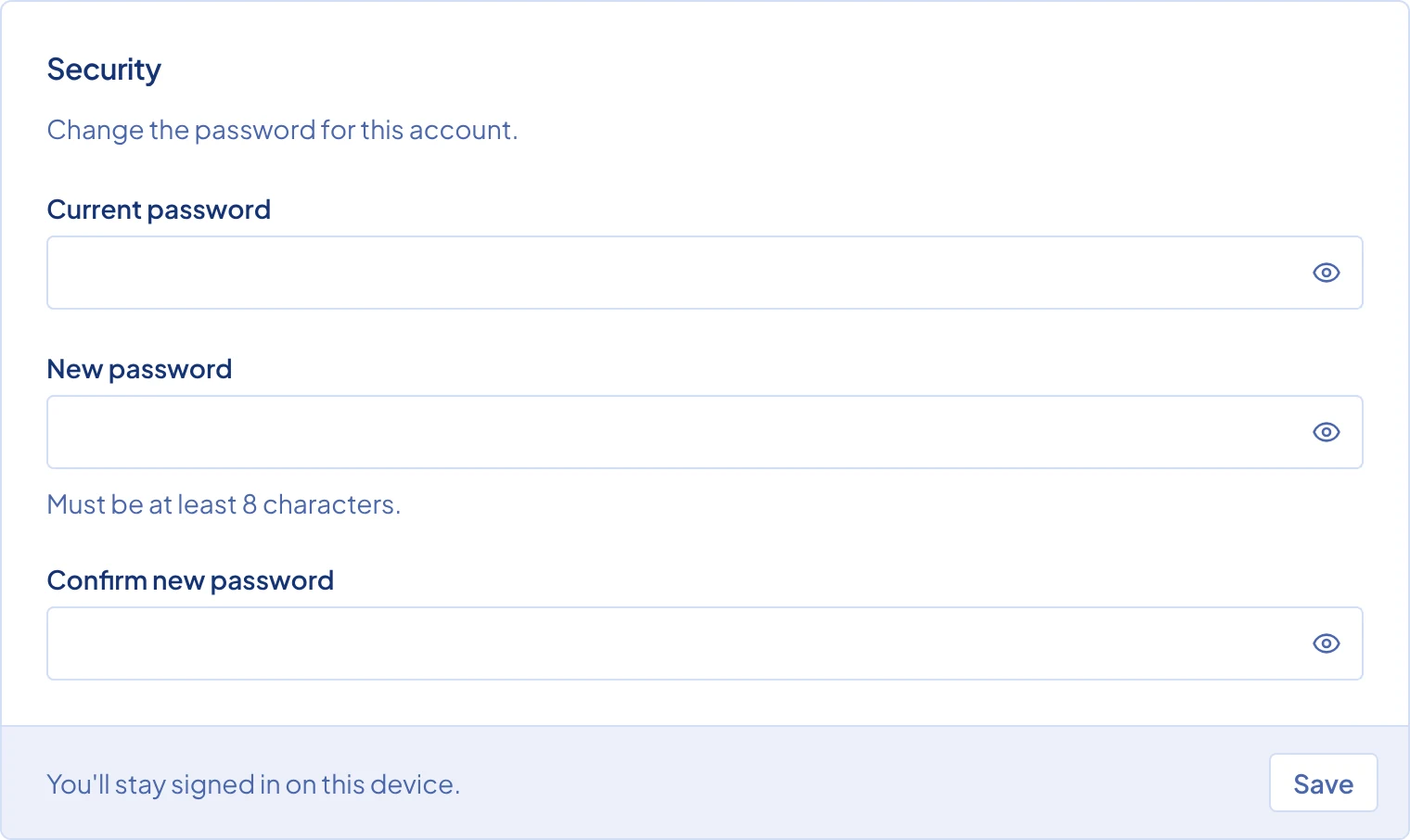
The Security card at the bottom of Settings, with the three password fields.
If you forgot your password:
On the login page, click Forgot your password?.
Type the email you sign in with and click Send reset link.
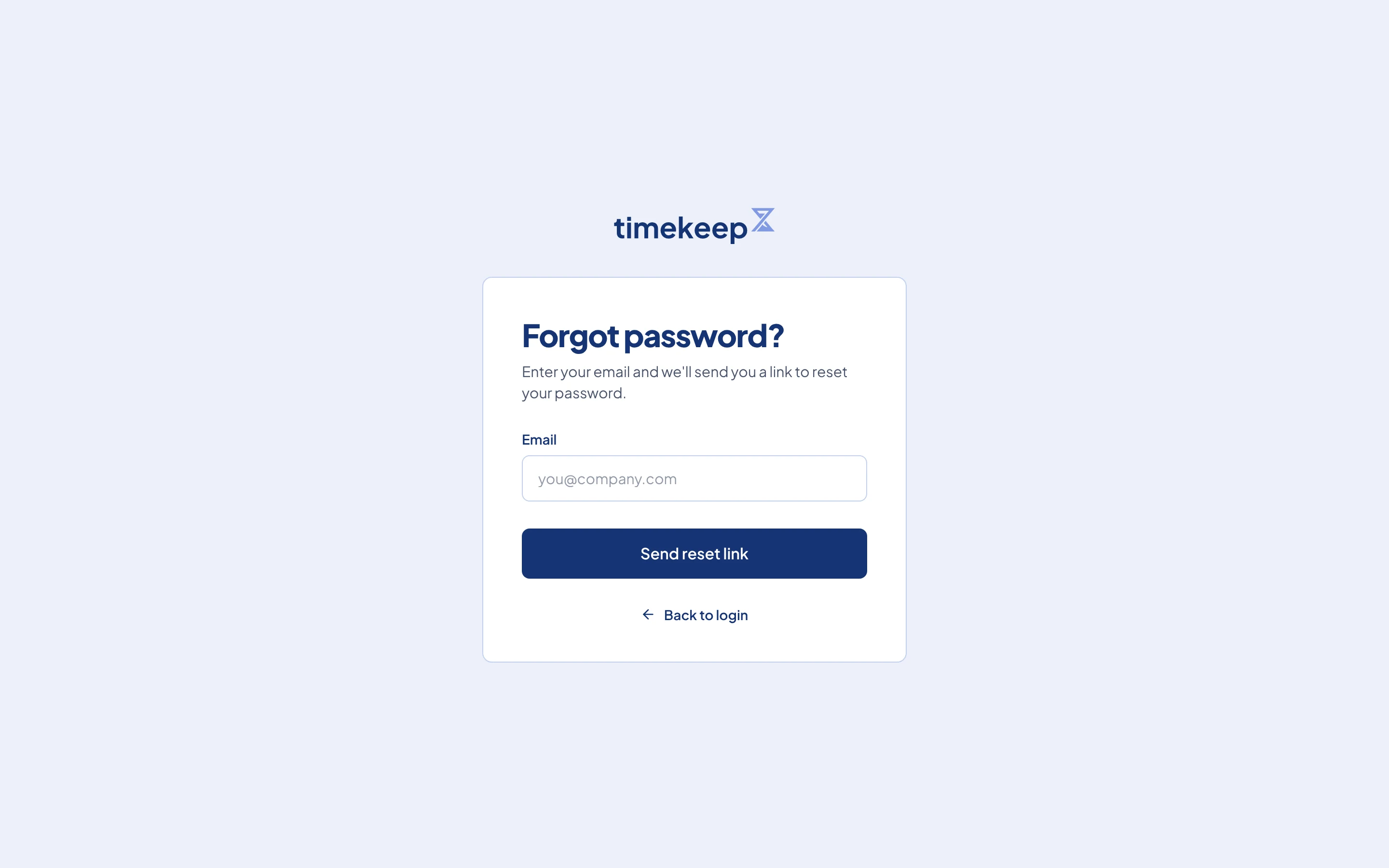
The Forgot password page, where you type your email to get a reset link. Open the email from Timekeep and click Reset Password. The link works for 1 hour and only once.
Type a New password of at least 8 characters, and type it again in Confirm new password.
Click Reset password, then Sign in with your new password.
To sign out, click the menu button beside your name at the bottom of the sidebar, then click Sign out.
Common problems
- The login page says "Invalid email or password." Check the email first, especially if you changed it in Settings. If you are still stuck, reset your password.
- The reset email never arrived. Check your spam folder. Timekeep sends the email only if an account uses that address, but the page says "Check your email" either way, so make sure you typed your sign-in email. Then request a new link.
- The reset page says "This reset link is invalid or has expired." The link is older than 1 hour, was already used, or a newer link replaced it. Click Forgot your password? again and use the newest email.
- Saving the profile says "This email is already taken." Another Timekeep account uses that address. Choose a different email.
- Saving the password says "Incorrect password." The Current password is wrong. If you do not remember it, sign out and use Forgot your password?.