
Use the kiosk without internet
Know what your kiosk keeps doing when the Wi-Fi drops, when saved punches upload, and how to make sure none are lost.
Updated Oct 9, 2026
Before you start
- The kiosk must be paired and must have been online at least once, so it has a copy of your staff list and PINs. See Set up a kiosk.
- Keep the tablet with trusted staff. It holds your staff PINs, the punches waiting to upload and the photos taken with them.
- Keep the kiosk app open. If the tablet restarts while offline it may not show the name list. Do not clear browser data. Reconnect to Wi-Fi and tap Retry Connection. Your waiting punches are still saved.
What still works offline
When the tablet loses its network connection, the pill at the top right changes from Online to Offline. The pill follows the tablet's own network status. If the tablet is still on Wi-Fi but the internet is down, it keeps saying Online (see Common problems). Staff can still clock in, start and end breaks, and clock out.
- The kiosk checks each PIN against the copy it saved the last time it was online.
- The kiosk cannot match faces offline. Staff with a photo on file tap Capture, then also type their 6-digit PIN. The photo is saved with the punch. Timekeep does not check it against the staff photo.
- Staff without a photo only type their PIN.
- New staff do not appear in the name list until the tablet has been online once. A new or changed PIN also reaches the tablet only after it is online, so offline the tablet still accepts the old PIN. A deactivated person still appears on the tablet until it syncs. Their offline punch is refused later and shows under failed sync.
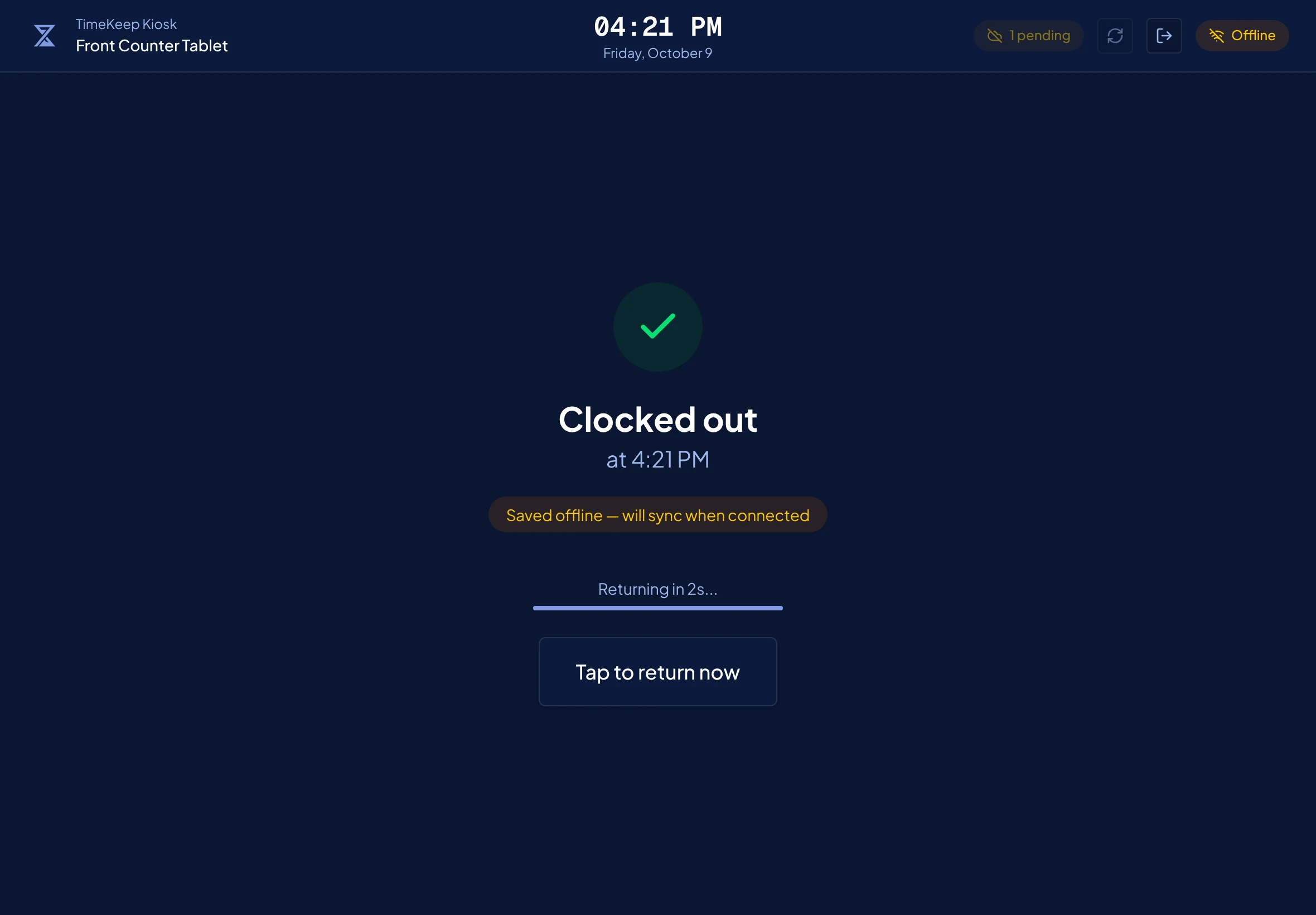
After each punch, the screen says the punch was saved offline and will sync when connected. A yellow counter, such as "1 pending", shows how many punches are waiting on the tablet.
What happens next
When the internet is back, the kiosk uploads the waiting punches on its own, usually within a minute. A long backlog goes up in batches and may take several tries. To send them straight away, tap the pending counter or the refresh button beside it.

Each punch keeps the time it was tapped, taken from the tablet's clock, so the tablet's date and time must be correct. Anyone who can change the date or time on the tablet can change the punch times, so lock those settings if you can. The punches then appear in Attendance like any other. For a punch made offline by someone with a photo, click the row to open Attendance Details. The photo is under Clock photos with no match percentage, so check it if you need to confirm who clocked in.
Waiting punches stay on the tablet until it is back online. They are lost for good, or refused when they upload, if any of these happens first:
- The tablet is lost, damaged or reset.
- Someone clears the browser data on the tablet, which holds the waiting punches.
- Someone taps the disconnect button in the kiosk's top bar.
- You revoke or delete the kiosk. In the sidebar, go to Kiosks (owners only) and open the device.
- Your Timekeep subscription is inactive when the tablet reconnects. Timekeep refuses the punches, and the kiosk shows them under failed sync.
So before any of these, connect the tablet and wait for the pending counter to disappear.
Common problems
- The kiosk shows a red "failed sync" count. Timekeep refused those punches when they uploaded, for example because the person was already clocked in, was deactivated, or your subscription was inactive. They were not saved in Attendance, so add them yourself. They will not be sent again. See Add a missing attendance entry.
- A day without internet is missing from Attendance. The tablet has probably not been online since. Open the kiosk, connect it to Wi-Fi, and watch the pending counter go away.
- Times from the offline period are wrong. The tablet's clock was probably off. Fix its date and time, then correct the affected entries.
- Staff with a photo cannot clock in, and the pill still says Online. The tablet is on Wi-Fi but the internet is down, so the face check keeps failing. Turn off the tablet's Wi-Fi until the pill says Offline, then staff can use Capture and their PIN. Turn Wi-Fi back on afterwards so the punches upload.