
Review and decide leave requests
Approve or decline a pending leave request and see what it does to the employee's balance and pay.
Updated Sep 29, 2026
Before you start
You must be an owner, manager or supervisor. If your business limits supervisors to their assigned employees, a supervisor sees only those employees' requests.
Employees send requests from the employee portal, and you can file one for them with New Request.
Steps
Go to Leaves. The Requests tab shows a number when requests are waiting. Choose Pending in Status to see only those. Employee, Type, From and To narrow the list further.
Read the row. Credits shows the days charged out of the total days, such as 2 of 3. A credit is one day of leave. Days that cost no credit, such as rest days and holidays, are listed in the Day Plan with the reason. For a pending request, Balance after shows the balance before and after approval.
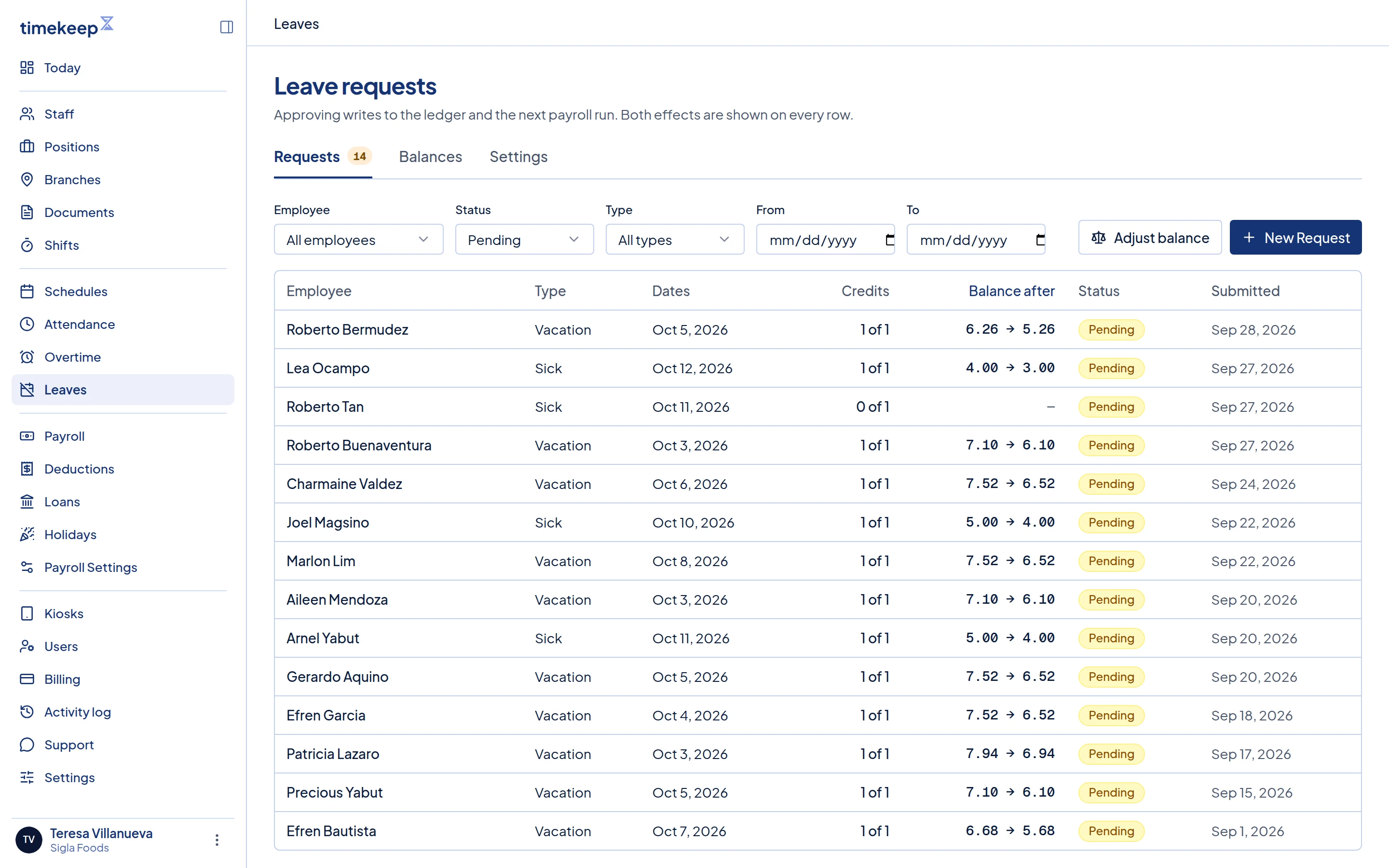
The Requests tab filtered to Pending. Credits shows 1 of 1 and Balance after shows 6.26 → 5.26. Click the row to open Leave Request Details.
Check Dates and Credits charged, and Reason if the employee gave one. Under Current review cost, compare Balance before and Balance after. Balance before does not subtract the employee's other pending requests.
Type your Review notes. They are optional to approve and required to decline.
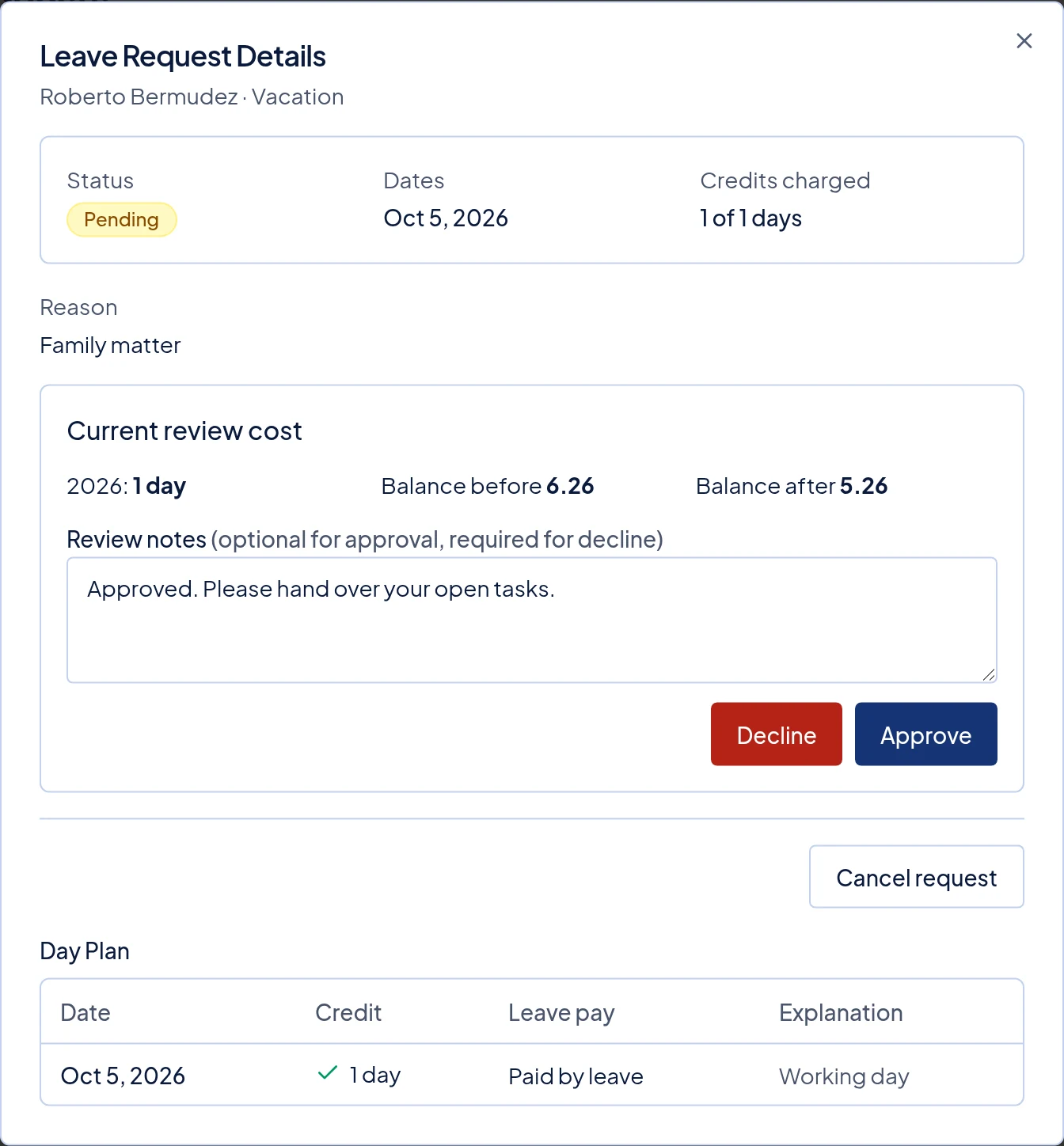
A pending request with Review notes filled in above the Decline and Approve buttons. The Day Plan is below them. Scroll down past the buttons to the Day Plan, which lists every date. Credit says 1 day or No credit, and Leave pay says Paid by leave or Not paid by leave.
Click Approve or Decline.
What happens next
If approval would take the balance below zero, the window warns you in red, but you can still approve.
Approve sets the status to Approved and takes the credits from the balance. The Day Plan is worked out again at that moment, using the employee's current schedule and holidays. Decline sets the status to Declined and uses no credits.
If the employee has an email address on file, Timekeep emails them the decision. The email includes your Review notes if you wrote any, and always when you decline. The portal shows only the new status.
When a payroll run that covers those dates is next generated, each Paid by leave day is added to a daily or hourly employee's payslip as a Leave Pay line. If a draft run already exists, click Run Payroll on it again to pick up the leave. A day is not paid as leave if the employee also has attendance for it. Monthly staff get no Leave Pay line, but those days are not deducted as absences. Fixed Semi-Monthly staff are not affected.
To undo a Pending or Approved request, open it and click Cancel request. In the Cancel this leave request? window, click Cancel request again, or Keep request to go back. Cancelling an approved request returns its credits to the employee.
Common problems
- It says payroll is locked or paid. A payroll that includes this employee and these dates is closed. If it is locked, an owner or manager can unlock it. Approve or cancel the leave, then click Run Payroll again as in Rerun a draft payroll. A paid payroll cannot be changed. To cancel a leave in one, an owner can correct the balance instead, as in Check and adjust leave balances.
- It asks for a reason for declining. Type it in Review notes first.
- It says only pending leave requests can be reviewed. Someone already decided it, or the employee cancelled it. Reload the page.
- A request is missing. From and To show only requests that fall entirely between those dates. Clear them and check Status.