
Check your schedule and attendance
See your shifts for the week, ask for overtime, and read your attendance for each cutoff.
Updated Oct 9, 2026
Before you start
You need to be logged in to your employer's employee portal on your phone. Your HR or your manager sets your schedule, so you cannot change it here.
Steps
See your schedule
Tap Schedule in the bar at the bottom. It opens on this week, from Monday to Sunday, and today is the dark date.
Read each day. A workday shows your shift times, your branch and your break. "Rest day" means you are not scheduled to work. "No schedule" means nothing is set for that day yet.
Use the arrows at the top right to see the previous or next week. Tap Today to come back to this week.
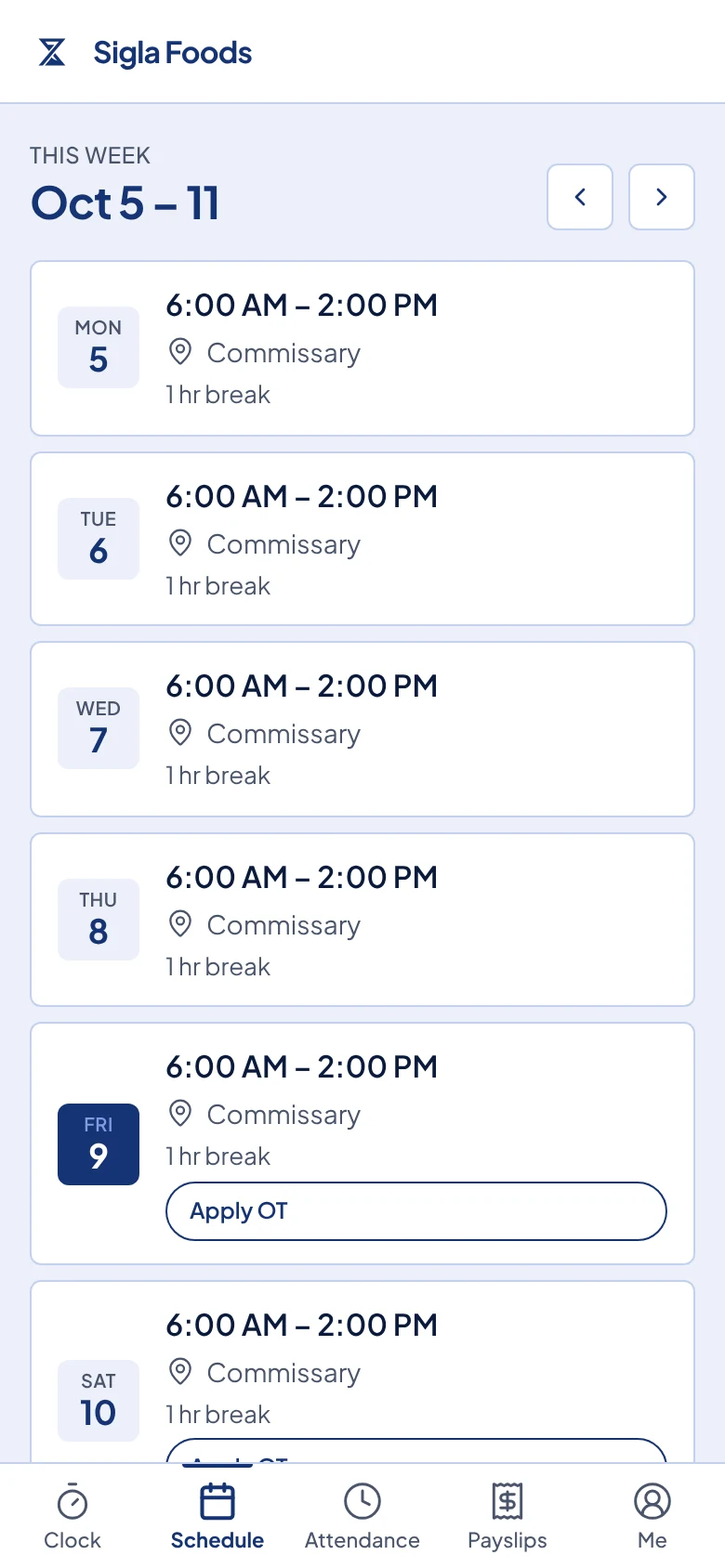
The Schedule page for one week. Today's date is dark and has an Apply OT button.
Ask for overtime
Overtime is extra time you work past your shift. Apply OT shows only if your employer lets staff request overtime, and only on today's or a later shift you have not finished.
Tap Apply OT on the shift.
Under Duration, tap 30m, 1h or 2h, or tap Custom and type the minutes.
Type a Reason (optional) if it helps your manager decide, then tap Submit request.
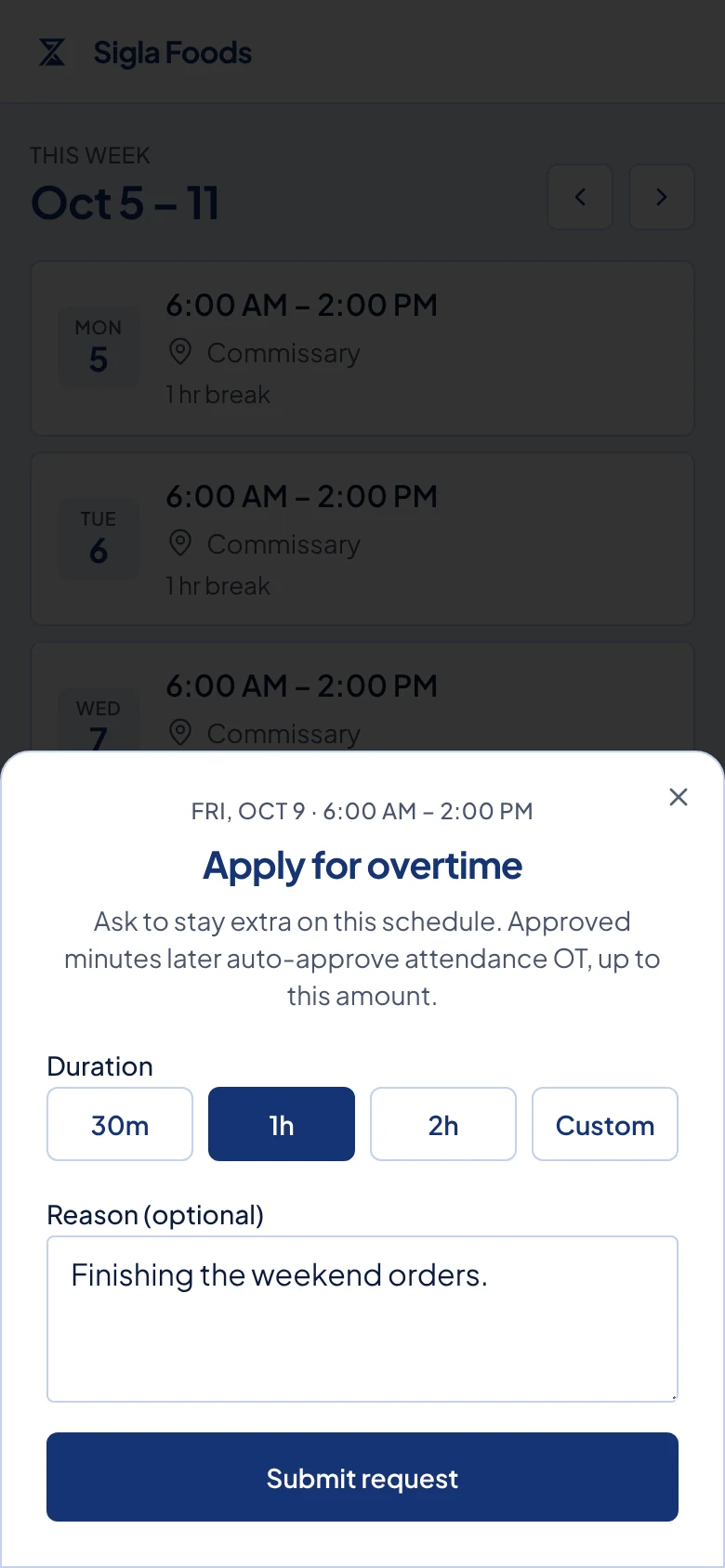
The Apply for overtime window with 1h selected and a reason typed in.
See your attendance
Tap Attendance in the bar at the bottom. It shows one cutoff, which is the stretch of dates one payslip covers, either the 1st to the 15th or the 16th to the end of the month. The arrows move between cutoffs.
Read the boxes at the top. They total your days worked, late minutes, approved overtime and absences for the cutoff.
Read each day's row: your time in, your time out, and your break.
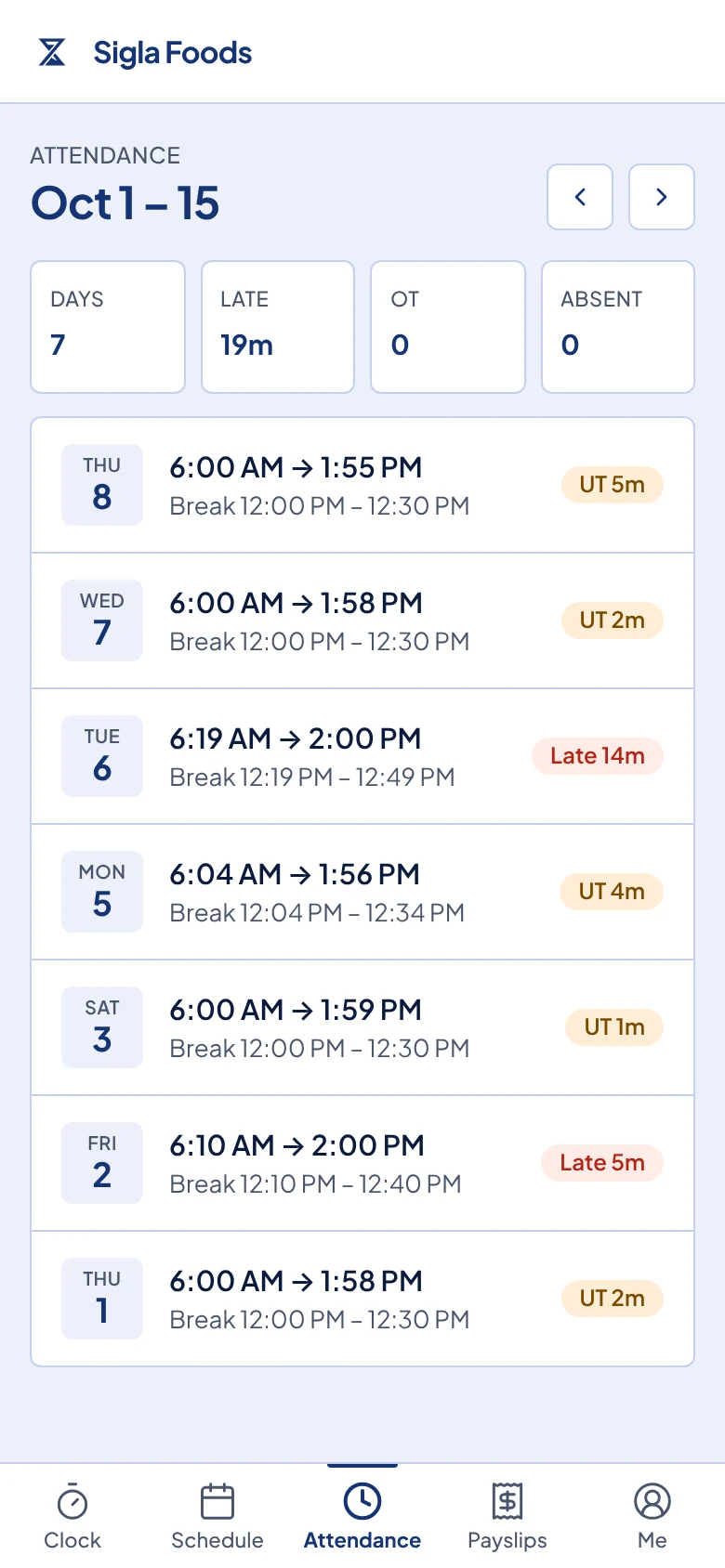
The Attendance page for one cutoff, with Late and UT tags on some days.
What happens next
Each row can carry a tag:
- "Active" means you are still clocked in.
- "Late 14m" means you clocked in 14 minutes after your shift started.
- "UT 5m" is undertime, here 5 minutes, which means you left before your shift ended.
- "OT 1h" is overtime your manager approved. Only approved overtime is paid.
- "Absent" marks a past workday with no time in. Holidays and approved leave are not marked absent.
An overtime request shows a tag such as "1h OT pending" on the shift until your manager decides. Tap Cancel under it to take it back. Once approved, it shows "1h OT approved". If it is declined, Apply OT comes back. When you clock out, Timekeep adds the approved overtime to your attendance, but never more than the minutes you asked for.
Common problems
A time, a tag or an absence is wrong. You cannot fix attendance from the portal. Tell your HR or your manager the date and what happened, such as a forgotten clock-out, and they will correct it.
Your schedule is empty or wrong. Ask your HR or your manager to set or fix it.
There is no Apply OT button. Your employer may not allow overtime requests. The button is also hidden on a rest day, on a day of approved leave, and on a shift that is past or already finished. Ask your manager.