
Rerun a draft payroll
Rebuild draft payslips after you correct attendance, pay details, leave, or loans.
Updated Sep 21, 2026
Before you start
You must be an owner or manager. The payroll run must show Draft, and it must already have payslips from an earlier run.
Correct the source record first. This might be attendance, approved leave, an employee's pay rate, a monthly charge, or a loan. When you rerun, Timekeep reads those records again.
Steps
Go to Payroll.
In By Period, click the row for the payroll run.
Check that Status shows Draft.
Click Run Payroll at the top of the page.
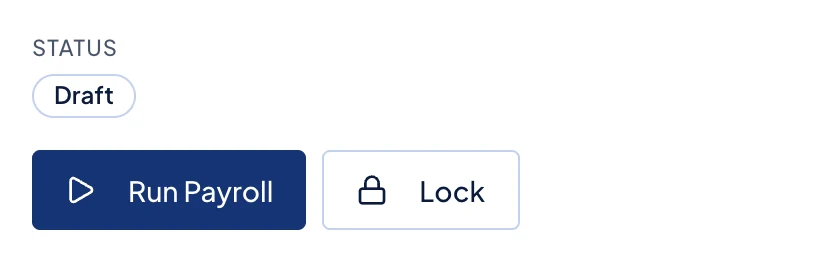
A draft payroll run, with Run Payroll and Lock beside the Draft status. If Incomplete attendance found appears, click Review attendance. Follow Review incomplete attendance before payroll, then return and click Run Payroll again.
Review Payroll Entries. Click an employee row, then use View Calculation to check the updated payslip.
What happens next
Timekeep rebuilds the calculated parts of every payslip for the selected employees who are still eligible for the run. Existing Additional Earnings and Additional Deductions remain on their payslips and still count toward net pay.
Rerunning a draft does not record loan payments or reduce loan balances. That happens only when you mark the run paid.
Common problems
- Run Payroll is missing. Unlock a locked run first. You cannot rerun a paid run.
- A corrected attendance figure did not change. You may need to recalculate the saved attendance before you rerun payroll. Follow Recalculate attendance.