
Add a missing attendance entry
Record a clock-in, clock-out, and break when an attendance entry is missing.
Updated Sep 20, 2026
Before you start
Only the business owner can add an attendance entry from this page. The employee must already be in Staff. If the punch may still be waiting to sync, check the kiosk first. A punch is missing explains how.
Have the date and actual times ready. A schedule for that date lets Timekeep work out late, overtime, undertime, and overbreak.
Steps
Go to Attendance.
Open the More menu above the table and click Add Entry.
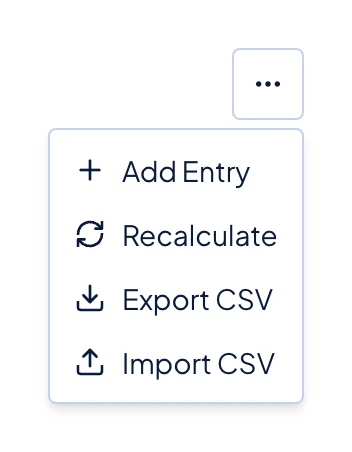
The More menu above the attendance table, with Add Entry and Recalculate at the top. Choose the Employee and Date.
Enter Clock In. This field is required.
Enter Clock Out if the employee finished the attendance session. If you leave it empty, Timekeep creates an open record, which is normally shown as Incomplete.
Enter Break Start and Break End if the employee took a recorded break. The add window accepts one break. You can add more breaks later by correcting the record.
For an overnight shift, enter the next morning's time as Clock Out. When it is earlier than Clock In, Timekeep saves it on the next day.
Click Create Entry.
What happens next
The entry appears in the table. Timekeep matches it to a schedule and calculates the attendance minutes when enough information is available. Adding attendance does not rewrite a payslip that already exists.
Common problems
- The employee is not in the list. You can select only the active employees of your business.
- Timekeep says the employee already has an attendance record or open session. Close the window and correct the existing record instead of adding a duplicate.
- Add Entry is missing from More. Only the business owner sees this control.