
Show or reset an employee's PIN
See an employee's 6-digit PIN, copy it, or replace it with a new one when it is forgotten or shared.
Updated Oct 9, 2026
Every employee has a 6-digit PIN. They use it to clock in at the kiosk and to log in to the employee portal. Timekeep creates the PIN for you, so you cannot type one of your own choosing.
Before you start
You must be an owner, manager or supervisor. If your business limits supervisors to their assigned employees, a supervisor sees only those employees.
Steps
Go to Staff and click the employee's row.
Find PIN under the employee number. The six digits are hidden as dots. Three buttons sit beside it.

The hidden PIN under the employee number, with the eye, copy and refresh buttons beside it. To show the PIN, click the eye button. Click it again to hide the PIN.
To copy the PIN, click the copy button. The message "PIN copied" shows, and you can paste the PIN into a message to the employee.
To give the employee a new PIN, click the refresh button. The Regenerate PIN window opens and warns that the current PIN stops working immediately.
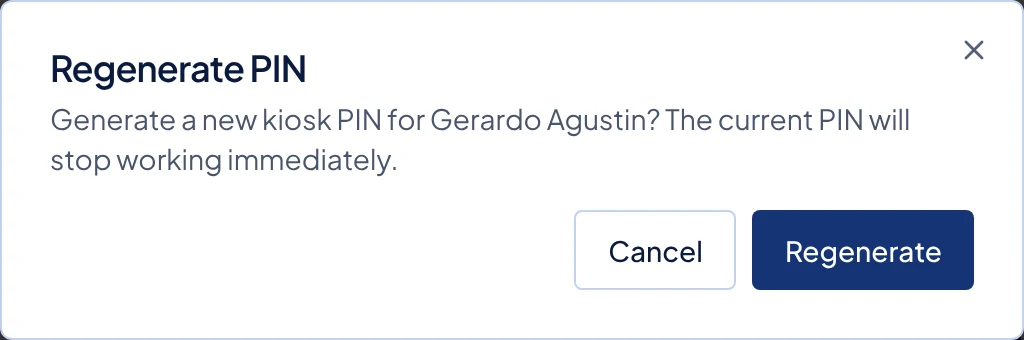
The Regenerate PIN window, with Cancel and Regenerate. Click Regenerate. The message "PIN regenerated" shows. Click the eye button to see the new PIN, and give it to the employee in private.
What happens next
The old PIN stops working at once on the employee portal and on any kiosk that is online. Timekeep picks a new PIN that no one else in your business has.
A kiosk that is offline still accepts the old PIN until it reconnects and gets the new one. To update a kiosk straight away, tap the refresh button in its top bar.
A phone that is already logged in to the portal stays logged in. A new PIN does not log it out, because the PIN is only checked at login. To lock someone out of the portal and the kiosk completely, deactivate them instead.
Common problems
- The employee forgot their PIN. There is no "forgot PIN" link on the portal or the kiosk. Show the PIN on their staff page and tell them, or regenerate it if you think someone else knows it.
- The portal says Invalid PIN after a reset. Check that the employee is using the new PIN. After five wrong tries, the keypad locks for 30 seconds.
- The kiosk still takes the old PIN. The kiosk is offline or has not refreshed. Tap the refresh button in its top bar once it is back online.
- An employee thinks someone else is using their PIN. Regenerate it, and ask them to log in again with the new one.