
Mark a payroll run paid
Record that a locked payroll run has been paid and apply its loan payments.
Updated Sep 21, 2026
Before you start
You must be an owner or manager. The payroll run must show Locked. Review every payslip and make any one-off adjustments before you continue. You cannot undo marking a run paid.
The Payout Date is the scheduled day your staff get paid. Marking the run paid is the separate action that records payment in Timekeep.
Steps
Go to Payroll and click the payroll run in By Period.
Check the Net Pay total and the payslips under Payroll Entries.
Click Mark as Paid at the top of the page.
Read the warning. Tick I have reviewed all payslips and confirm this payroll is correct.
Click Confirm.
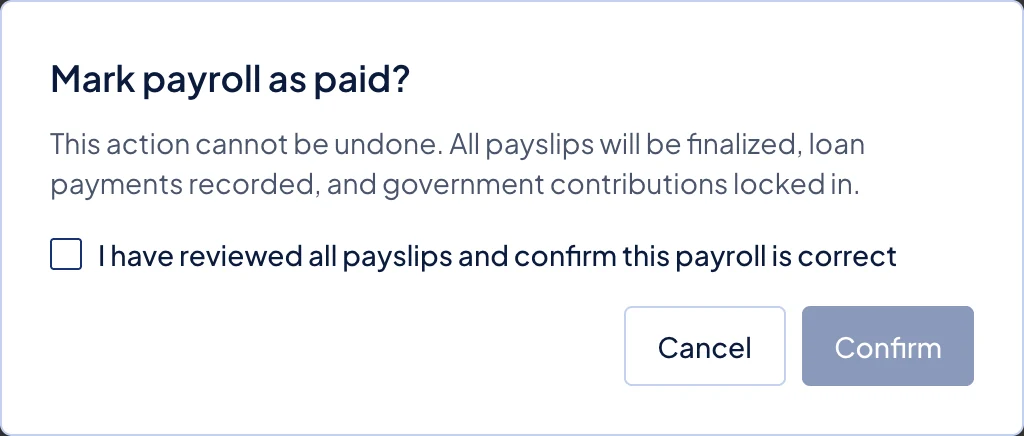
The Mark payroll as paid confirmation, with the required review checkbox above Confirm.
What happens next
The run changes to Paid, and Timekeep marks each payslip as paid. If a payslip contains a scheduled loan deduction, Timekeep records that loan payment and reduces the remaining balance. It uses the deduction already stored on the payslip, including one from a loan that was paused after the payslip was built.
Timekeep accepts this action only once. Repeating it does not create another loan payment. Employees could already see the payslip while the run was locked, and they continue to see it as paid.
You cannot unlock or rerun a paid payroll. The payslip page no longer allows adding or removing Additional Earnings or Additional Deductions.
Common problems
- Mark as Paid is missing. The run is still Draft, so review it and click Lock first.
- A correction is needed after payment. The paid run cannot return to draft. Include the correction in a later payroll run.