
Clock in and out
Record your time in, your break and your time out, at the kiosk or on your phone.
Updated Sep 20, 2026
Before you start
- You need your 6-digit PIN, which comes from your HR or your manager. The kiosk asks for it if you have no photo on file, and also when it is offline.
- To clock in on your phone, your employer has to turn on mobile clock-in for the company and also for you. If they have not, use the kiosk.
Steps
At the kiosk
- Find your name on the screen. If the list is long, type your name or employee number in the search box.
- Tap your name. If you have a photo on file, the camera opens. Put your face in the frame and tap Capture.
- Enter your 6-digit PIN on the keypad when the kiosk asks for it. While the kiosk is offline it asks for both the photo and the PIN.
- Tap Clock In. Later, tap Start Break and End Break, and tap Clock Out at the end of your shift.
- The screen shows "Clocked in" with the time, then goes back to the list for the next person.
From the employee portal
Log in to the portal on your phone and tap Clock.
Allow location if your phone asks. The tag under your status reads Location captured when it works.
Tap Clock in. If a selfie is required, the camera opens, and you tap Capture.
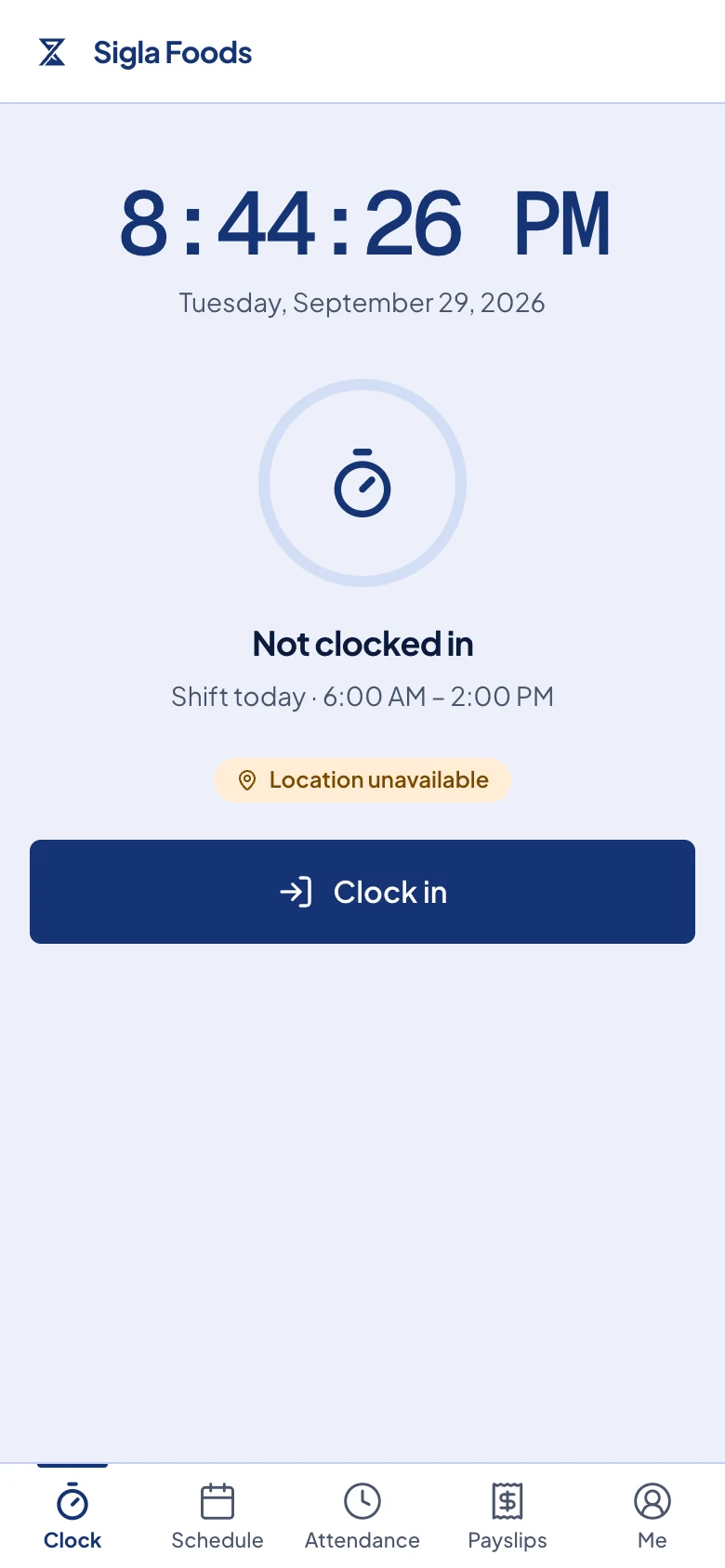
The Clock page before clocking in. Use Start break and End break during the day, then Clock out when you finish.
What happens next
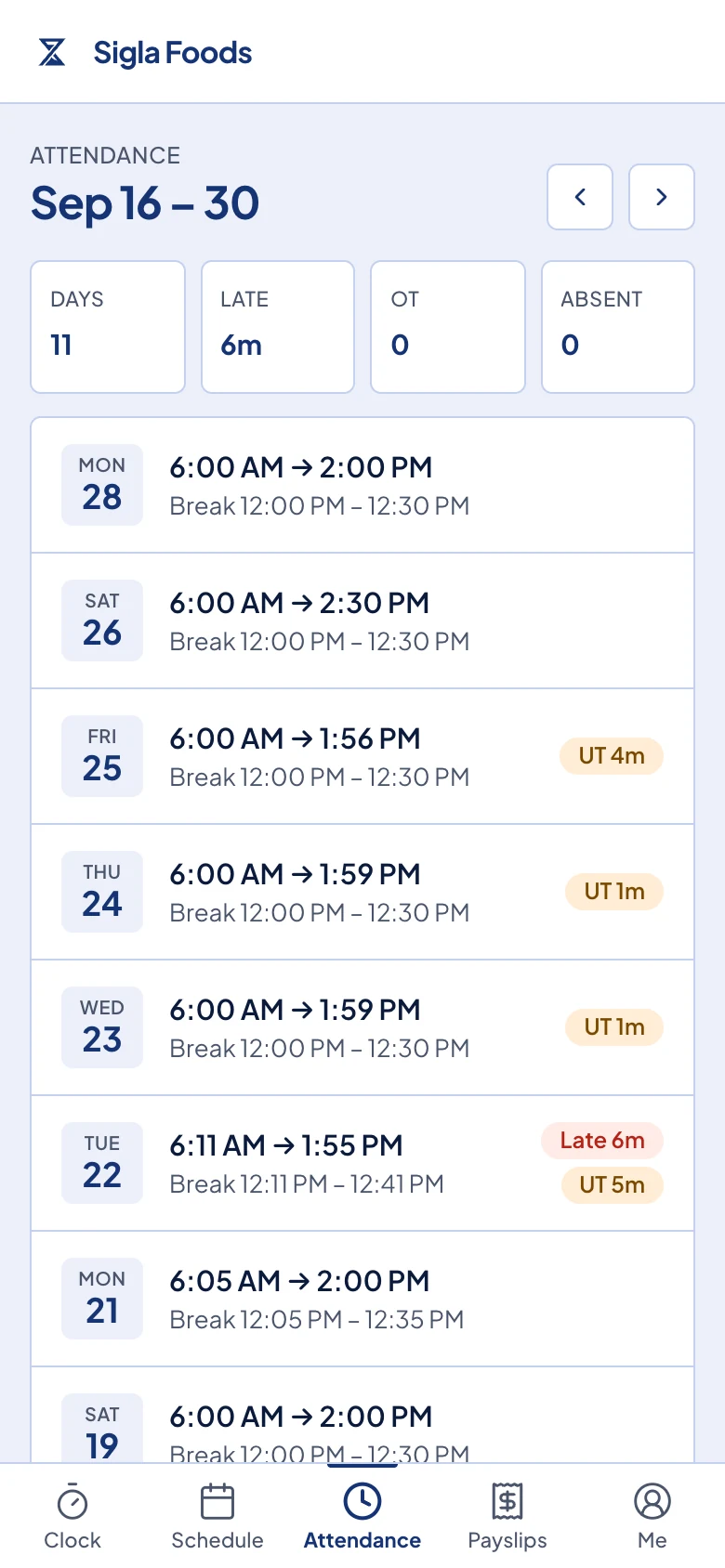
Your times go straight to your employer's records, so they count for payroll. Tap Attendance in the portal to check them. It shows each day of the cutoff, which is the stretch of dates your pay covers. Each day shows your time in and out, your break, and any late or overtime marks.
Common problems
- You forgot to clock out. You cannot fix this yourself. Tell your HR or your manager, and they will correct the entry.
- There is no Clock tab in the portal. Mobile clock-in has to be turned on twice, once for your company and once for you. Ask your HR or your manager to turn on both, or use the kiosk in the meantime.
- The portal says you finished your shift. You are already clocked out for the day. If that is not right, ask your manager to check it.
- The kiosk says Offline. There is nothing for you to do. Your punch is saved on the device and uploads when the connection returns.
- The kiosk will not take your PIN. After five wrong tries it pauses for 30 seconds, so wait and try again. If the right PIN still fails, ask your HR or your manager for a new one.