
Create your account
Sign up for Timekeep, verify your email address, and start your 30-day free trial.
Updated Oct 9, 2026
Before you start
You need an email address you can open right away, because Timekeep sends a link there before you can sign in. Your account becomes the owner of the business, the one account that controls billing and business settings. The 30-day free trial includes every feature and needs no credit card.
Steps
Click Start free trial on the Timekeep website. This opens the Start your free trial. page.
Fill in the four fields:
- Business name is the name of your company, at least 2 characters. You can change it later in Settings.
- Email is the address you will sign in with. Each email address can have only one Timekeep account.
- Password must be 8 to 72 characters.
- Confirm password is the same password again, to catch a typo.
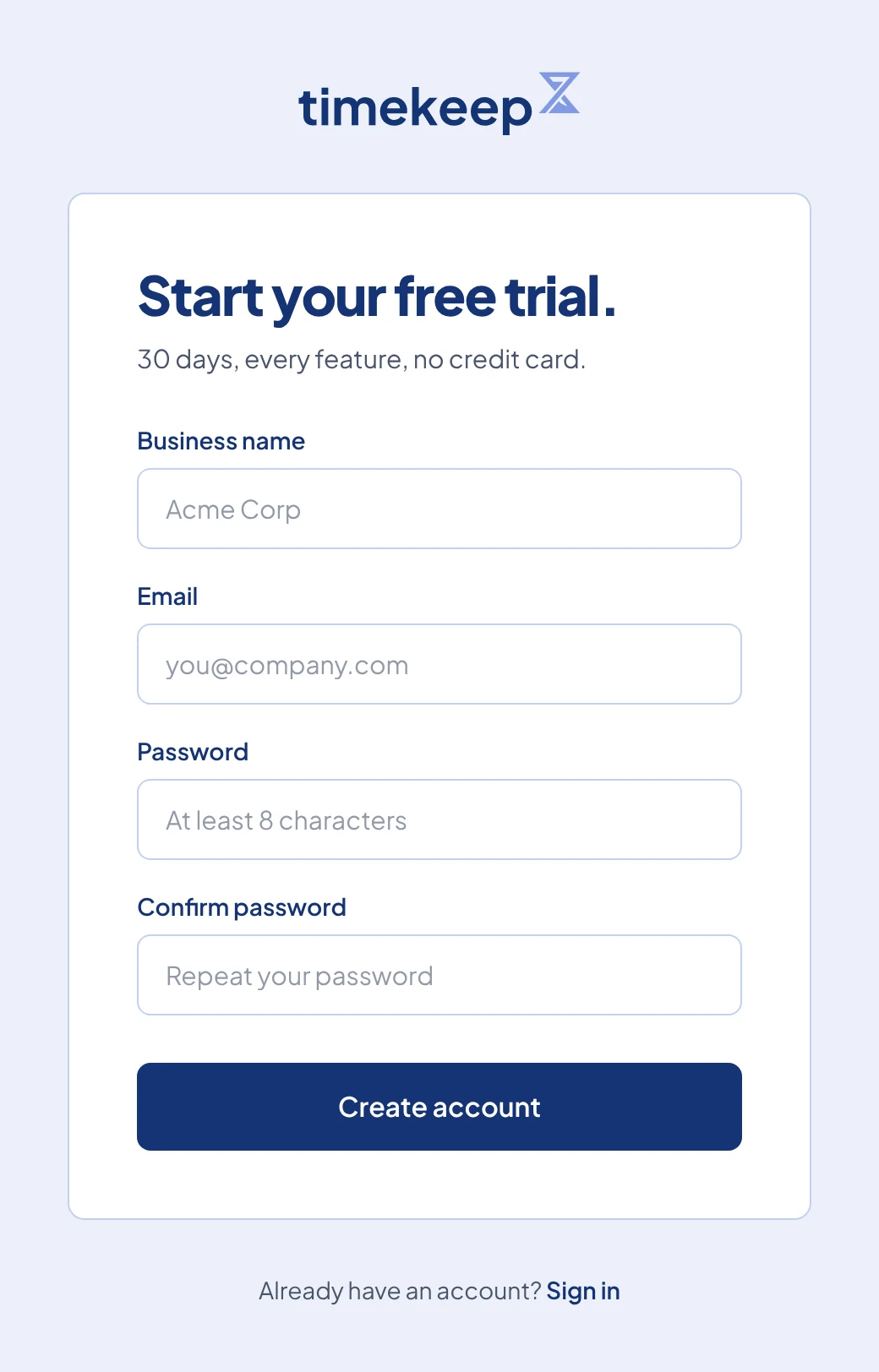
The sign-up page, with Business name, Email, Password and Confirm password above Create account. Click Create account. The Check your email page opens and shows the address the link went to.
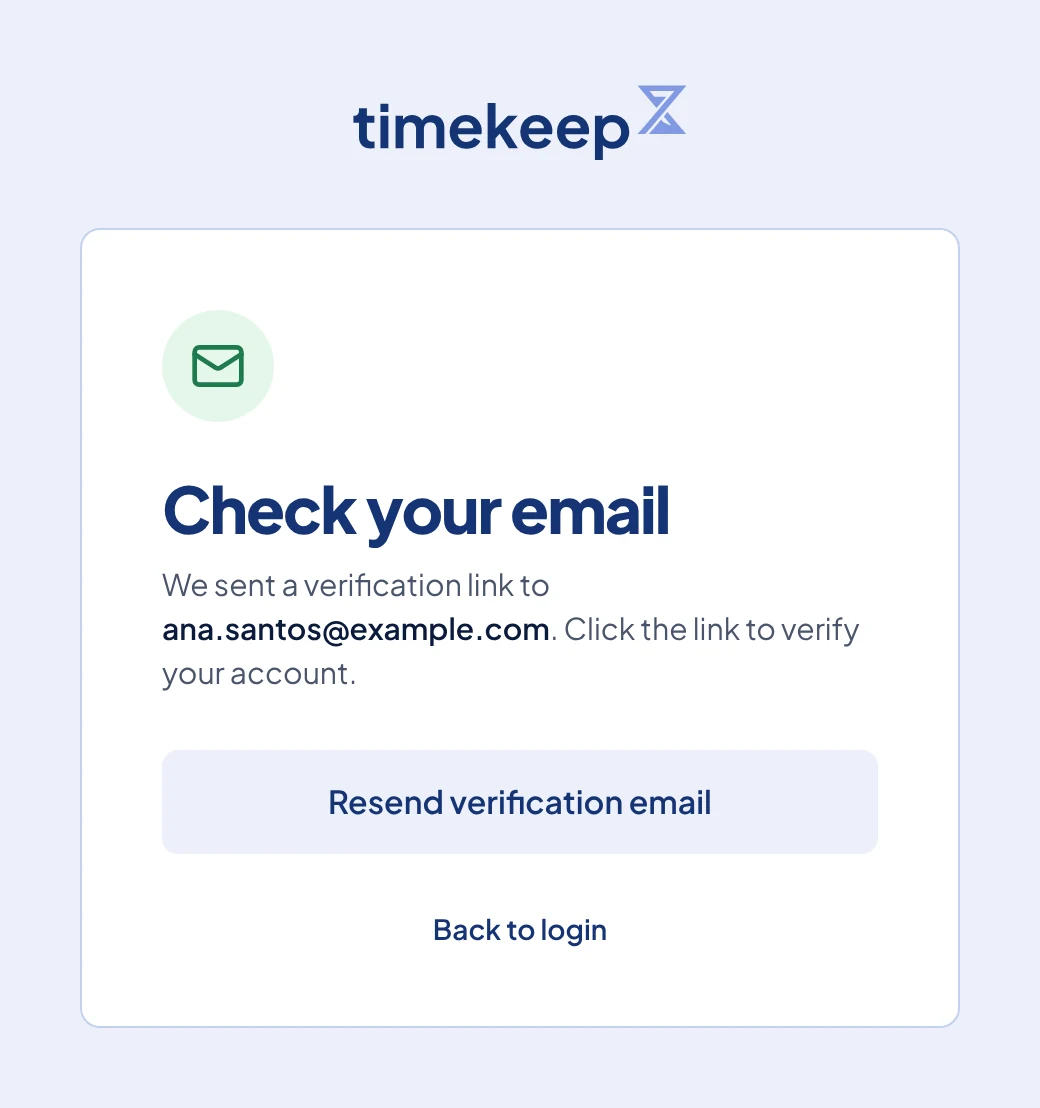
The Check your email page, with Resend verification email below the address. Open the email from Timekeep and click Verify Email Address. The link works for 24 hours.
The Email verified! page opens. Click Sign in, then enter your Email and Password and click Sign in again.
What happens next
Timekeep opens Today, the first page of the dashboard. Your business is still empty, so start with Set up your business.
Your trial ends 30 days after you sign up. Billing shows the date under Trial Ends. In the last 7 days, a yellow bar at the top of every page says "Your trial ends in" and the number of days left, with a Subscribe now link. When the trial ends, Timekeep takes you to the Subscribe to Timekeep page, and the dashboard opens again once you subscribe. Timekeep does not delete your staff or payroll records when the trial ends. They stay in your account while the dashboard is locked, and you see them again once you subscribe. People in your business other than the owner see a "Billing needs attention" page until the owner subscribes.
To see the price, open Billing or the Subscribe to Timekeep page. The plans and seats are explained in Manage your subscription and seats.
Common problems
- The verification email has not arrived. Check your spam or promotions folder first. Then click Resend verification email on the Check your email page. A new link is sent, and any older link stops working.
- You closed the Check your email page. Sign in with your email and password. Until your email is verified, Timekeep shows that page instead of the dashboard, so you can resend the link from there.
- The link says "Verification failed". The link is more than 24 hours old, was already used, or was replaced by a newer one. Try to sign in. If your email is already verified, the dashboard opens. If not, the Check your email page opens, and you can send a fresh link from there.
- It says "An account with this email already exists". That address has already signed up. Click Sign in at the bottom of the page instead. If you forgot the password, click Forgot your password? on the sign-in page.