
Invite users and set their roles
Invite the people who help you run Timekeep, give each one a role, and change or remove their access later.
Updated Oct 9, 2026
A user is someone who signs in to the dashboard with an email and password, such as your HR person or bookkeeper. Employees do not need a user account. They use the employee portal with their 6-digit PIN.
Before you start
Only the owner can invite, change, or remove users. The owner is the account that signed up, and there is only one.
Decide which role each person needs. The role decides which pages they can open. How Timekeep works gives a short summary, and the Roles & Permissions tab on Users shows the full table.
- Manager runs the day to day: staff, pay rates, positions, branches, documents, shifts, schedules, leaves, overtime approval, and every payroll step. They can view attendance but not edit it, and they can open the Activity log.
- Supervisor edits staff records, attendance, shifts, schedules, and leaves, approves overtime, and adds payslip adjustments. They can view payroll and pay rates, but they cannot add staff, change pay rates, or run payroll.
- Scheduler builds schedules and can view shifts and attendance.
- Bookkeeper can view payroll, deductions, loans, and holidays, but cannot change them.
Only the owner can use Billing, Kiosks, Payroll Settings, the business cards in Settings, and leave balance changes.
Steps
Go to Users and click Invite User.
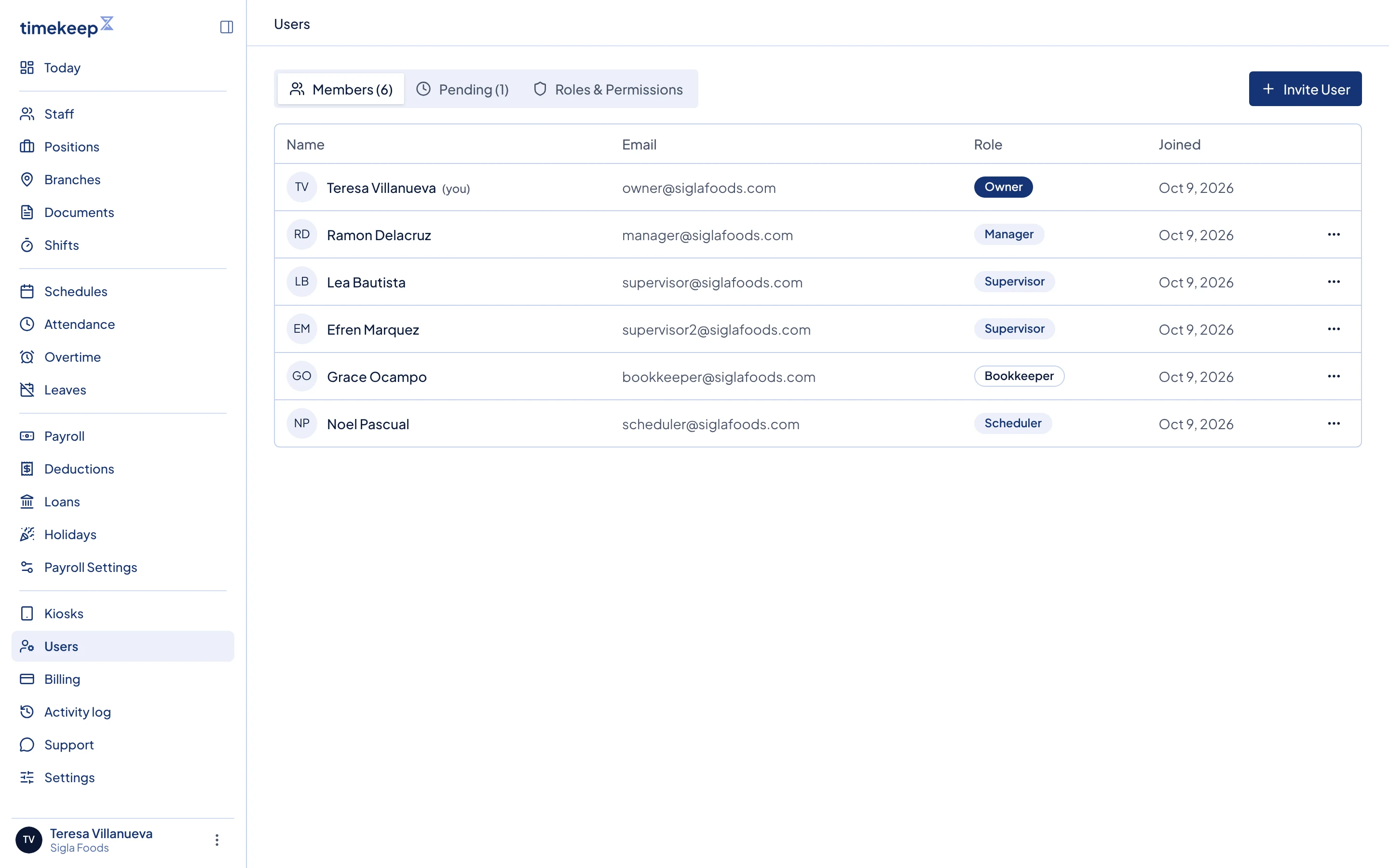
The Users page. The Members tab lists everyone on your team, with Invite User at the top right. In Role, choose a role. A short description of the role shows below it.
Type the person's Email Address.
Click Send Invitation.
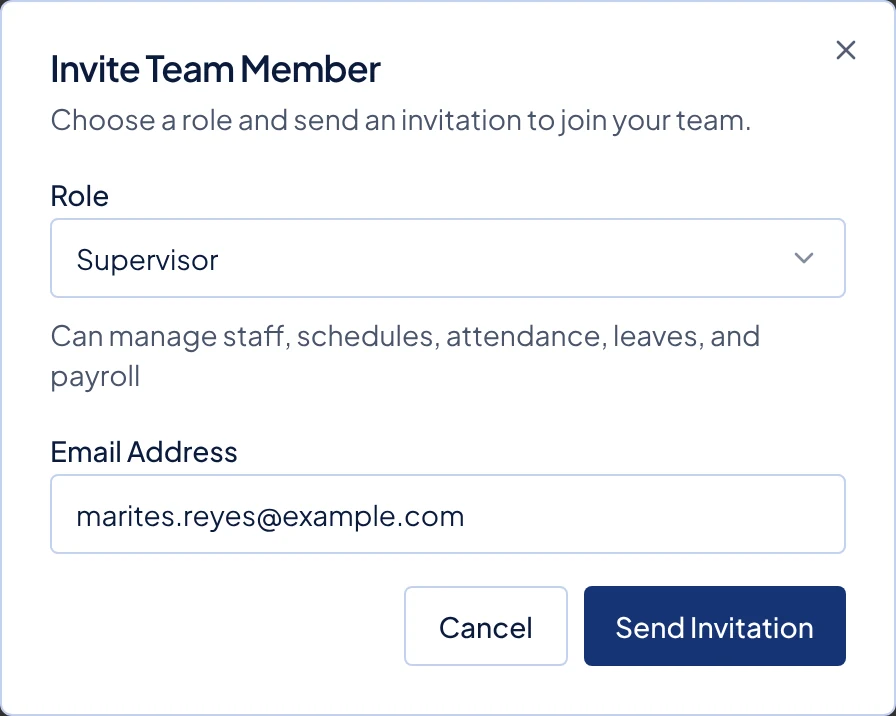
The Invite Team Member window with a role and an email address filled in.
What happens next
Timekeep emails the person a link. They click Accept Invitation, type their name, create a password of at least 8 characters, and click Accept & create account. They are then signed in to your dashboard with the role you chose.
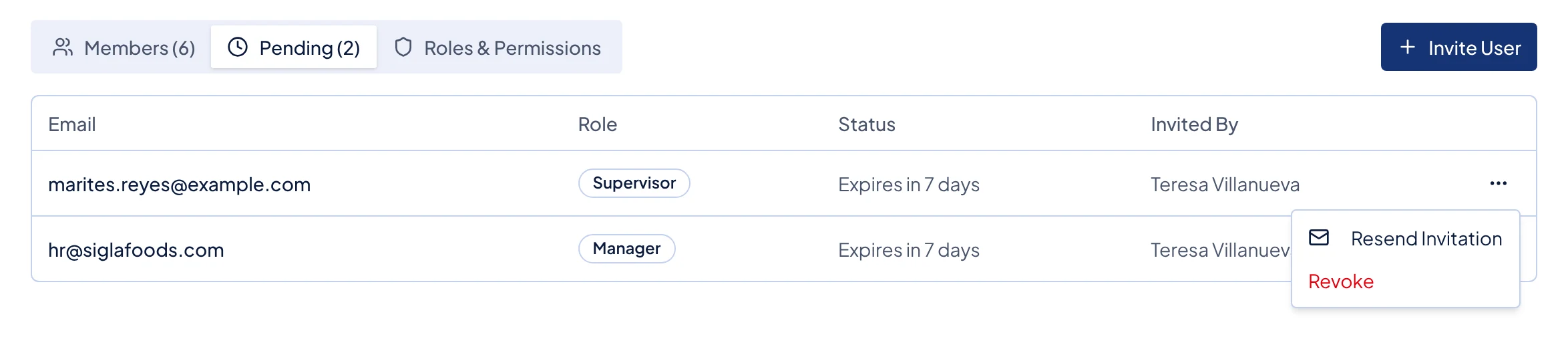
The link works for 7 days. Until it is accepted, the invitation stays on the Pending tab. Open the menu at the end of its row to:
- Click Resend Invitation to send a new link that works for another 7 days. The old link stops working.
- Click Revoke, then Revoke again, to cancel it. The link stops working.
To change a role later, go to the Members tab, open the menu at the end of the person's row, and click Change Role. Choose the new role and click Save. Their access changes the next time they load a page. If you change a supervisor to a different role, they are no longer the assigned supervisor of any employee.
To take away someone's access, open the same menu, click Remove from Team, then click Remove. They lose access to your business at once.
You cannot change or remove yourself or the owner, so those rows have no menu.
Common problems
- The invitation never arrived. Ask the person to check their spam folder. Then click Resend Invitation on the Pending tab.
- It says an invitation has already been sent to this email. The person already has an invitation on the Pending tab. Resend that one instead.
- The link says "This invitation has expired". The 7 days are over. Click Resend Invitation to send a fresh link.
- The person sees "An account with this email already exists". One email address can have only one Timekeep account. This happens when the address already has an account, such as someone you removed earlier. Revoke the invitation and invite a different email address, or contact support.
- A manager can't find Users. That is expected. Only the owner can open Users, so ask the owner to invite, change, or remove people.
- There is no Invite User button. Supervisors, schedulers, and bookkeepers can see the member list but can't change it. Only the owner can invite, change, or remove users.