
Set up your holidays
Turn national holidays on or off, add your own, and set your location for city holidays.
Updated Sep 29, 2026
Before you start
You must be an owner or manager to change holidays. Supervisors and bookkeepers can open Holidays and look, but the switches are greyed out and Add Holiday is hidden. Schedulers do not see the page.
Only the owner can set the business location, which decides your city holidays.
Steps
Go to Holidays. The list starts with national holidays from January 1 of this year and runs in date order. Holidays you added are listed for every year. Each row shows Enabled, Date, Holiday, Type and Source.
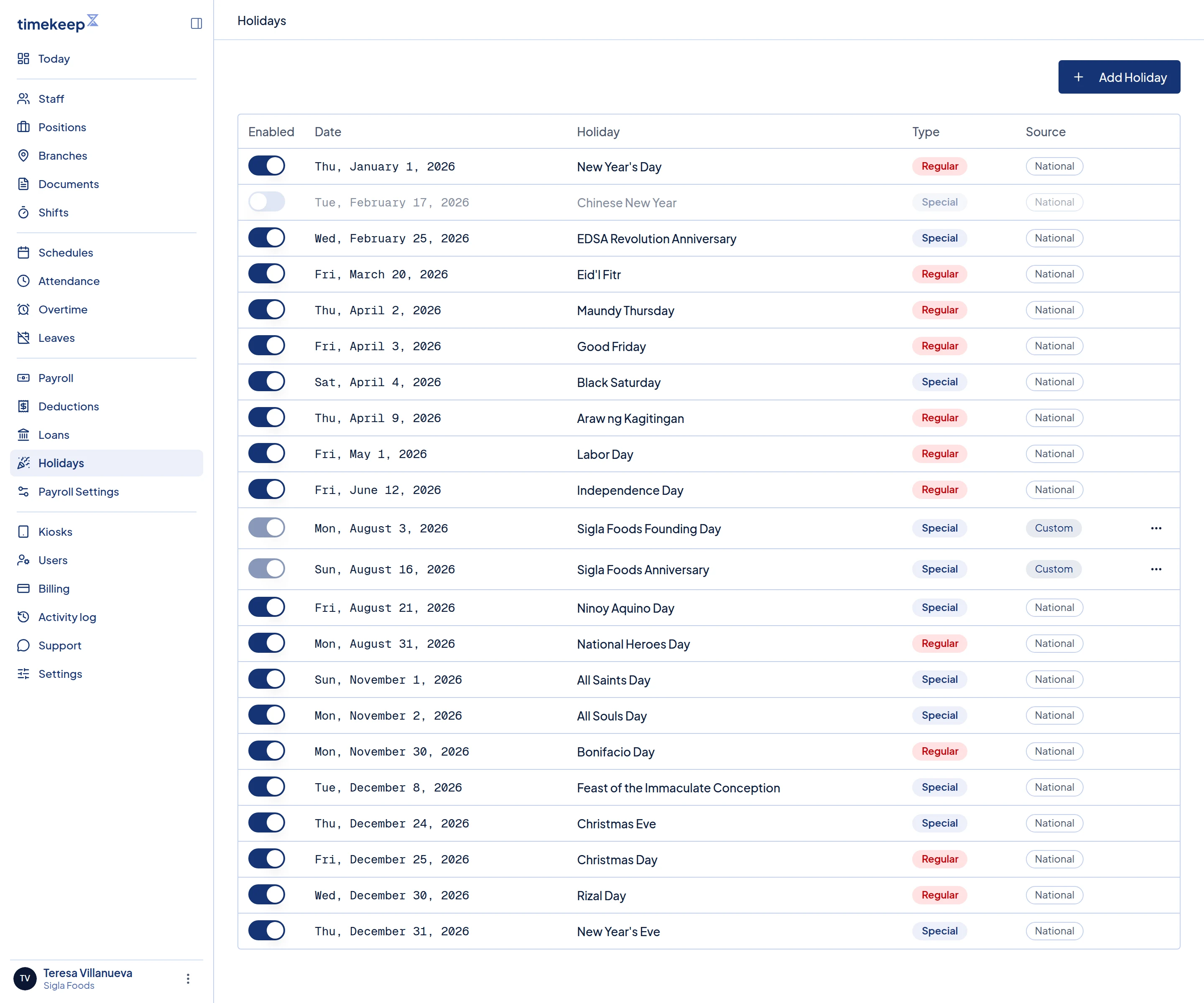
The Holidays list. National holidays have a switch under Enabled. Custom ones have a menu at the end of the row. To ignore a national holiday, turn its switch under Enabled off. The row fades, and payroll no longer pays that date as a holiday, including any city holiday on the same date. Turn it on again to bring it back. Only switch off a Regular holiday if the law does not require you to pay it. Regular holiday pay is required for most businesses. Retail and service businesses that regularly employ fewer than 10 workers are one of the few exceptions. If you are not sure, leave it on.
To add a holiday of your own, such as a company anniversary, click Add Holiday.
Type a Name and pick the Date.
Choose the Type. Regular (200%) pays staff double when they work and pays their day when they do not, as the law does for regular holidays. Special Non-Working (130%) pays 130% to staff who work and nothing to staff who do not. The box starts on Special Non-Working (130%).
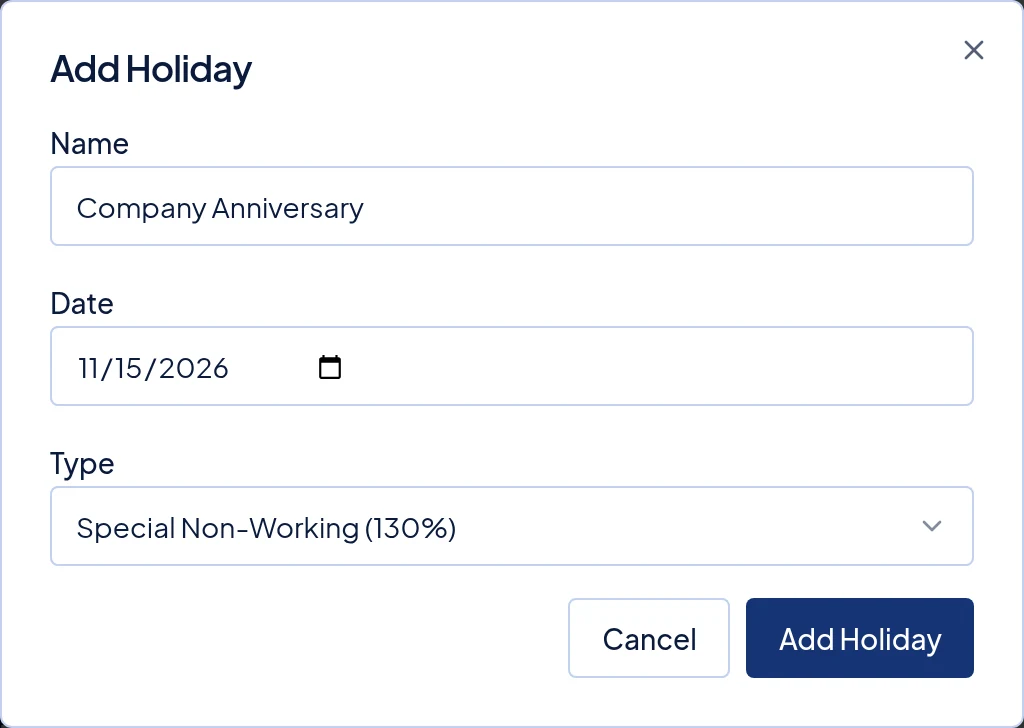
The Add Holiday dialog with a Name, a Date and the Type box. Click Add Holiday. It shows Custom under Source.
To change or remove one, open the menu at the end of its row. Click Edit, then Save Changes. Or click Delete, then Delete again to confirm.
Owners only: for city holidays, go to Settings. In the Business card, find Local holidays. Choose your Region, then your Province if the box appears, then your City / Municipality. Barangay is optional. Click Save.
What happens next
Payroll looks at these holidays each time you click Run Payroll. Your own holidays are always on, so their switch is greyed out. If one shares a date with a national holiday, leave the national one switched on. Yours takes its place in payroll, so give yours the same type or a higher one. A Special Non-Working holiday on a national Regular date pays 130% instead of 200%, and nothing to staff who do not work. When two holidays fall on the same date, Timekeep pays them as one holiday. It does not pay the higher double-holiday rate.
City holidays are not listed on this page. Timekeep applies the city holidays it has for your location on its own once your location is saved.
A change does not alter payslips you already made. If the payroll still shows Draft, follow Rerun a draft payroll. If it is locked, unlock it first, as that article explains. To see what a holiday pays, read How a holiday shows up in pay.
Common problems
- I cannot see Add Holiday, or the switches will not move. Your role can view holidays but not change them. Ask your owner or manager.
- A national holiday from last year is missing. The page lists national holidays only from January 1 of this year. Holidays you added are always listed.
- My city holiday is not on the list. City holidays never appear here. Check that the owner saved a location in Settings.
- A holiday I turned off was still paid. The payslip was made before the change, so follow the rerun steps above.