
Download payslips and reports
Save payslips as PDF files, and export payroll, attendance and staff lists as CSV files you can open in Excel or Google Sheets.
Updated Oct 9, 2026
Before you start
- To download payroll files, you need a role that can see Payroll: owner, manager, supervisor or bookkeeper.
- Exporting attendance is for owners. Exporting the staff list is for owners and managers.
- A payroll run has files to download only after you click Run Payroll, because that is the step that builds the payslips.
- A CSV file is a plain table. Excel and Google Sheets open it directly.
Steps
Download every payslip in a payroll run
Go to Payroll and open the payroll run.
Click Download All at the top of the page.
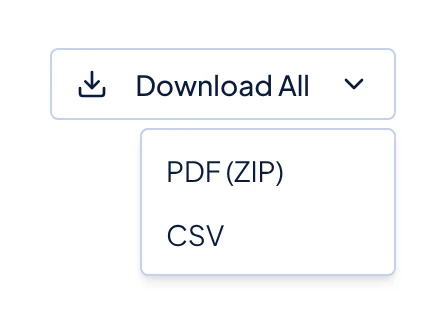
The Download All menu on a payroll run, with PDF (ZIP) and CSV. Choose the file you need.
- PDF (ZIP) gives one ZIP file with a PDF payslip for each employee in the run. Open the ZIP to find the PDFs, each named with the payslip number and the employee's name.
- CSV gives one row for each employee, with pay, every deduction, net pay, and the employer shares of SSS, Employees' Compensation (EC), PhilHealth and Pag-IBIG.
Download one payslip
- Open the payroll run and click the employee's row in Payroll Entries.
- Click Download PDF at the top right of the payslip.
Your staff can download their own payslips from the employee portal once the run is locked. See View your payslips.
Download a whole month
Go to Payroll and click the By Month tab.
Click the download button at the end of the month's row.

The By Month tab on Payroll. The download button is at the end of each month's row.
You get one CSV with one row for each employee, adding up every payroll run in that month. It is useful for monthly reports. It is not an official upload file for SSS, PhilHealth or Pag-IBIG.
Export attendance
- Go to Attendance and set the Start date and End date. Pick people or a kiosk too if you only need some of them.
- Open the three dots and click Export CSV.
The file has one row for each attendance record, with clock-in and clock-out times, the schedule, hours, late, overtime, undertime and overbreak minutes, and whether the day is complete. It includes complete and incomplete records, whatever the status filter shows.
Export your staff list
- Go to Staff. Use the search box, All Positions and the status filter to narrow the list if you need to. Choose All to include archived staff, the people you deactivated.
- Click Export CSV.
The file lists each person's employee number, name, email, position, salary type, rate, status and government ID numbers. Keep this file private, because it contains those ID numbers.
Common problems
- Download All is missing. The run has no payslips yet. Click Run Payroll first.
- The ZIP takes a while. Timekeep builds a PDF for every employee in the run, so a large run takes longer. Keep the page open until the download starts.
- Export CSV is not on my screen. Your role cannot export that list. Ask the owner to download it for you.