
Share a document with your staff
Upload a handbook, policy or memo so every employee can read it in the employee portal.
Updated Sep 29, 2026
Before you start
You must be an owner, manager or supervisor. Schedulers and bookkeepers do not see Documents in the sidebar.
Have the file ready. It can be a PDF, a Word document, a text file, or a JPEG, PNG or WebP image, up to 20MB.
A document is shared with every employee in your business. You cannot choose certain people. You can ask employees to acknowledge a document, which means they tap a button to say they have read it. Timekeep records the date for each person.
Steps
Go to Documents and click Upload document.
In the Upload company document window, type a Title, such as "Company Handbook". If you leave it empty, Timekeep fills it in from the file name once you choose the file.
Type a Description if you want one. Timekeep does not show it anywhere after you upload. It only helps when you search the list, so employees never see it.
Under File, click Click to choose a document and pick the file. The box then shows the file name, its type and its size.
Leave Require employee acknowledgement ticked if you want to track who has read the document. Untick it for a file that is only for information.
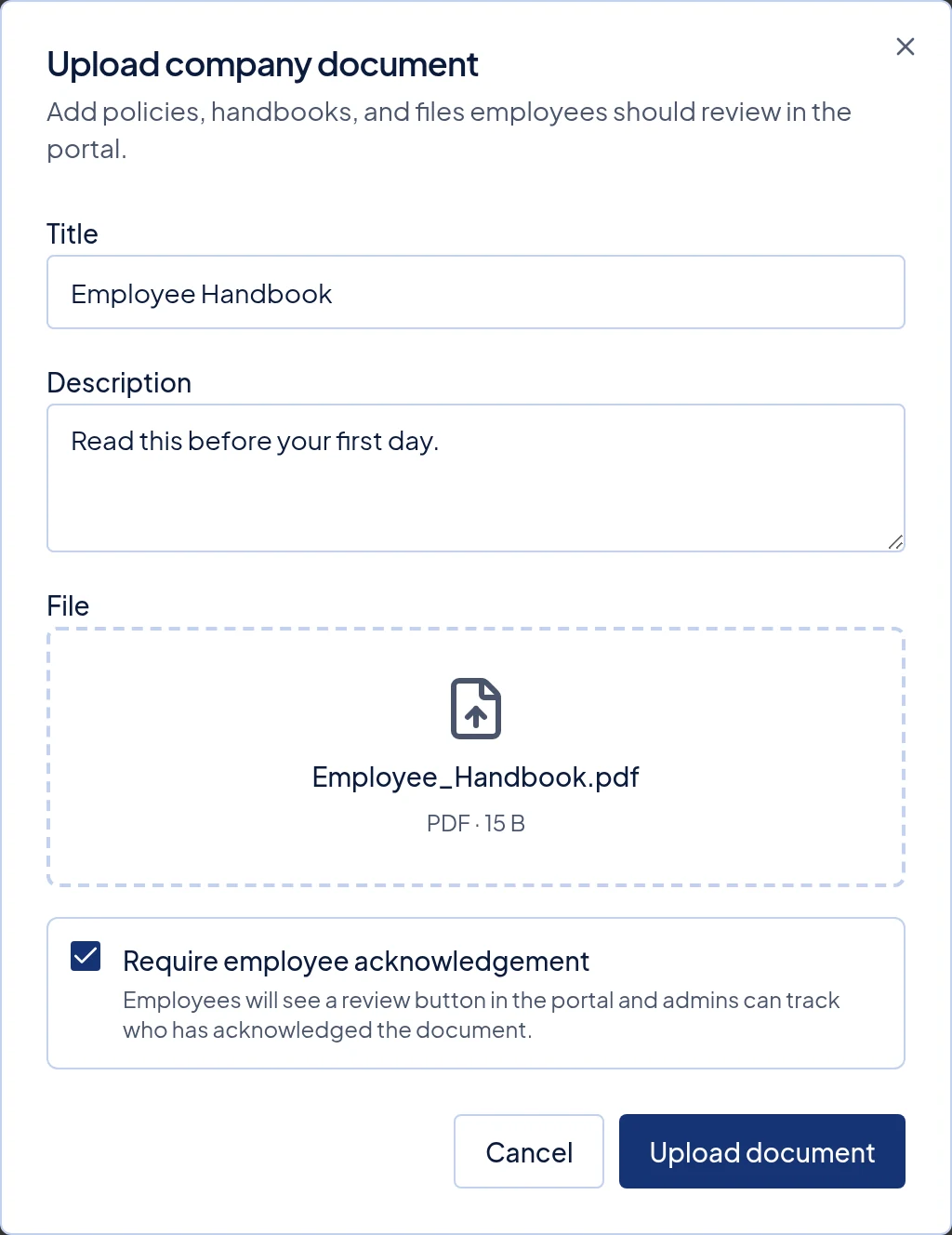
The Upload company document window with a title, a chosen PDF, and Require employee acknowledgement ticked. Click Upload document in the window. You cannot click it until you have chosen a file and typed a title.
What happens next
Timekeep saves the file and opens its status page. Follow Track and archive a document to see who has read it.
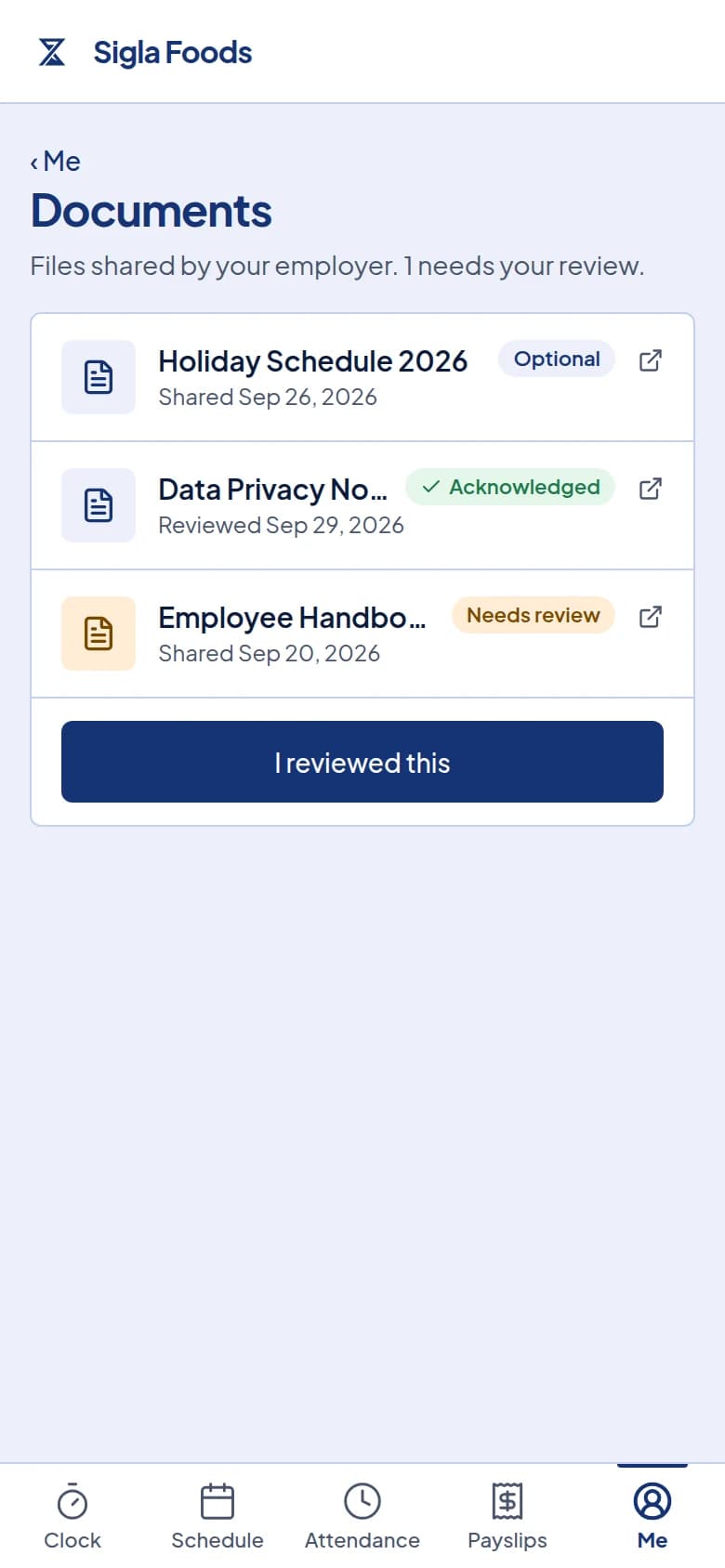
Employees open Me in the portal, then Documents under More. They see every document that is not archived, including ones uploaded before they were hired. Deactivated staff cannot use the portal, so they cannot see or open documents.
Each row shows the title and the date it was shared. A document that needs acknowledgement shows Needs review and an I reviewed this button. Tapping the row opens the file in a new tab. After the employee taps I reviewed this, the badge changes to Acknowledged. A document that does not need it shows Optional and has no button.
Common problems
- It says "Use a PDF, Word document, text file, or image." The file type is not accepted, which is common with Excel files. Save it as a PDF and choose it again.
- It says "File must be 20MB or smaller." Compress the file or split it into two documents.
- I uploaded the wrong file or chose the wrong acknowledgement setting. A document cannot be edited or deleted. Upload the correct one, then archive the old one so employees stop seeing it. The steps are in Track and archive a document. The new document starts with no acknowledgements.
- An employee cannot find the document. Ask them to look under Me, then More. If it is still missing, check whether you archived it.