
View your payslips
Open a payslip on your phone, read each part of it, and save a PDF copy.
Updated Sep 20, 2026
Before you start
You need to be logged in to your employer's employee portal on your phone.
Steps
Tap Payslips in the bar at the bottom.
Tap View payslip on the card marked Latest for your newest payslip, or tap any older payslip in the list under Earlier.
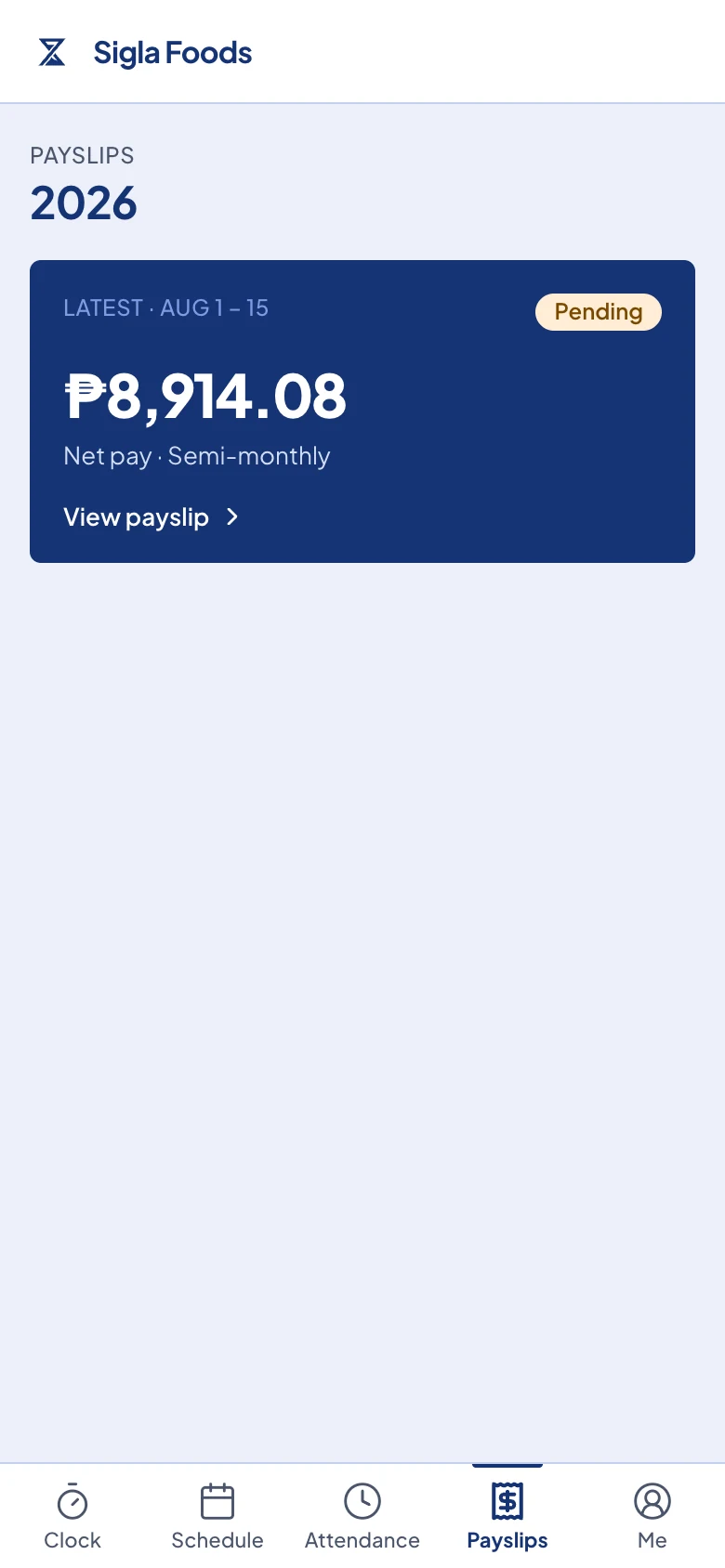
The Payslips page. The newest payslip is the card at the top. Tap Download PDF at the bottom of the payslip to save a copy.
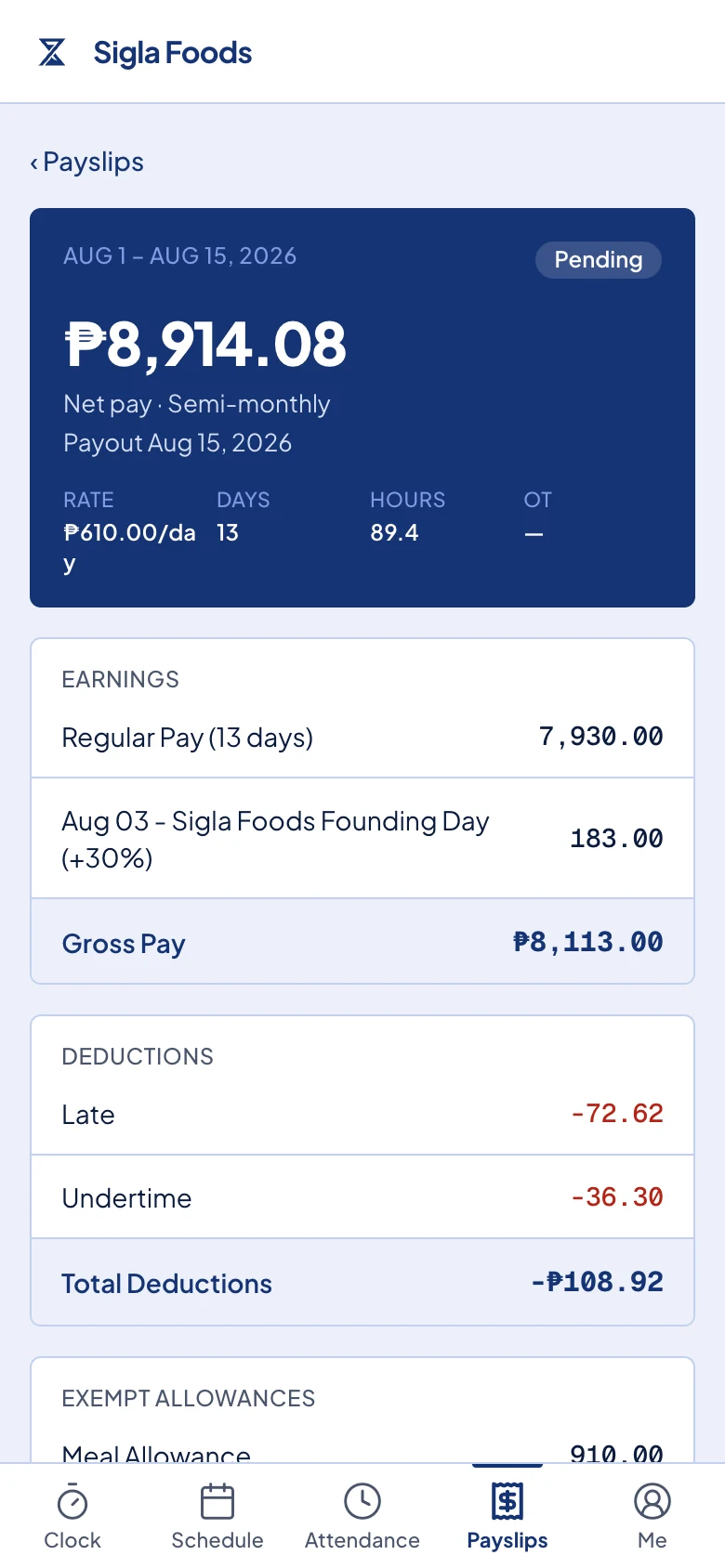
An open payslip, with net pay at the top.
What happens next
A payslip shows up here once your employer finalizes the payroll run for that cutoff, the stretch of dates the payslip covers. The tag on each payslip says Pending until the payroll run is marked paid, then it says Paid.
The big amount at the top is your net pay, the money you take home. Below it is the payout date, which is the day you are paid. Then come your rate and your days, hours, and overtime for the cutoff.
Then come the sections:
- Earnings lists your regular pay and anything added to it, such as leave pay, holiday pay, overtime pay, or an allowance. Gross Pay is the total.
- Deductions lists what is taken out of your pay. SSS, PhilHealth, and Pag-IBIG are your share of the government contributions. Withholding Tax is the income tax your employer remits for you. Late, Undertime, Overbreak, and Absent come from your attendance. A loan or cash advance payment shows here too, such as Loan Deduction. Total Deductions is the sum.
- Exempt Allowances appears only if you were paid an allowance that is not taxed.
Deductions and Exempt Allowances are left out when they have nothing in them, so your payslip may be shorter than this, and that is normal.
Common problems
No payslips available yet. Your employer has not finalized the payroll run for that cutoff. Check again after the payout date, or ask your HR or your manager.
An amount looks wrong. Show the payslip to your HR or your manager and ask them about it. You cannot change a payslip from the portal.