
Track and archive a document
See which employees have acknowledged a document, and archive it when it is out of date.
Updated Sep 29, 2026
Before you start
You must be an owner, manager or supervisor.
Only documents that ask for acknowledgement have something to track. Acknowledging means the employee taps a button in the portal to say they read it. See Share a document with your staff.
Steps
Go to Documents. The list shows Active documents. Use the Search documents… box to search titles, descriptions and file names. To switch between Active, Archived and All, use the menu next to the search box, which shows Active.
Read the Acknowledgement column. It shows a bar and the percentage of your active employees who have acknowledged the document. It shows Optional for a document that does not ask for acknowledgement. On a narrow screen, the Uploaded and Acknowledgement columns are hidden.
Click a document. You can also open the menu at the end of its row, the button whose hidden label is Actions, and click View. Open file in the same menu opens the file itself in a new tab.
On the status page, the top shows the title, then the file type, size and upload date. For a document that asks for acknowledgement, a card shows how many active employees have acknowledged it, such as "2 of 4 active employees acknowledged". The table lists each employee under Employee, Employee No., Status and Acknowledged. Status is Acknowledged, Pending or Optional, and Acknowledged holds the date.
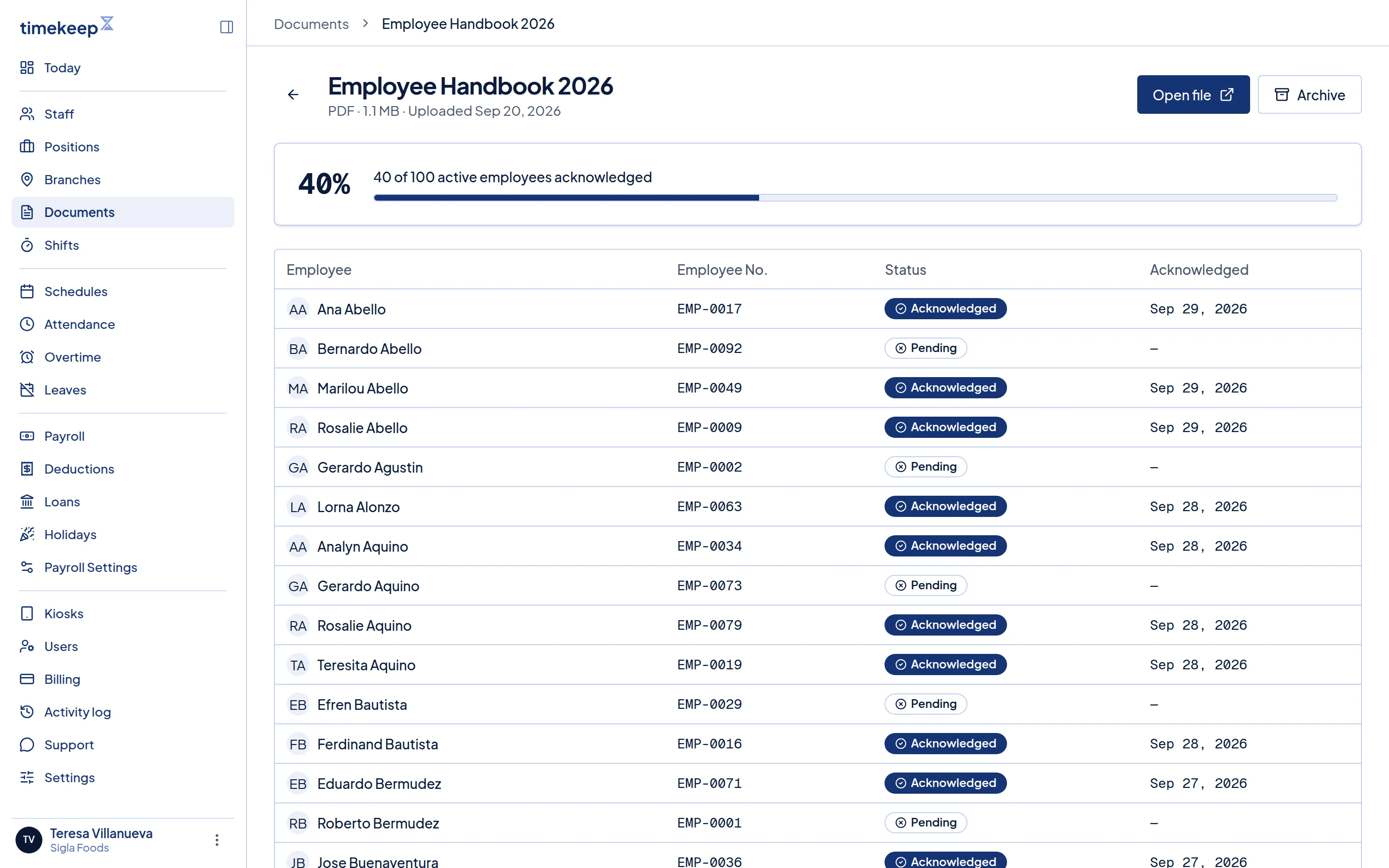
A document status page with the acknowledgement percentage and a table of employees marked Acknowledged or Pending. To archive it, click Archive at the top of the status page. You can also use the row menu on the list. Click Archive document in the Archive this document? window.
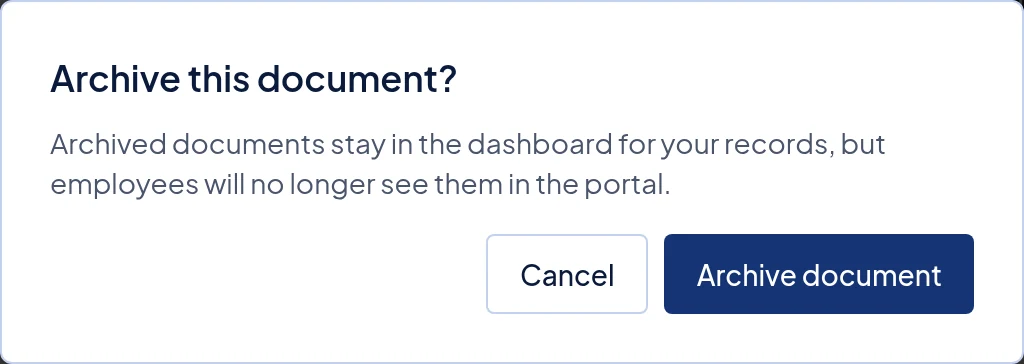
The Archive this document? window with Cancel and Archive document.
What happens next
The document gets an Archived badge and no longer shows in the employee portal. Employees can no longer open the file or acknowledge it. The file itself is not deleted, so you can still open it and see who acknowledged it. The list hides archived documents until you choose Archived or All.
There is no button to bring an archived document back. If you need it again, upload the file again.
Common problems
- An employee is missing from the table. The table lists active staff only, not deactivated staff. If Restrict supervisors to assigned employees is on under Supervisor access in Settings, a supervisor sees only their assigned team in the table and the percentage.
- An employee says they read it, but they show Pending. Opening the file does not count. The employee must tap I reviewed this in the portal.
- I cannot find a document I uploaded. The list opens on Active. If you archived it, choose Archived or All.
- I cannot click Archive. On the status page, the document is already archived. The row menu on the list no longer offers Archive for it either.