
Check and adjust leave balances
See how many leave days each employee has left, and add or remove days when a balance is wrong.
Updated Sep 29, 2026
Before you start
Owners, managers and supervisors can view balances. Only an owner can change them. If your business limits supervisors to their assigned employees, a supervisor sees only those employees.
Each leave type has its own balances. An owner turns a type on under the Settings tab.
Steps
Go to Leaves and click the Balances tab.
If you offer more than one leave type, click its name at the top. Choose the Leave year on the right.
Type a name or employee number in Search name or employee no. and press Enter. You can also narrow the list with the branch list, which starts as All branches.
Read the columns. The headings appear in capitals on screen. For a type that adds credits monthly, you see Accrued, + Adjusted, − Used, − Pending (requests waiting for a decision) and = Available. − Forfeited counts expired credits. + Carried appears only when the leave type has an expiry date other than 31 December. A type you credit by hand shows Credited instead of Accrued and + Adjusted.
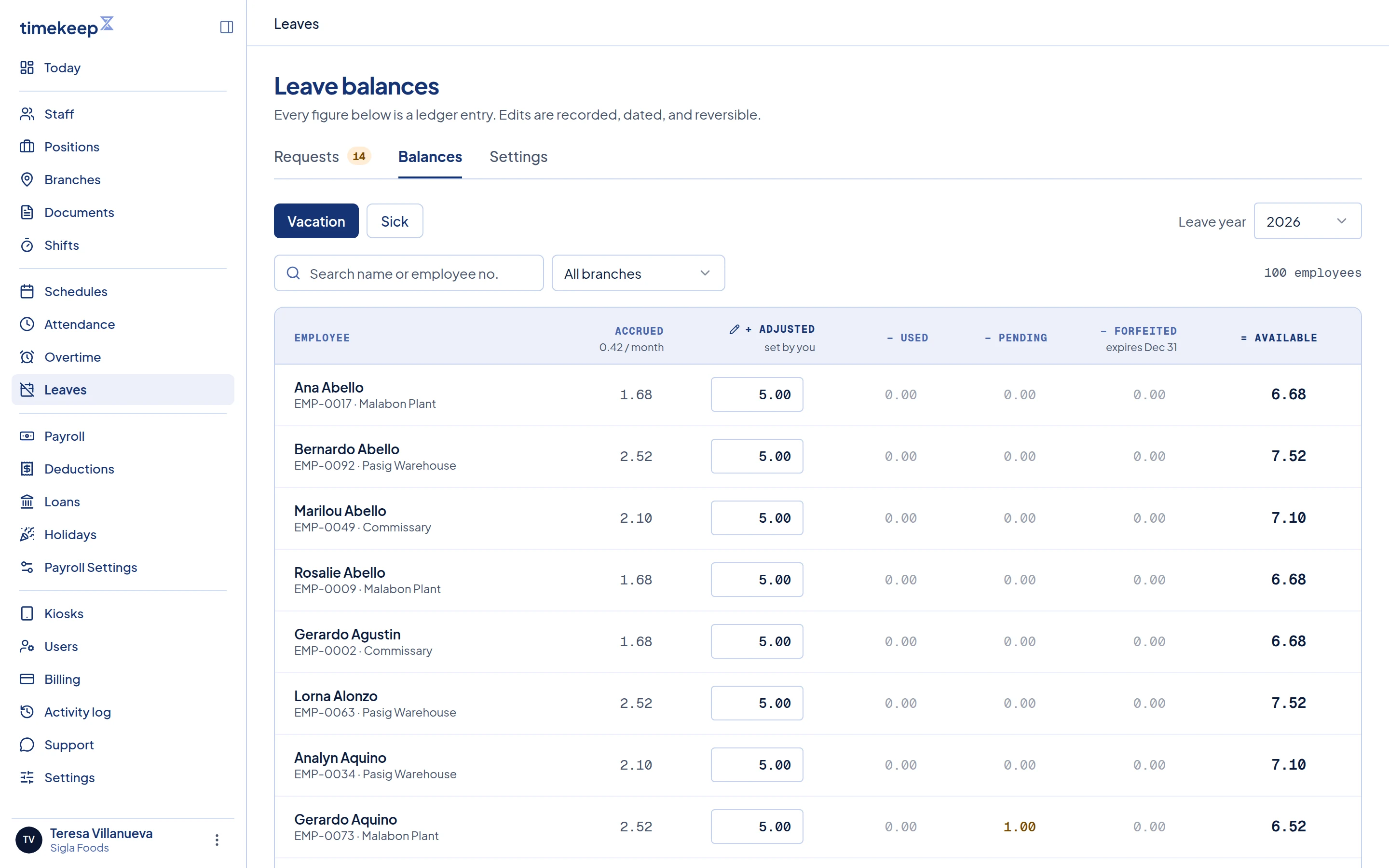
The Balances tab for Vacation Leave. The pencil marks the + Adjusted column an owner can edit. To change a balance, click the box in the column with the pencil and type the total you want that column to show. Under the box, writes shows the difference, and = Available shows the new figure.
Click Review 1 change → at the bottom. The number changes with how many rows you edited. To start over, click Discard.
In the Write 1 ledger entry window, check the list. Under Recorded as, check the date box and the note box. The date starts as today, or 1 January if you chose an earlier Leave year. The note starts as "Bulk balance edit". Replace it with the reason for the change, because a note is required. Click Write 1 entry.
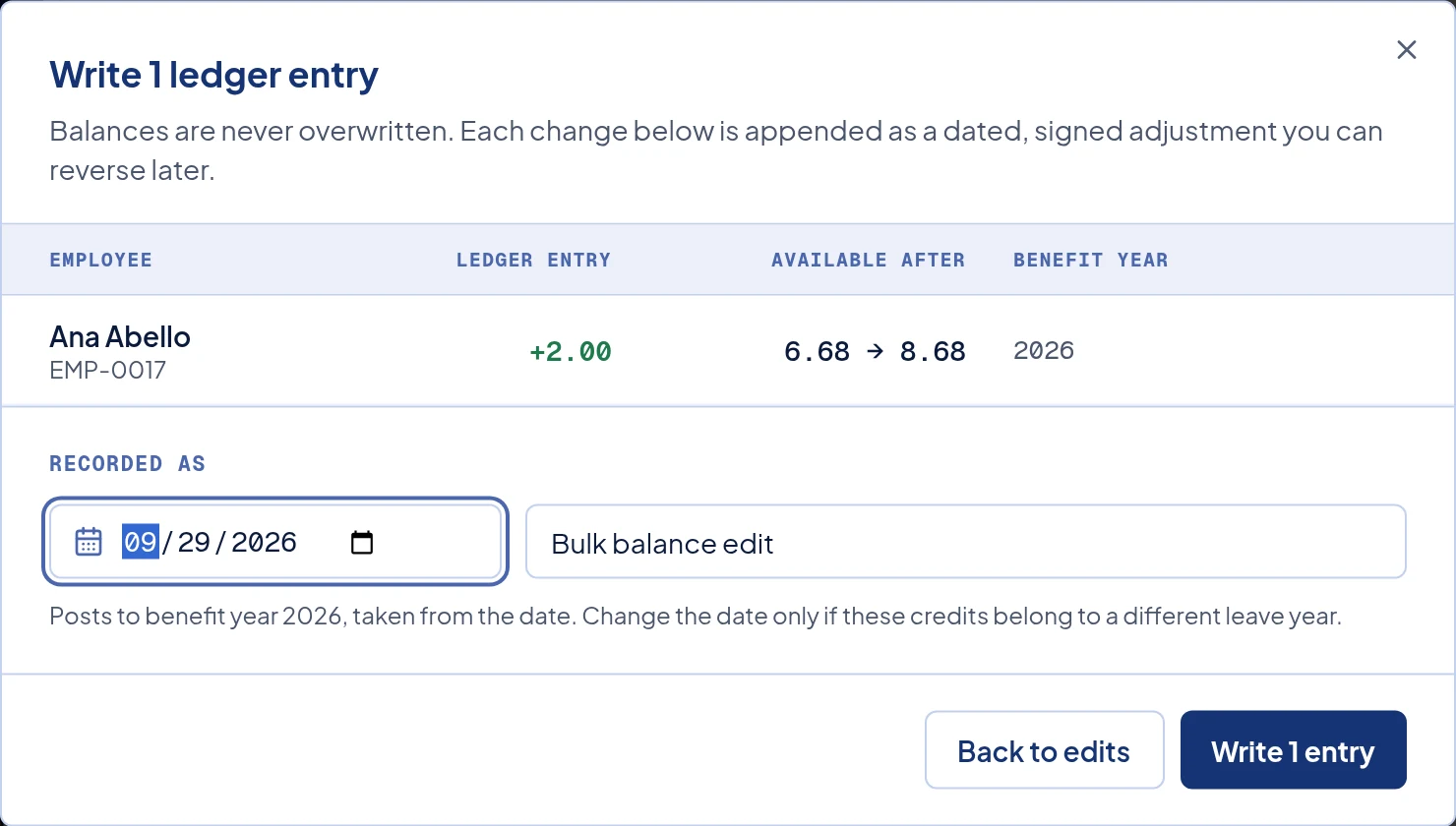
The review window showing +2.00 for one employee, with the date and note filled in.
What happens next
Each change is added as a dated entry. Nothing is overwritten, so to take a change back, write another entry that moves the figure the other way.
You can also adjust one employee from the Requests tab. Click Adjust balance, choose the Employee and Policy, and enter Days to add or remove. Here you enter the days to add or remove, not the new total, and a negative number takes days away. Then set an Effective date and a Note, and click Save adjustment.
To decide a waiting request, follow Review and decide leave requests.
Common problems
- A box is grey and the row has a lock icon. The employee is in a locked or paid payroll that covers the date the review window would use by default. Point at the box to read what to do. If you pick another date in the review window and that date is in a locked or paid payroll, Timekeep skips that row and tells you after you click Write 1 entry.
- It says balance changed. Someone else changed that balance after you opened the page. Nothing was written for that row, so review it and try again.
- The review button at the bottom is greyed out. A box shows not a number. Type a number between -366 and 366 with up to two decimals, or undo that row.
- It says the date falls in another year. The date in the review window must be in the Leave year you chose. Pick a date in that year, or switch the Leave year and edit again.
- The tab says No leave types are offered. Ask an owner to click Open Settings and turn a leave type on.