
Correct an attendance record
Fix clock or break times and have Timekeep work out the attendance totals again.
Updated Sep 20, 2026
Before you start
Only the business owner can correct attendance from this page. Find out the actual clock and break times before you change the record.
You cannot change the date in the edit window. If the record is on the wrong date, delete it from the edit window and add a missing attendance entry on the correct date.
Steps
Go to Attendance.
Set the start and end dates above the table. Use the employee filter if you need to narrow the list.
Open the menu at the end of the employee's row and click Edit.
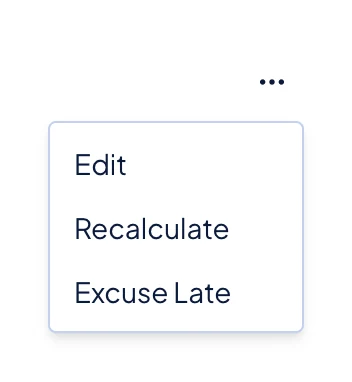
The menu at the end of an attendance row, with Edit and Recalculate above the available excuse option. Correct Clock In and Clock Out. For an overnight shift, Timekeep saves a time earlier than Clock In on the next day. The window shows Next day below that time.
Correct each Break Start and Break End. Click Add break if another break is missing, or Remove beside a break that should not be there.
Click Save Changes.
What happens next
Timekeep saves the clock and break times, then recalculates late, overtime, undertime, and overbreak against the schedule and current time-tracking settings. The updated minutes appear in the attendance table.
This correction does not rewrite a payslip that Timekeep already created. If the attendance belongs to an existing payroll run, follow the rerun guidance in Run your first payroll.
Common problems
- Edit is missing from the row menu. Only the business owner sees this control.
- The record still shows Incomplete. Check that Clock Out is filled in. An incomplete record can stop a payroll run until you correct it.