
Turn on mobile clock-in
Let your staff clock in and out from the employee portal on their own phones.
Updated Oct 9, 2026
Before you start
- Mobile clock-in has two switches: one for the whole business and one for each employee. Staff can clock in from their phone only when both are on.
- You need the owner role to turn on the business switch, because only owners see the Kiosk card in Settings. Owners, managers and supervisors can turn on the switch for each employee.
- Your staff need to know how to log in to the employee portal.
Steps
Go to Settings and scroll to the Kiosk card.
Turn on Mobile clock-in and click Save at the bottom of the card.
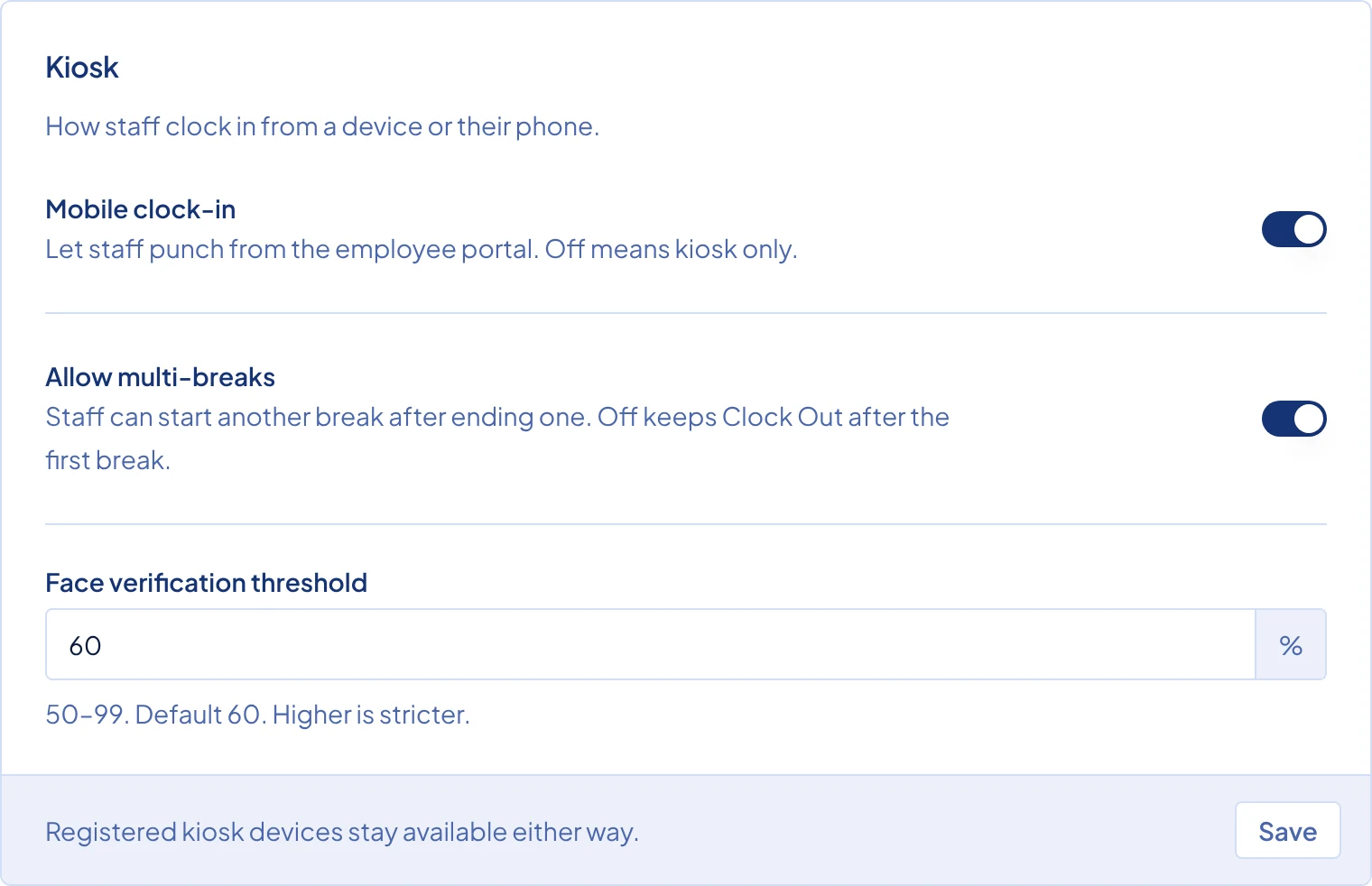
The Kiosk card in Settings, with the Mobile clock-in switch. Go to Staff and open the employee who will clock in from their phone.
In the Settings card, turn on Mobile Clock-In.
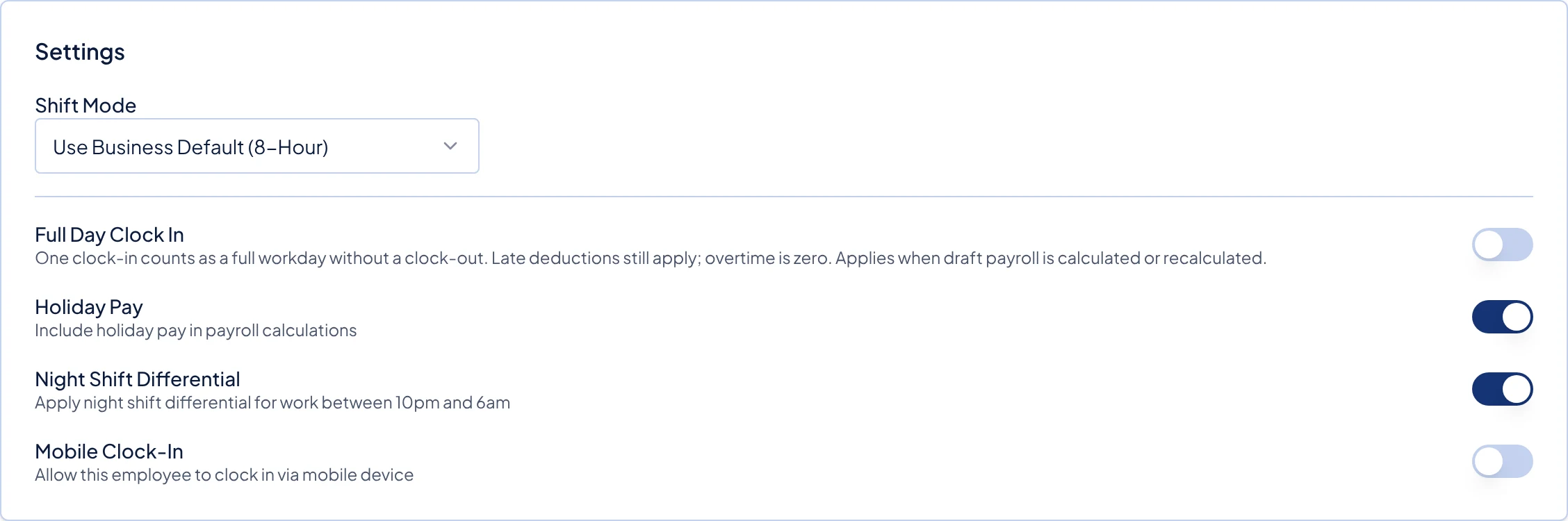
The Settings card on a staff page, with the Mobile Clock-In switch at the bottom. Click Save Changes in the bar at the bottom of the page.
Repeat steps 3 to 5 for each employee who needs it. Everyone else keeps using the kiosk.
What happens next
Clock becomes the first item in the employee's portal bar. From there they clock in, start and end breaks, and clock out. The kiosk still works for them too. See Clock in and out for what they see.
- Location. The phone asks the employee to share their location. If they allow it, Timekeep saves where they were with each punch. If they decline, the punch still goes through without a location. Timekeep does not check the location against your branch, so a punch from anywhere is accepted.
- Selfie. An employee with a photo on their staff page takes a selfie at each punch, and the punch is saved only when the face matches the photo. An employee without a photo punches without one. See Turn on face verification.
To check a punch, go to Attendance and click the row. When the record has selfies, open Clock photos to see them, with a View location link under each one that opens the spot in Google Maps. Locations show only next to selfies, so for an employee with no photo there is no View location link.
Common problems
The Mobile Clock-In switch on the staff page is greyed out. The business switch is still off. Ask the owner to turn on Mobile clock-in in the Kiosk card in Settings first.
An employee does not see Clock in their portal. One of the two switches is off. Check both, then ask the employee to reopen the portal.
A record has no location. The employee declined location on their phone, or the phone could not find it in time. The phone asks when the employee opens Clock, so ask them to allow location for their browser, then open Clock again before the next punch.
The face does not match. The punch is not saved. Ask the employee to retake the selfie in good light, with their face clear and facing the camera.