
Run separate payrolls with employee groups
Save a set of employees as a group, then pick it in New Payroll to pay, for example, office and production staff in separate payroll runs.
Updated Oct 9, 2026
Before you start
You must be an owner or manager. An employee group is a saved list of employees that you can pick when you create a payroll run, which is one payroll for a set of attendance dates. Use groups to pay, say, office and production staff separately.
Timekeep does not stop one person from being in two runs for the same dates, so keep each person in one group only. If you pay twice, the person is paid twice. See the first item under Common problems.
For the rest of the run, follow Run your first payroll.
Steps
Go to Payroll and click New Payroll.
Click Manage groups beside Employee group. The Employee groups window lists your groups and how many active employees each has.
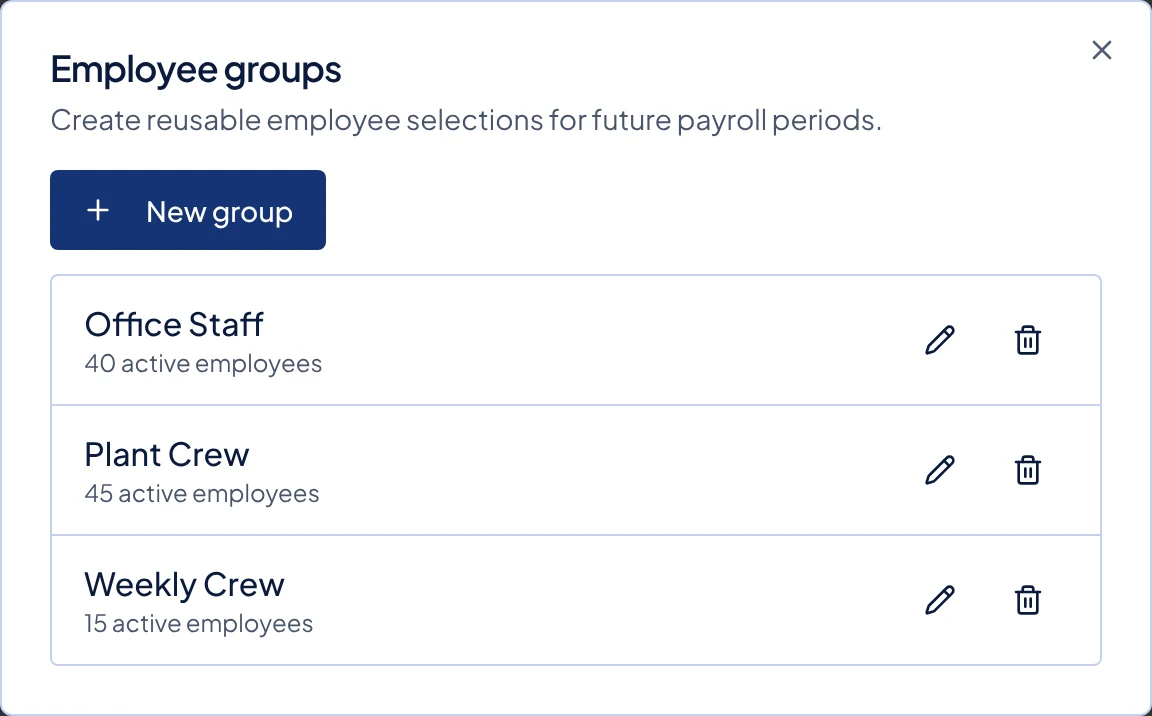
The Employee groups window, with a pencil and a bin button beside each group. Click New group. Type a Group name, such as "Office staff", tick the employees who belong in it, and click Create group.
To change a group, click its pencil, make your changes, and click Save changes. To remove one, click its bin and then Delete group. Close the window to return to New Payroll.
Set the Period, Cutoff, dates and Payout Date as usual. Cutoff is the half of the month the run pays, the 1st cutoff or the 2nd cutoff.
Open Employee group and pick your group. Timekeep ticks the group's active employees who fit the period.
Tick or untick names if this run needs a different set. To keep that set for next time, click Save this selection as a new group. It opens a new group with those names already ticked.
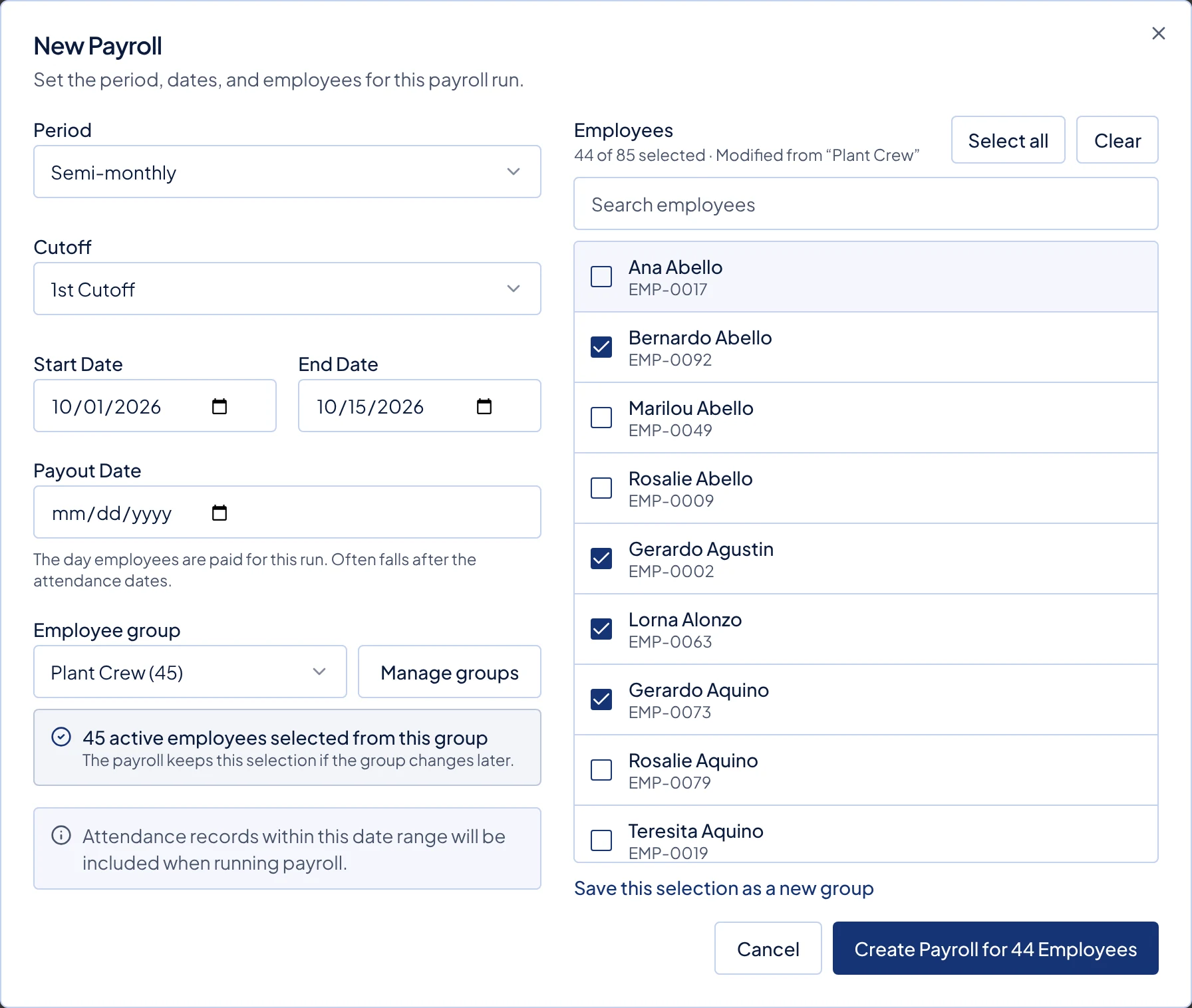
New Payroll with the Plant Crew group picked and one name unticked. The list shows Modified from Plant Crew and the Save this selection as a new group link. Click the create button, such as Create Payroll for 44 Employees. Then repeat steps 1 to 8 for your other group, with the same dates. Open each run and click Run Payroll, because a new run has no payslips until you do.
What happens next
Each payroll run keeps the employees it was created with, so editing or deleting a group later does not change existing runs. Deactivated employees stay in a group as unavailable and are skipped when you pick the group. If you edit and save the group, they are removed from it.
When you click Run Payroll, Timekeep still skips anyone who is deactivated, was hired after the last date of the run, or left before its first date. The incomplete-attendance check applies only to the people in that run.
Common problems
- Someone was paid twice. Timekeep does not stop one employee from being in two payroll runs for the same dates, and each run makes its own payslip with pay, loan payments and monthly deductions. Keep each person in one group only. If one run is not yet paid, delete it with the bin button at the top of the run and click Delete, then create it again without that person. A paid run cannot be deleted.
- A group shows fewer people in New Payroll. A weekly run lists only daily and hourly staff on weekly pay, and a semi-monthly run leaves out anyone on weekly pay. Group members who do not fit the Period stay unticked.
- My group selection disappeared. Changing the Period sets Employee group back to All active employees. Pick the group again.
- Timekeep says "A payroll employee group with this name already exists." Two groups cannot share a name. Type a different Group name, or edit the existing group instead.
- I cannot tell which group a run was for. The payroll run list does not show a run's group name, so put the group in your own notes, or use dates you can tell apart.