
Read the Today board
See at a glance who is in, who is on break, and who has not arrived yet.
Updated Oct 9, 2026
Today is the first page in the sidebar. It shows where each of your staff stands for the current day, in Philippine time, based on their schedules and their kiosk or phone punches. A punch is one clock-in, break or clock-out.
Before you start
- Owners, managers and supervisors see Today. If you turned on Restrict supervisors to assigned employees in Settings, a supervisor sees only their own team.
- The board needs schedules to know who is due. See Create shifts and schedules.
Steps
Go to Today. The board has four columns. The number beside each column name is how many people are in it.
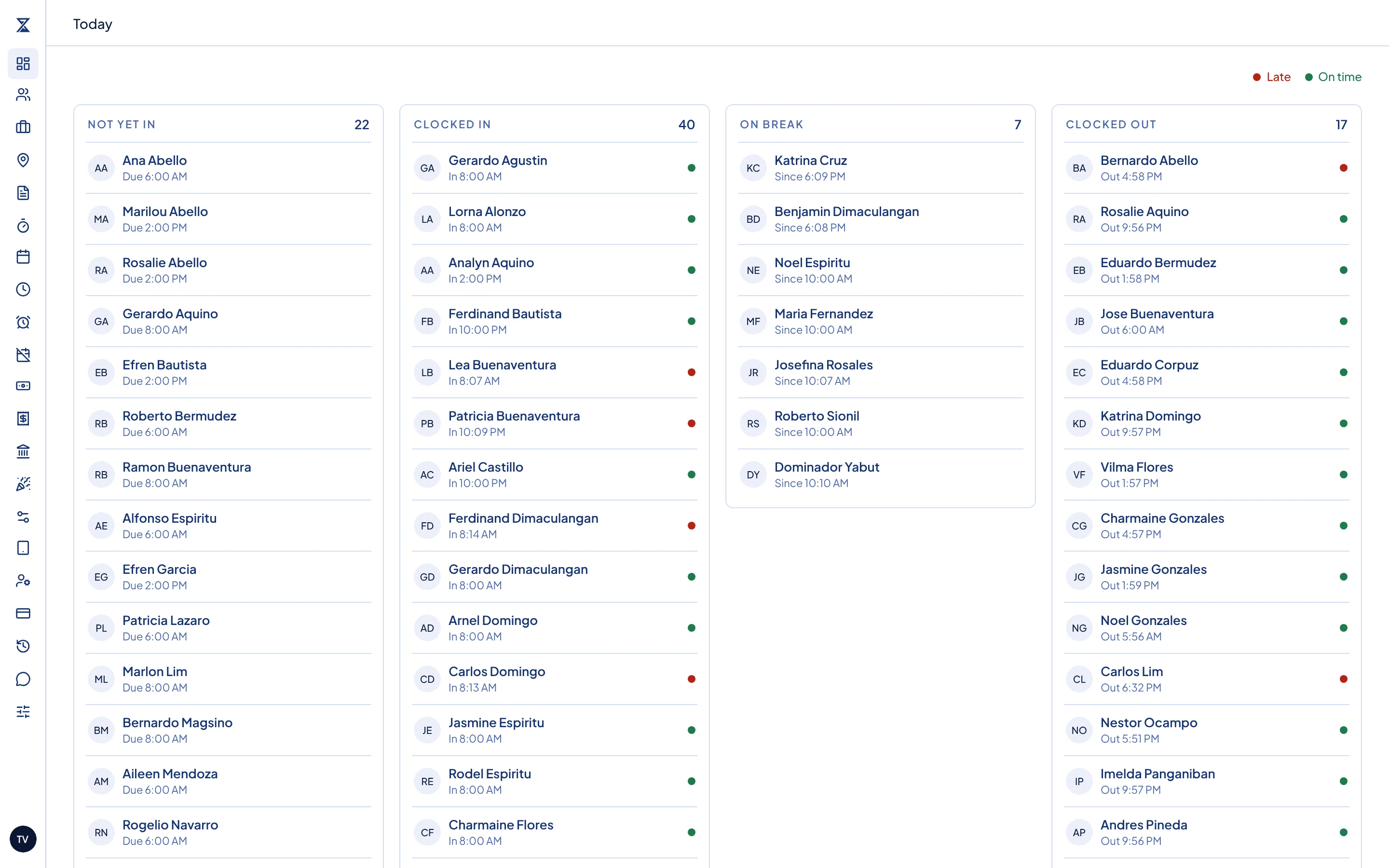
The Today board with its four columns. Read each column:
- Not yet in: people with a working schedule today who have not clocked in. The line under the name shows when they are due, such as "Due 8:00 AM".
- Clocked in: people at work now, with the time they clocked in.
- On break: people on a break now, with the time the break started.
- Clocked out: people who finished, with the time they clocked out.
Check the dot on the right of each person in Clocked in and Clocked out. The legend at the top right explains the colors: Late means Timekeep counted late minutes for that clock-in after your grace period, the minutes you allow before someone counts as late. On time means it did not.
What happens next
The board refreshes on its own every 30 seconds, so you can leave it open. It is for looking only, so clicking a person does nothing. To fix a punch or add one that is missing, go to Attendance. See Correct an attendance record and Add a missing attendance entry.
A person with two schedules on the same day appears once for each, marked Shift 1 and Shift 2. Someone still clocked in from a shift that started yesterday stays in Clocked in until they clock out.
Common problems
Someone on leave or absent is in Not yet in. The board does not check leave, and it has no absent column. Anyone with a working schedule today stays in Not yet in until they clock in. This is expected, and you do not need to change anything. To see who is on approved leave, go to Leaves.
Someone without a schedule shows On time. A person who clocks in without a schedule for today still appears on the board. Timekeep has no start time to compare with, so it never marks them late.
Someone is missing from the board. They have no working schedule today and have not clocked in, or they are deactivated. Check their schedule on Schedules.