
Replace a kiosk's tablet
Check that each kiosk is connected, move a kiosk to a new tablet, and cut off a device you no longer use.
Updated Oct 9, 2026
Before you start
- You need the owner role. Only owners see Kiosks in the sidebar.
- This page is about kiosks that are already set up. To pair a tablet for the first time, see Set up a kiosk.
Steps
Check on a kiosk
Go to Kiosks. The list shows every device with its Status, Last Seen and IP Address.
- Active means the device is paired.
- Pending means it was added but never paired. Its setup code is shown under the name.
- Revoked means its access was cut off.
Look at Last Seen to know whether a kiosk is really working. An open kiosk checks in with Timekeep about every 30 seconds while it has internet, so it should read a few minutes ago at most. Active stays on even when the tablet is switched off.
Click a row to open the kiosk's page. Device Information repeats the status, last seen time and IP address, and adds Registered, the date the kiosk was added. A paired kiosk shows "Device is connected".
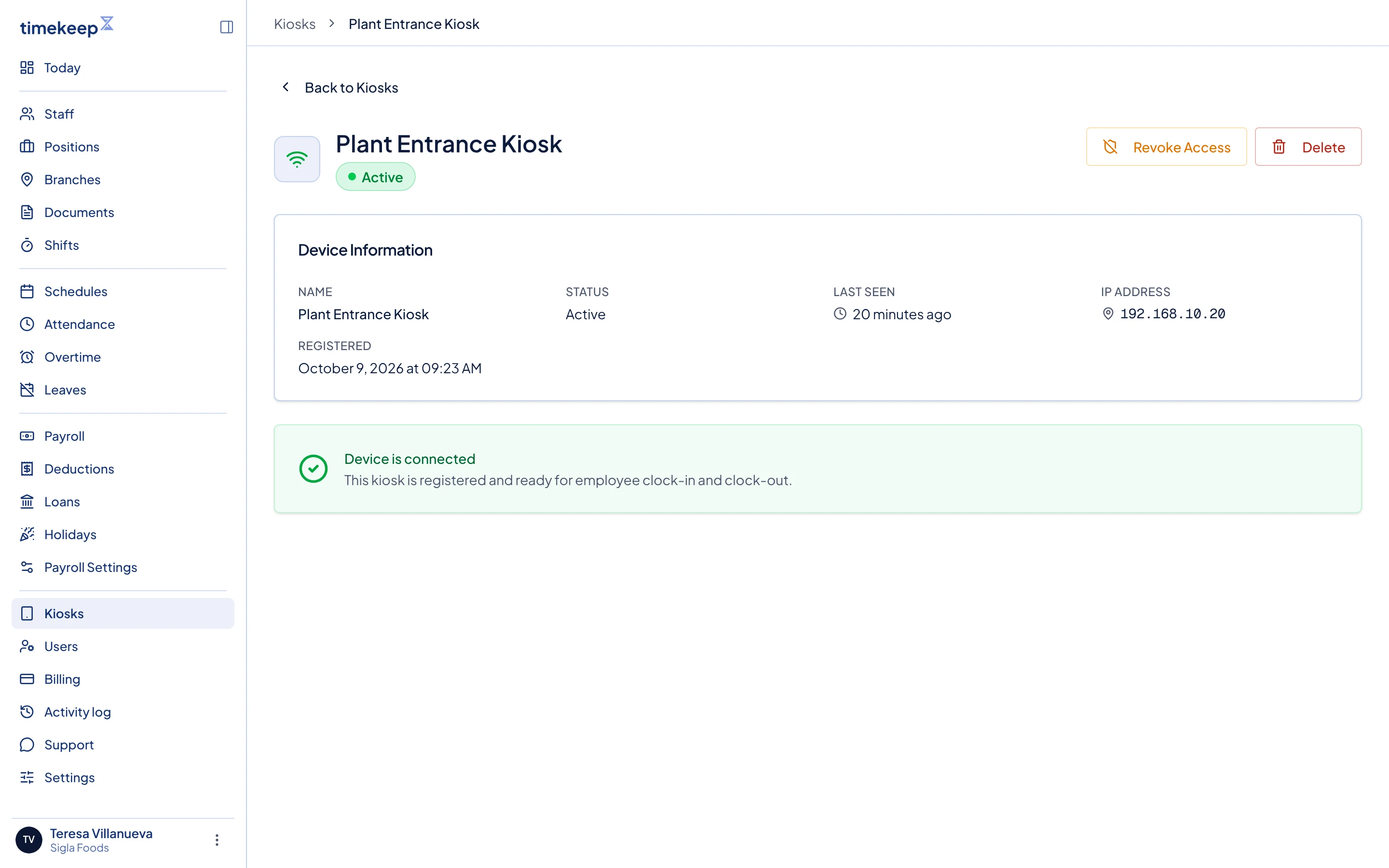
A kiosk's page, with Revoke Access and Delete at the top right.
Keep the kiosk full screen and locked in place
Keep the kiosk full screen and locked in place. Do this once on each tablet, after you pair it.
- Install it as an app. On Android, open the kiosk in Chrome, tap the menu (three dots), then tap Install app (or Add to Home Screen). On an iPad, open the kiosk in Safari, tap Share, then Add to Home Screen. Open Timekeep Kiosk from the new icon. It opens full screen with no browser bar.
- Set the tablet on a stand and turn on auto-rotate, so it follows how it is mounted.
- Pin the screen so staff can't leave the kiosk (Android): open Settings, search App pinning, turn it on, then open the kiosk, open recent apps, tap the app icon at the top of the kiosk card and tap Pin. To unpin, hold Back and Overview together and enter your screen lock. On an iPad use Guided Access in Settings > Accessibility.
These steps are on the tablet, not in Timekeep, so the words on your screen may differ.
Move a kiosk to a new tablet
A kiosk cannot be renamed or paired again, because its setup code works only once. To replace the tablet, or to give a kiosk a new name, add a new kiosk and remove the old one.
- On the old tablet, check the top bar of the kiosk. If it shows a pending counter, such as "2 pending", connect it to the internet and tap the counter to upload those punches first.
- Click Add Kiosk and pair the new tablet, following Set up a kiosk.
- Delete the old kiosk, as described below.
Revoke or delete a kiosk
On Kiosks, open the actions menu at the end of the row, or open the kiosk's page.

The actions menu on a kiosk row, with View Details, Revoke Access and Delete. Choose what you need.
- Revoke Access stops the device from connecting, and keeps the kiosk in the list as Revoked. Use it straight away for a lost or stolen tablet.
- Delete removes the kiosk from the list for good.
Confirm in the dialog. Neither one can be undone.
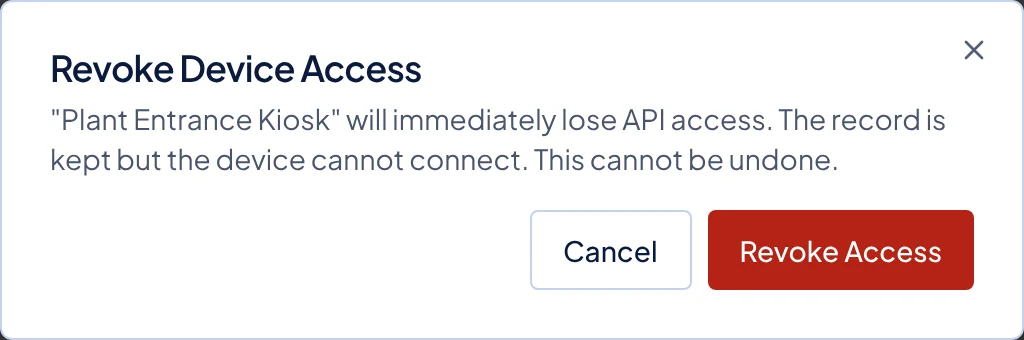
The Revoke Device Access dialog.
What happens next
The next time the tablet connects, it is turned away. It clears its saved data and goes back to the Device Setup screen. Punches it already uploaded stay in Attendance, so you do not lose any hours your staff worked.
Punches still waiting on the tablet are cleared along with everything else, so they never reach Attendance. That is why you upload them before you remove a kiosk you are replacing.
Common problems
- A kiosk shows Active, but nobody's punches are coming in. The tablet is probably off, closed or without internet. Check Last Seen. Open the kiosk on the tablet and connect it to Wi-Fi, and the waiting punches upload on their own.
- Someone tapped the disconnect button on the tablet. The disconnect button in the kiosk's top bar unpairs the tablet and clears any punches still waiting on it. The old kiosk cannot be paired again. Delete it in Kiosks and add a new one.
- A revoked kiosk needs to work again. Revoking cannot be undone. Delete the kiosk and add it again with a fresh setup code.
- The kiosk shows a "failed sync" count. Some punches were rejected when they uploaded. Check those people in Attendance and add any missing entry by hand. See Add a missing attendance entry.