
Deactivate or reactivate an employee
Stop someone who has left from clocking in or being paid, and bring them back if they return.
Updated Oct 9, 2026
Deactivate an employee when they leave your business. Timekeep keeps all their records, such as attendance, leave and payslips, so you can still look them up. Nothing is deleted.
Before you start
- You must be an owner, manager or supervisor.
- Finish their final payroll first. Final pay and leave payouts are handled separately from this step. Deactivating does not pay anyone. A deactivated employee is left out of every payroll run you generate, and Timekeep removes them from a draft run the next time it is run again. Locked and paid runs keep their payslips.
Steps
Deactivate an employee
Go to Staff and open the employee.
In Personal Information, set Resignation Date to their last day and click Save Changes. Timekeep then leaves them out of any payroll run that starts after that date.
Generate their final payroll run and lock it, as in Lock and unlock a payroll run.
Back on the employee's page, click Deactivate at the top right.
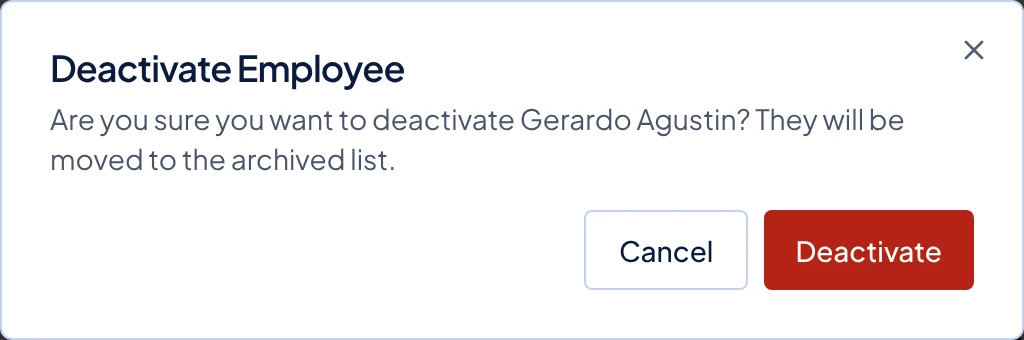
The Deactivate Employee window, opened from the employee's page. In the Deactivate Employee window, click Deactivate. The message "Employee deactivated." shows, and the badge at the top changes to Archived.
You can also deactivate from the list: on Staff, open the menu at the end of the row and choose Deactivate.
Reactivate an employee
- Go to Staff. Change the status list from Active to Archived.
- Open the employee and click Reactivate. In the Reactivate Employee window, click Reactivate.
- If they are coming back to work, clear Resignation Date and click Save Changes. Otherwise payroll keeps leaving them out.
What happens next
When you deactivate someone, they show as Archived on Staff. Also:
- They disappear from the kiosk once it refreshes, and their PIN stops working there.
- They cannot log in to the employee portal. A phone that is already logged in goes back to the login screen the next time a page loads.
- They no longer show on Schedules, in new payroll runs, or in the list for new leave requests. Monthly leave credits stop.
- Their seat, the space one employee takes up on your plan, is free for someone new. The number of seats you pay for does not change until your next renewal.
When you reactivate someone, they come back with the same employee number and the same 6-digit PIN.
Common problems
- It says "No seat available". Every seat on your plan is in use. Deactivate someone else who has left, or ask an owner to add seats in Billing.
- I cannot find a deactivated employee. Staff shows active employees only at first. Choose Archived or All in the status list.