
Set up a kiosk
Turn a shared tablet or phone into a clock-in station your staff can use.
Updated Sep 20, 2026
Before you start
- You need the owner role. Only owners see Kiosks in the sidebar.
- Your people are already in Staff. Each person gets a 6-digit PIN when you add them. They use that PIN at the kiosk.
- Have the tablet or phone ready and connected to Wi-Fi. It needs a camera if you want the face check.
Steps
Go to Kiosks and click Add Kiosk.
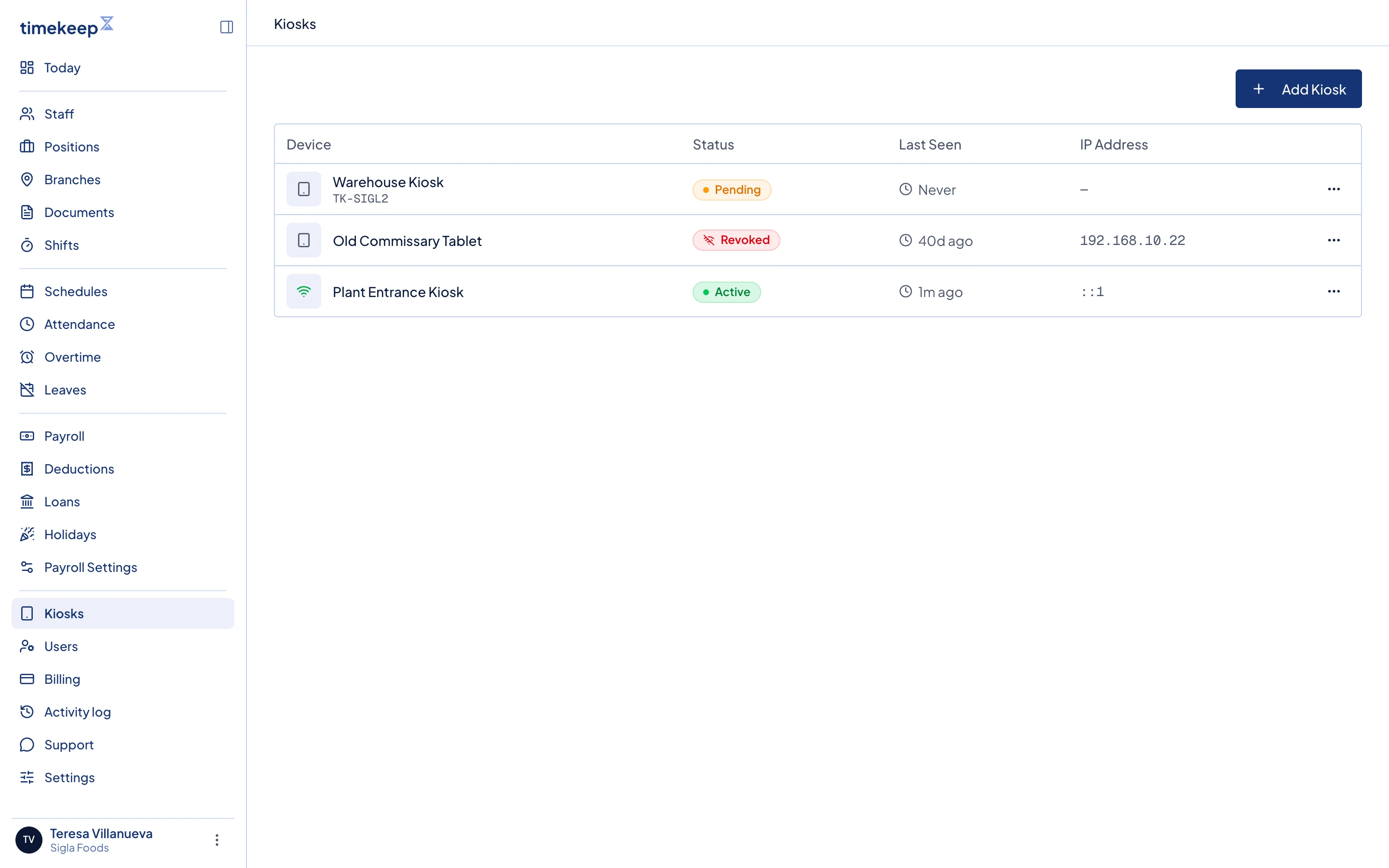
The Kiosks page, with Add Kiosk at the top right. Type a Device Name, such as Front Counter iPad, then click Create Kiosk.
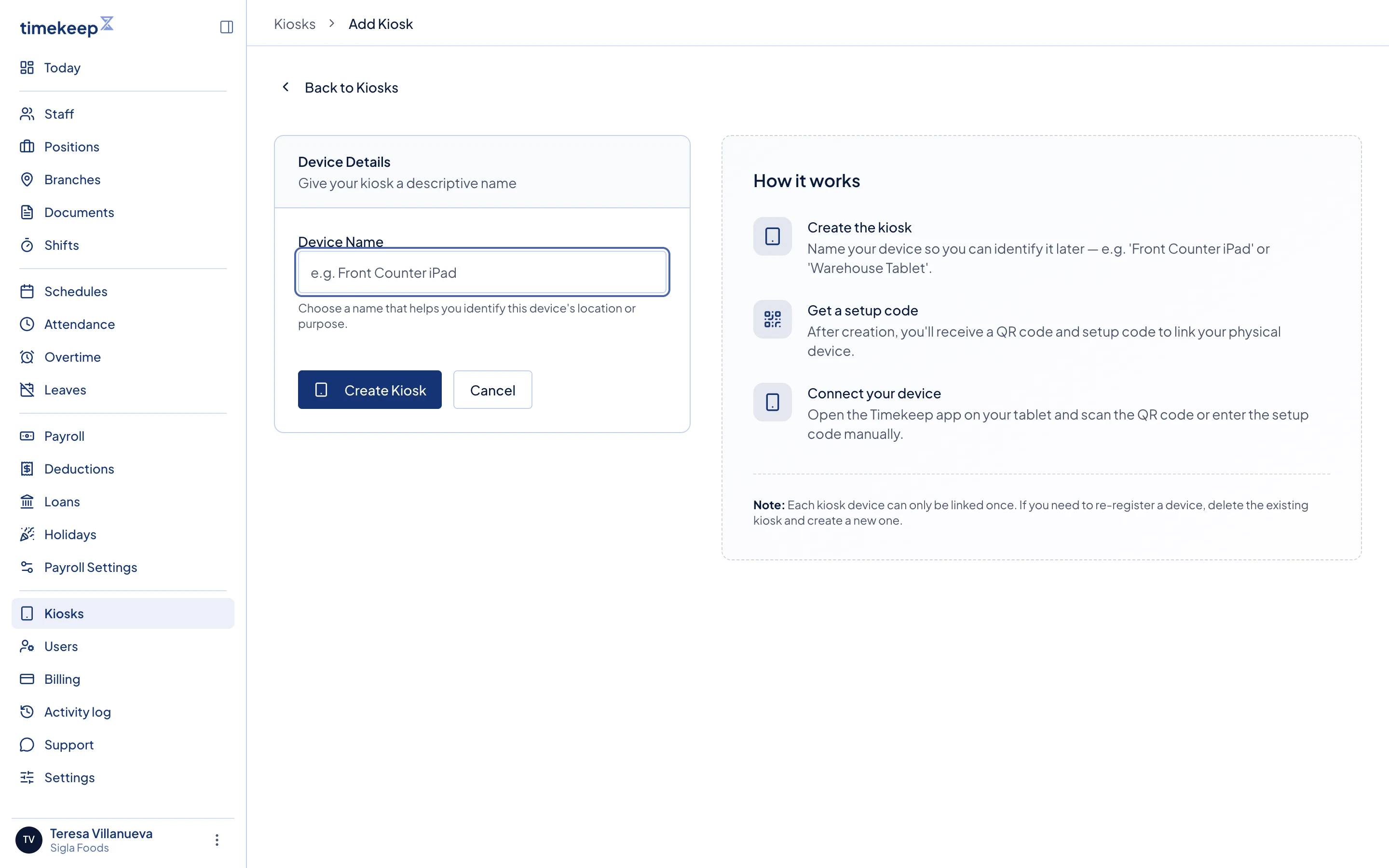
Naming a new kiosk. The device page opens on Pending Setup and shows Setup Instructions. On the tablet, scan the QR code with the camera app and tap the link. If you are already holding the tablet, click Open Kiosk on This Device instead.
If the camera cannot read the code, open the Timekeep address followed by
/kioskin the tablet's browser. The Device Setup screen asks for the Manual Setup Code, which looks like TK-A3X9. Type it and tap Register Device. The code works only once, so use it on the device you mean to keep.In Chrome on the tablet, open the menu and tap Install app so the kiosk runs full screen. To also lock the tablet in place and turn on auto-rotate, see Replace a kiosk's tablet.
Back in the dashboard, the kiosk turns Active and reads "Device is connected". This means the pairing worked.
Hand out the PINs. Go to Staff, open a person, and click the eye beside PIN to show the six digits, or use the copy button next to it. Give a PIN to everyone, including staff with a photo, because the kiosk asks for the PIN when it is offline. To add a face check, tap the camera button on their photo and use Upload Photo. See Turn on face verification.
Test it yourself before your staff line up. On the kiosk, tap a name, pass the check, then tap Clock In.
What happens next
Staff with a photo face the camera and tap Capture. Staff without one type their PIN. Either way, they then tap Clock In, Start Break, End Break or Clock Out. Timekeep saves the punch in Attendance, ready for payroll.
If the Wi-Fi drops, the kiosk keeps working, so your staff can keep clocking in. The top bar reads Offline, each punch is marked as saved offline, and a pending counter shows how many are waiting. The kiosk uploads them by itself once the connection is back. While it is offline the kiosk cannot match a face, so staff with a photo tap Capture and then type their PIN too.
Staff can also clock in from the employee portal on their own phone, but only after you turn it on in two places. Both switches have to be on.
- For the business: go to Settings and, in the Kiosk card, turn on Mobile clock-in.
- For each person: go to Staff, open the employee, and turn on Mobile clock-in.
An employee with only one of the two switches on does not see Clock in their portal. See Turn on mobile clock-in for location and selfie rules, and Clock in and out for what your staff see.
Common problems
- The setup code is rejected. A code links one device one time, so a used code will not work again. Delete the kiosk, add a new one, and use the fresh code.
- The kiosk says "Kiosk Unavailable". The subscription is inactive, so the kiosk stops taking punches. Check Billing.
- Someone is missing from the list. Deactivated staff are hidden from the kiosk. Check the person in Staff, then tap the refresh button in the kiosk top bar to load the change.
- The tablet is lost. Open the device in Kiosks and click Revoke Access straight away.