
Manage positions and branches
Rename or delete a position or branch, see who holds a position, and move an employee to another one.
Updated Oct 9, 2026
A position is a job title, such as Cashier. A branch is a work location, such as Katipunan. You create them while you set up your business. This article covers what you can do with them afterwards.
Before you start
You must be an owner, manager or supervisor.
Steps
See who holds a position
Go to Positions. The Staff column counts the active employees in each position. Deactivated employees are not counted.
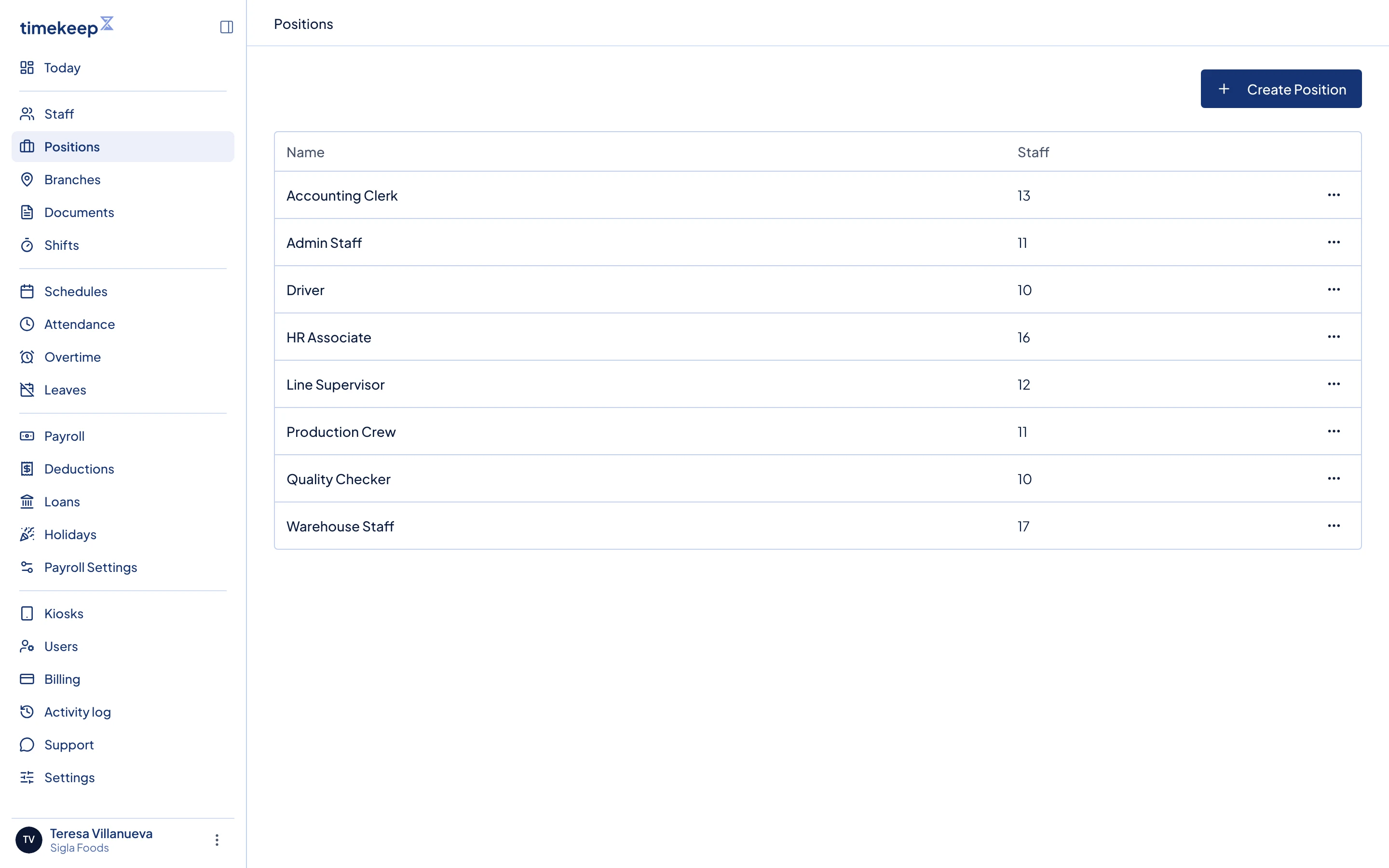
The Positions page. Each row shows a position name and its staff count, with a menu at the end. Click a position. Its page lists each active employee in it with Pay, Rate, Employee # and Status. Click a person to open their staff page.
Rename a position or branch
- Go to Positions or Branches.
- Open the menu at the end of the row and choose Edit.
- Type the new name in Position Name or Branch Name and click Save Changes.
Everyone in that position or branch keeps it. They see the new name straight away.
Delete a position or branch
- Go to Positions or Branches.
- Open the menu at the end of the row and choose Delete.
- In the Delete Position or Delete Branch window, click Delete. This cannot be undone.
You can delete a branch even if deactivated employees are on it. You cannot delete a position while it is in use.
Move an employee to another position or branch
- Go to Staff and open the employee.
- In Personal Information, choose a new Position or Branch. Choose No position or No branch to clear it.
- Click Save Changes in the bar at the bottom of the screen.
What happens next
Branches also let you narrow the Schedules page and the Balances tab on Leaves to one location. Deleting a branch removes it from any deactivated employees who still had it.
Common problems
- It says "Cannot delete this position because it is assigned to one or more employees". Move everyone in it to another position first. This includes deactivated employees, even though the Staff column does not count them. To find them, go to Staff, choose Archived in the status list and the position in the position list.
- It says "Cannot delete this branch because it is assigned to one or more employees". An active employee is still in that branch. Move them to another branch first.
- It says "A position with this name already exists". Each name can be used once. Pick a different name, or use the position you already have. Branches work the same way.