
File a leave for an employee
Create a leave request from the dashboard for an employee who cannot file it in the portal.
Updated Oct 9, 2026
Employees usually file leave in the employee portal. You can file a request for them from the dashboard instead, for example when someone calls in sick or does not use the portal.
Before you start
- You must be an owner, manager or supervisor. If your business limits supervisors to their assigned employees, a supervisor can file only for those employees.
- At least one leave type, such as vacation or sick leave, must be offered. An owner turns leave types on under the Settings tab on Leaves.
- Give the employee a schedule for those dates first. Timekeep uses the schedule to tell working days from rest days, and a rest day costs no credit. A credit is one day of leave. Without a schedule, every date costs a credit.
Steps
Go to Leaves. On the Requests tab, click New Request at the top right.
In the New Leave Request window, choose the Employee. Only active employees are listed.
Choose the Leave Type. The first type is already selected.
Set the Start Date and the End Date. For a single day, use the same date in both.
Type a Reason if you want to. The reviewer sees it on the request.
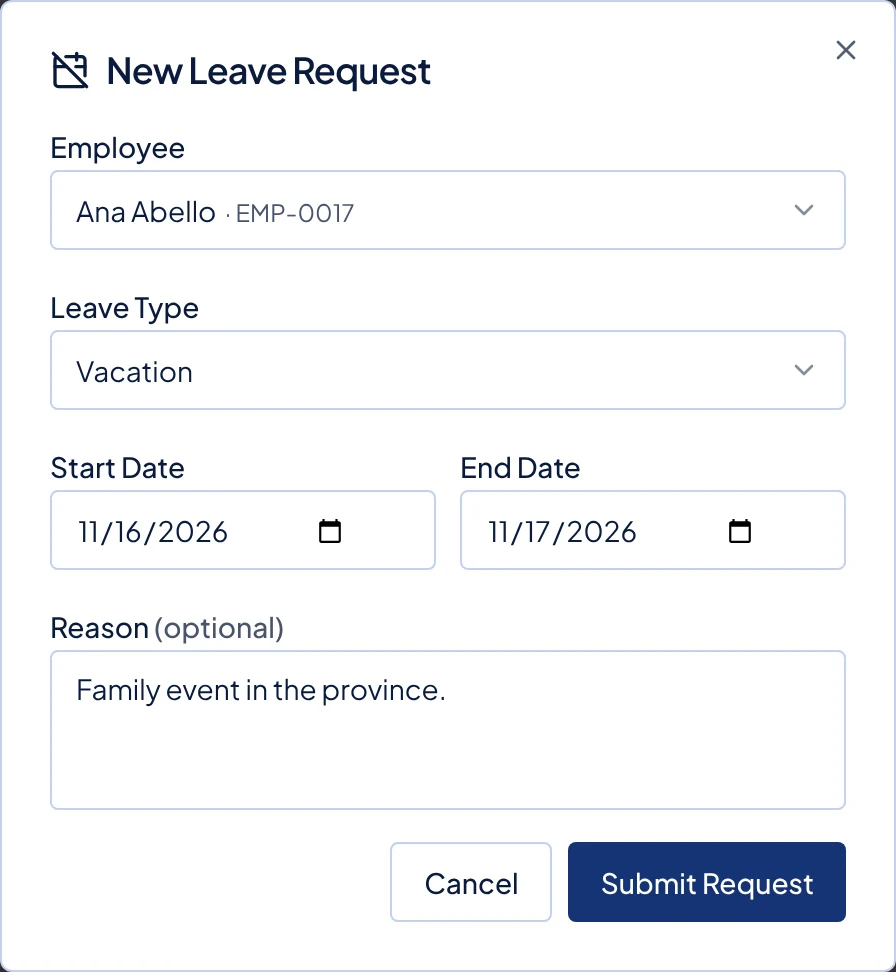
The New Leave Request window with an employee, Vacation, the dates and a reason filled in. Click Submit Request. The message "Leave request created" shows.
What happens next
The request is added to the list as Pending. Filing it does not approve it, so the credits are not used yet. Owners, managers and supervisors who can review it get an email, and you can approve it straight away by following Review and decide leave requests.
The Advance notice and Filing deadline on the Settings tab apply only to requests from the portal. From the dashboard, you can file for any dates.
If the request would take the employee's balance below zero, Timekeep still creates it. The message "Leave request submitted with a balance warning" shows the balance before and after. To correct a balance, see Check and adjust leave balances.
Common problems
- New Request is greyed out. No leave type is offered yet. Ask an owner to open the Settings tab on Leaves and turn a leave type on.
- It says the employee already has a pending or approved leave on these dates. Two requests cannot cover the same day. Open the existing request and cancel it, or choose other dates.
- The employee is missing from the list. They are deactivated, so reactivate them in Staff first. For a supervisor, the employee may also be assigned to someone else.