
Add an employee loan
Set up a loan so payroll takes each payment automatically.
Updated Sep 29, 2026
Before you start
You must be an owner or manager to add or change a loan. Supervisors and bookkeepers can open Loans and view details, but the buttons that change a loan are hidden from them.
A loan here is money an employee repays through payroll, such as an SSS salary loan, a Pag-IBIG loan, or a loan from your company. Have three things ready: the total the employee must repay, the number of months, and the date of the first payment.
Steps
Go to Loans and click Add Loan.
Choose the Employee and the Loan Type. If you choose Bank Loan, a Lender (optional) box appears. Type the lender's name and it shows on the payslip instead of "Bank Loan".
In Principal (₱), enter the amount the employee borrowed. This is for your records, and payroll does not use it.
In Total to Repay (₱), enter the principal plus interest, or the lump sum the agency gave you. Payroll takes payments until this amount is repaid.
In Term (months), enter how long the loan runs. Timekeep fills Monthly Amortization (₱), the amount repaid each month, with the total divided by the term. Change it if the agency gave you a different figure.
Choose a Deduction Schedule. Every Cutoff (split 50/50) takes half of the monthly amount on each cutoff, or a quarter each week on weekly payroll. 1st Cutoff Only and Last Cutoff Only take the whole amount on one cutoff a month.
Set the Start Date. Payments begin with the first payout on or after this date that fits your schedule.
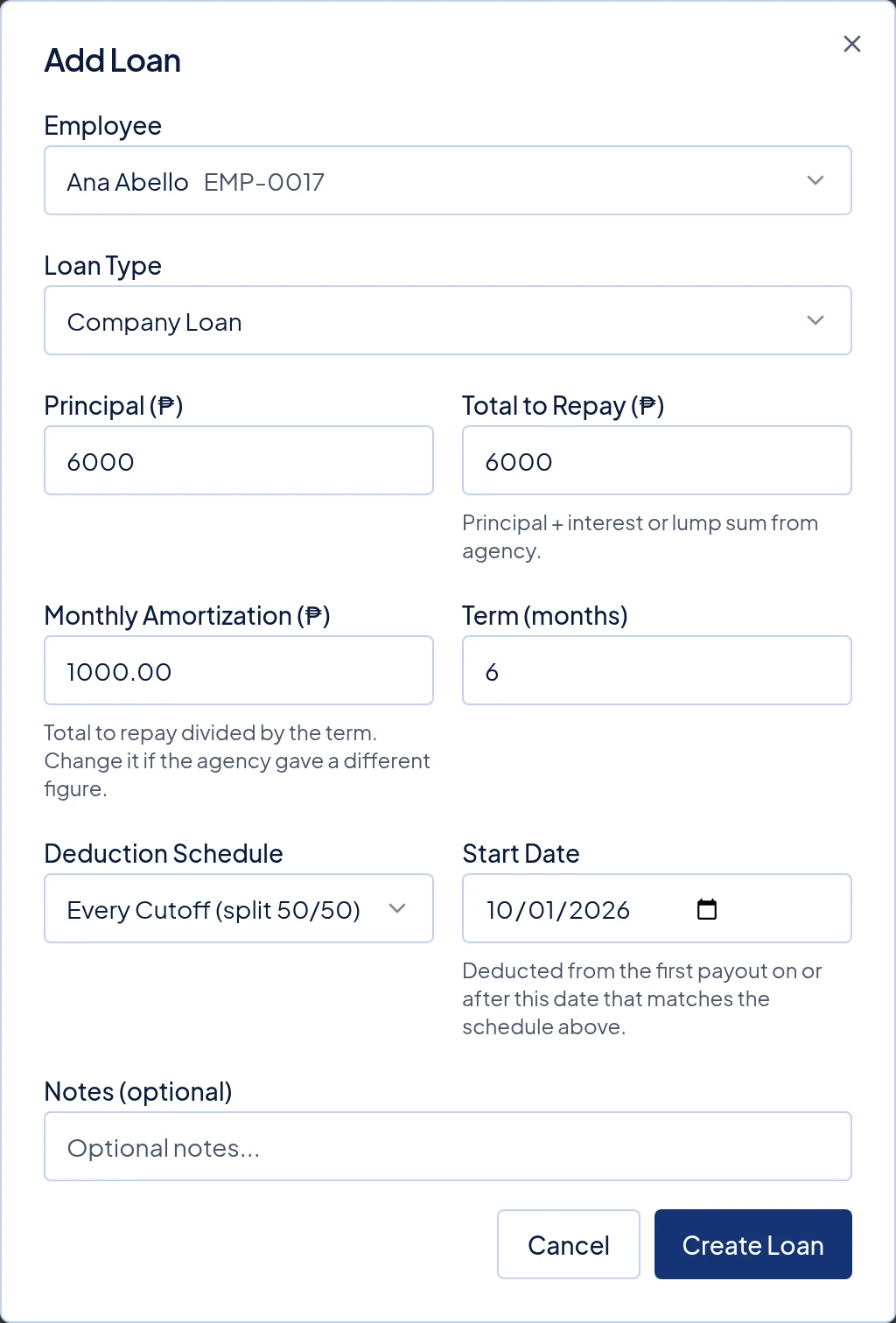
A ₱6,000 Company Loan over 6 months. Monthly Amortization fills in as ₱1,000. Click Create Loan.
What happens next
A cutoff is half a month, usually the 1st to the 15th or the 16th to the end of the month. The payout date is the day you pay your staff.
Each time you click Run Payroll, Timekeep adds the loan payment to the employee's payslip. It never takes more than the balance left, so the last payment can be smaller. For example, a ₱6,000 loan over 6 months is ₱1,000 a month, so Every Cutoff (split 50/50) takes ₱500 on each cutoff.
The balance does not change when the payslip is made. It goes down when you mark the payroll run paid, because that is when the payment is recorded. Follow Mark a payroll run paid. When the balance reaches zero, the status changes to completed and payroll stops taking payments.
Employees can see their own loans, balances, and recent payments under Loans in the employee portal.
Common problems
- The loan was not taken in a payroll. Payroll takes a loan only if it is active, has a balance left, and its Start Date is on or before the run's payout date. It also skips a loan whose schedule does not fit, such as 1st Cutoff Only on the 2nd cutoff. Weekly payroll takes only Every Cutoff loans.
- I fixed the loan, but the payslip did not change. Payslips already made keep their amounts. If the payroll still shows Draft, follow Rerun a draft payroll.
- The balance did not go down after the payslip was made. It changes only when the payroll run is marked paid.
- I entered a wrong amount. A loan cannot be edited. Follow Pause, cancel or delete a loan, then add it again.