
Recalculate attendance
Update attendance totals after a schedule or time-tracking setting changes.
Updated Sep 20, 2026
Before you start
Only the business owner can recalculate attendance. Use this after you change a schedule or a time-tracking setting, when the saved late, overtime, undertime, or overbreak minutes no longer match.
Recalculation uses the saved clock and break times. Correct the attendance record first if any of those times are wrong.
Steps
To recalculate one record:
Go to Attendance and find the employee's row.
Open the menu at the end of the row and click Recalculate.
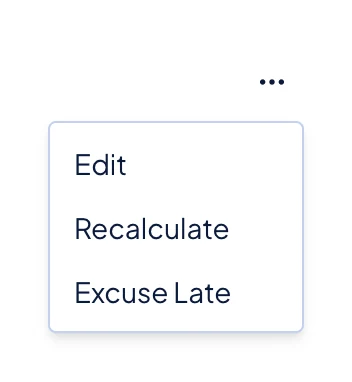
The attendance row menu, with Recalculate below Edit.
To recalculate a date range:
Set the start and end dates above the table.
Use the employee filter if you want to recalculate selected employees. If you select no employee, Timekeep includes all employees.
Open the More menu above the table and click Recalculate.
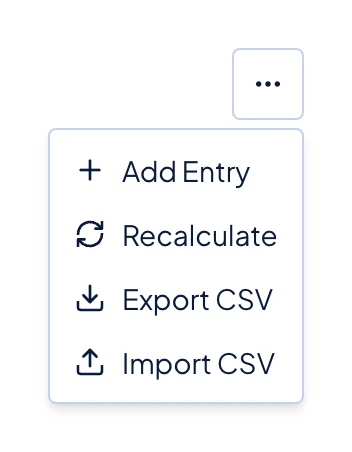
The More menu above the attendance table, with Recalculate below Add Entry. Read the confirmation, then click Recalculate again.
The range action uses only the dates and employee selection. The status and kiosk filters do not narrow the records it recalculates.
What happens next
For the range action, Timekeep recalculates only completed entries. It matches each entry to its schedule and saves the new late, overtime, undertime, and overbreak minutes. It does not change clock times, breaks, or late and undertime excuses. If the recalculated overtime changes, Timekeep may clear an existing overtime approval, so review the approval again.
Recalculation does not rewrite existing payslips. For the new attendance values to appear in a payroll run, calculate the run again while it is a draft.
Common problems
- The recalculated columns are empty. The employee may have no matching schedule. Check Schedules, then recalculate again.
- The result says zero records were recalculated. The selected date range or employees have no completed entries.
- Recalculate is missing. Only the business owner sees this control.