
Accept an invitation
Open your invitation email, create your Timekeep account, and find the pages your role lets you use.
Updated Oct 9, 2026
This article is for you if the owner of a business invited you to help run it in Timekeep. If you are the owner, read Invite users and set their roles instead.
Before you start
Find the email with the subject "You've been invited to join" followed by the business name. A resent invitation starts with "Reminder:". Use the newest email, because each new email replaces the link in the older ones. The link works for 7 days.
Steps
In the email, click Accept Invitation. A page opens with the business name and your role.
Check the Email field. It is the address the invitation was sent to, and you will sign in with it. You cannot change it here.
Type your name in Your name.
In Create password, type a password of 8 to 72 characters. Type it again in Confirm password.
Click Accept & create account.
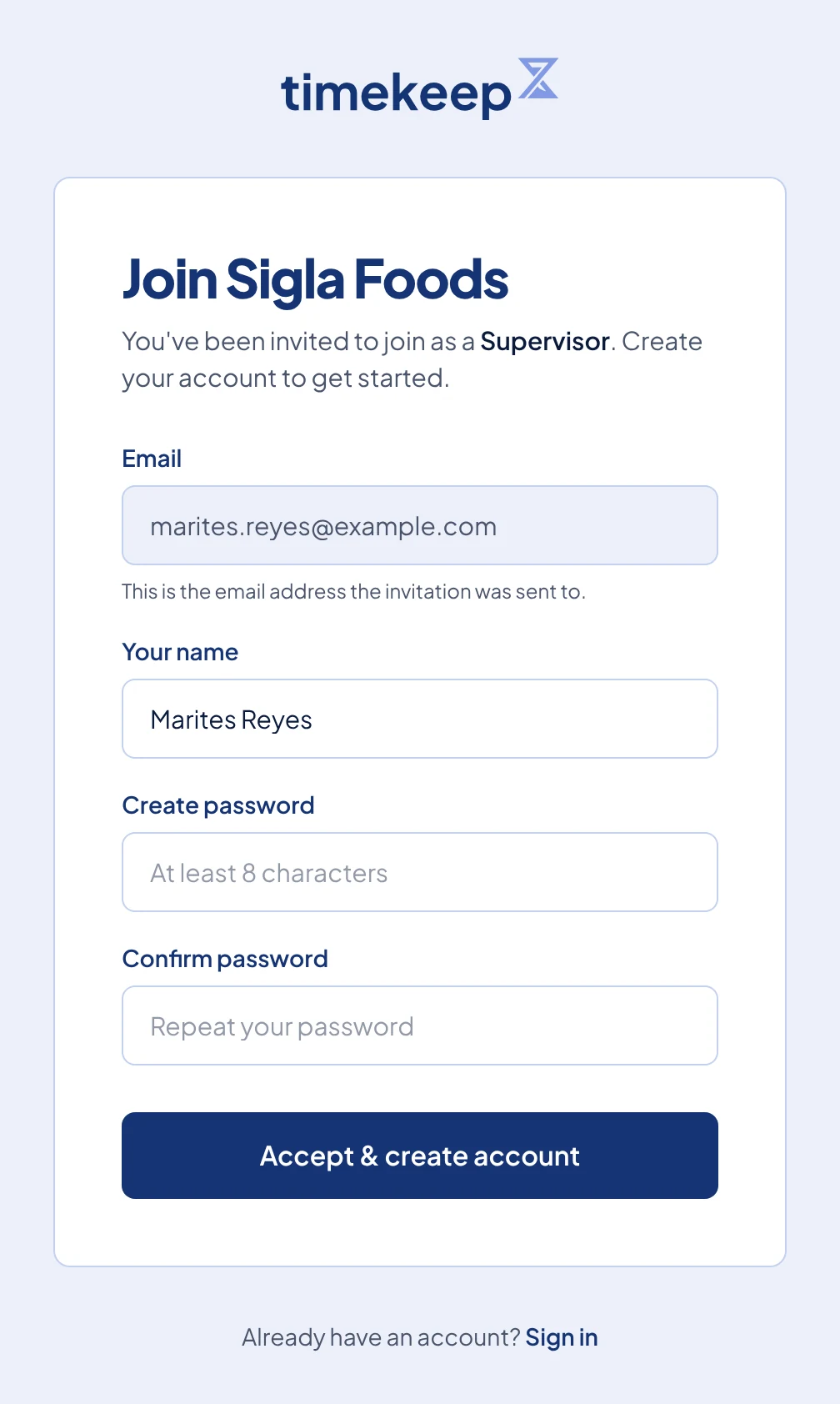
The invitation page for Sigla Foods, with the email address filled in and a name typed in.
What happens next
Timekeep creates your account and signs you in. You do not need to verify your email, because the invitation already proved the address is yours. Next time, sign in on the login page with your email and new password.
The sidebar shows only the pages your role can open. If your business uses overtime requests, managers and supervisors also see Overtime.
- Manager starts on Today and can also open Staff, Positions, Branches, Documents, Shifts, Schedules, Attendance, Leaves, Payroll, Deductions, Loans, Holidays, and Activity log.
- Supervisor sees the same pages as a manager, except Deductions and Activity log, plus Users, where you can see the member list but not change it. A manager cannot open Users. If the owner restricts supervisors to their assigned employees, you see only your team.
- Scheduler starts on Schedules and can also open Shifts, Attendance, and Users.
- Bookkeeper starts on Payroll and can also open Deductions, Loans, Holidays, and Users.
Some pages you can view but not change. Invite users and set their roles lists what each role can do. Everyone has Settings, where you can change your name and password.
Common problems
When a link no longer works, you see Invalid invitation with the reason below it.
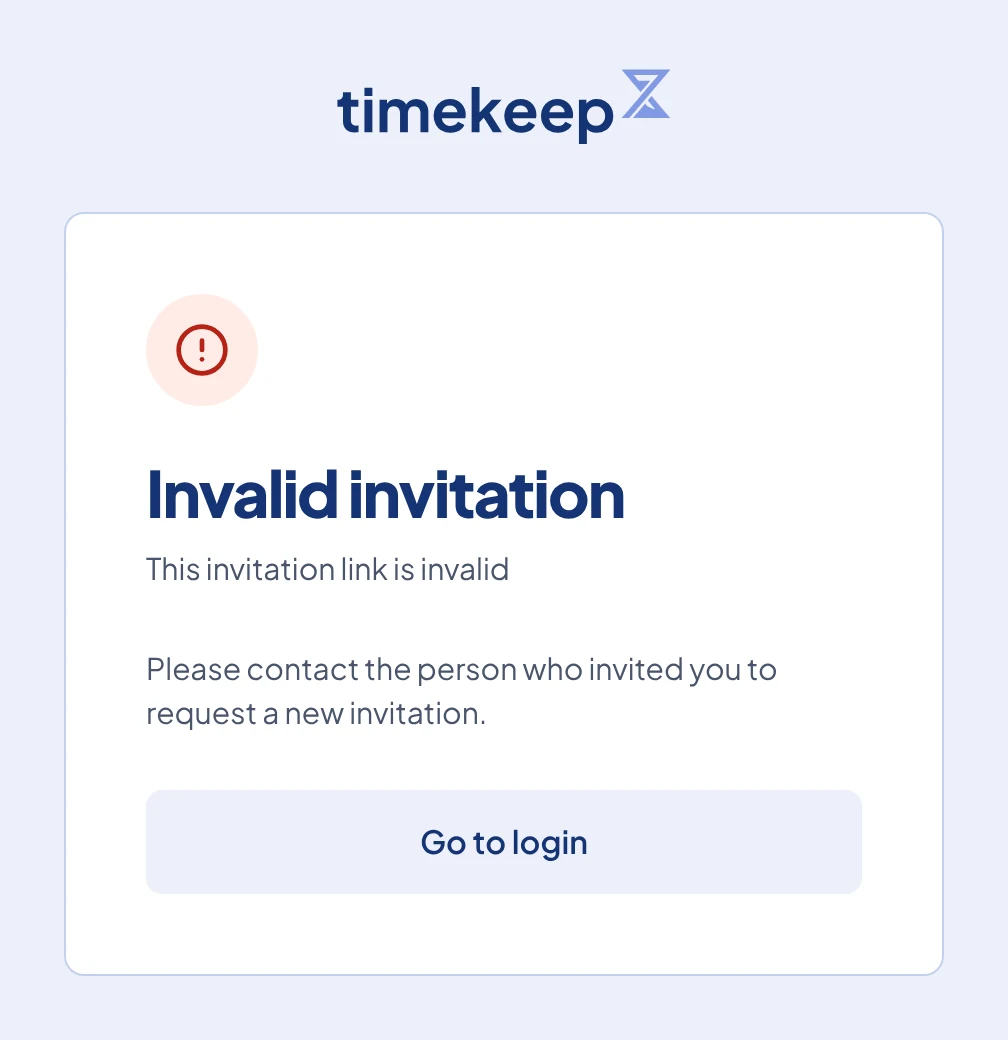
- "This invitation has expired". The 7 days are over. Ask the owner to resend it.
- "This invitation link is invalid". The owner probably sent a newer invitation or cancelled this one. Use the newest email, or ask the owner.
- "This invitation has already been accepted". Your account already exists. Click Go to login and sign in.
- "An account with this email already exists. Please log in instead." after you click Accept & create account. That email already has a Timekeep account. Signing in will not add you to this business, because one email address can have only one Timekeep account. Ask the owner to invite a different email address.
- I cannot find a page I need. Your role does not include it. Ask the owner to change your role.