
Approve or decline overtime requests
Review the overtime your staff ask for, and choose which requests Timekeep can pay.
Updated Sep 29, 2026
Before you start
You must be an owner, manager, or supervisor. Overtime is the extra time an employee works past their normal shift.
Overtime appears in the sidebar only after the owner turns on Staff can request overtime. The owner finds it in the Overtime card of Payroll Settings, switches it on, and clicks Save. Only the owner can open Payroll Settings.
Employees file a request in the employee portal. They open Schedule and click Apply OT on a shift.
Steps
Go to Overtime. It opens on requests with the status Pending. To see older ones, change Status above the table to Approved, Declined, Cancelled, or All.
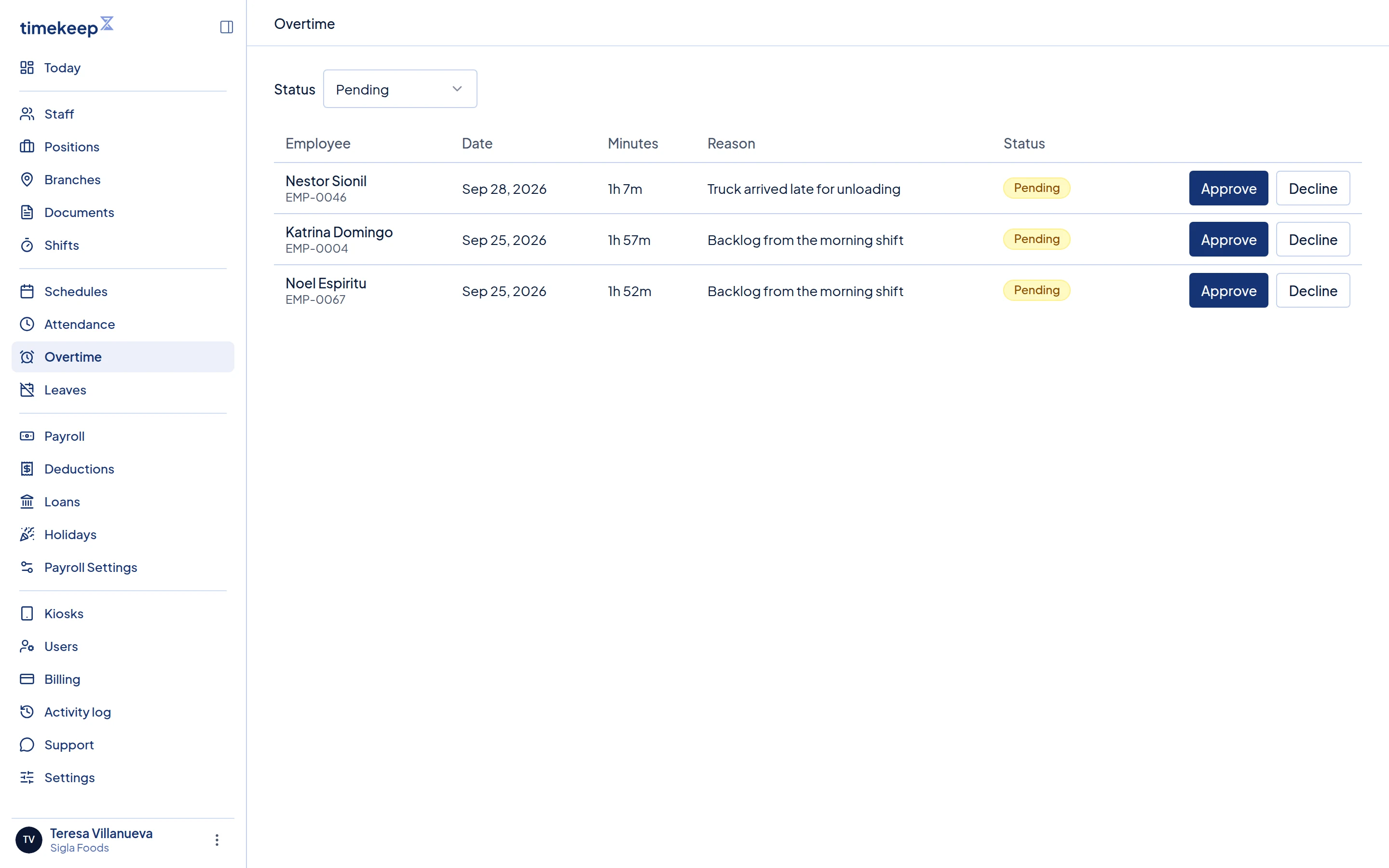
The Overtime page showing pending requests, with Approve and Decline at the end of each row. Read each row. It shows the employee, the Date of the shift, the Minutes they asked for, such as 1h 30m, and their Reason. A dash means no reason.
To approve, click Approve. It takes effect at once, and you see "Overtime request approved".
To decline, click Decline. In the Decline overtime request window, type a Reason, which is required, then click Decline.
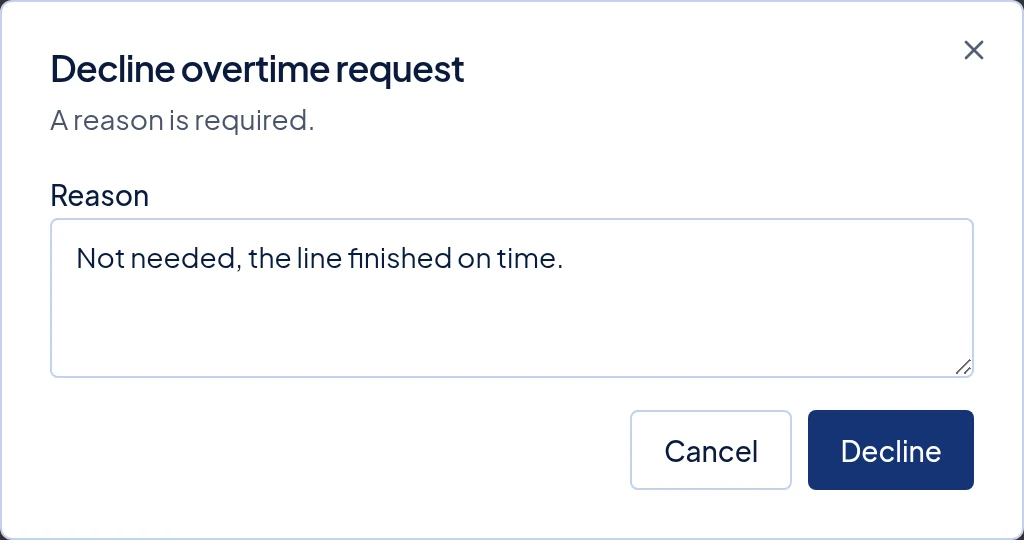
The Decline overtime request window with a reason typed in the Reason box.
What happens next
Only Pending rows have buttons. You cannot change a request after you answer it.
Employees see the result in the portal. An approved request shows a badge such as "1h OT approved". After a decline, the Apply OT button comes back, so the employee can ask again. It stays hidden if the day has passed or the employee has already clocked out. Employees do not see your reason, so tell them yourself.
An approval lets Timekeep approve the overtime on the attendance record. It does this when the employee clocks out, or right away if the record is already complete. It approves the smaller of the overtime worked and the minutes requested. On Attendance, approved overtime is green in the OT column, and unapproved overtime is amber.
Payroll pays only approved overtime. Extra time that nobody approved stays unpaid. The law counts time worked past the shift as hours worked if you knew about it or allowed it, even without a request. Approve that overtime on Attendance so it gets paid. Staff on the Fixed Semi-Monthly pay type get no overtime pay, even when it is approved.
Payslips already made do not change. If the payroll still shows Draft, an owner or manager can follow Rerun a draft payroll.
Declining does not stop you from approving that overtime later. On Attendance, open the menu at the end of the row and click Approve OT. This appears only on rows that have overtime.
Common problems
- Overtime is missing from the sidebar. Either the owner has not turned on Staff can request overtime, or your role cannot approve overtime. Ask the owner to check the setting and your role.
- A supervisor cannot see someone's request. The owner may have turned on Restrict supervisors to assigned employees in the Supervisor access card of Settings. Supervisors then see only their own team. Ask the owner to assign the employee to that supervisor on the employee's profile.
- I approved a request, but the overtime is still amber. The employee may not have clocked out yet, or worked no extra time. Timekeep applies the approval when the attendance is complete.
- I cannot find waiting requests after the owner turned off Staff can request overtime. The requests are still there, but the Overtime page closes while the setting is off. Ask the owner to turn it back on.