
Review the activity log
See who changed what in your business, when they did it, and the value before and after each change.
Updated Oct 9, 2026
The activity log is a record of changes that people make in the dashboard. Use it to answer questions like "Who changed this rate?" or "Who marked this payroll run paid?".
Before you start
Only the owner and managers can open Activity log. Other roles do not see it in the sidebar.
Steps
Go to Activity log. The newest change is at the top. Times are in Philippine time (Asia/Manila).
Read each row from left to right:
- Who shows the person's name and their role at the time.
- Action shows what they did, such as Created, Updated, Approved, Rejected or Marked paid. A declined leave request shows as Rejected.
- Record shows the kind of record and which one, such as a leave request with the employee's name and dates.
- When shows the date and time.
Click a row to see the details. Each changed field shows its old value, an arrow, and its new value. Click the row again to close it.
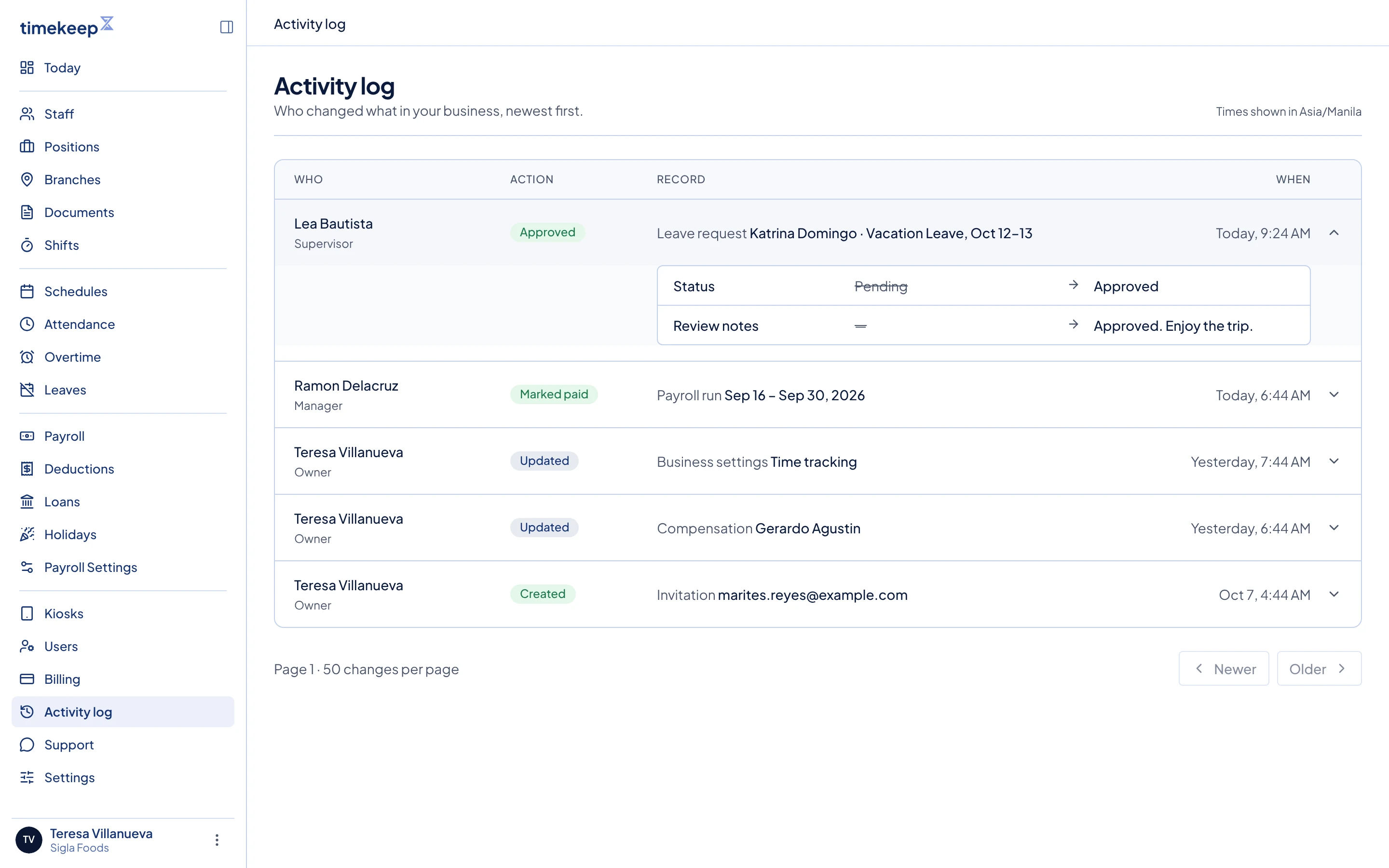
The Activity log with the first row open, showing Status changed from Pending to Approved. The page shows 50 changes. To see earlier changes, click Older at the bottom. Click Newer to go back.
The log has no search or filters, so use Older to go back in time.
What happens next
Timekeep adds a row each time someone changes one of these records:
- Employees and their compensation, including staff you add or import
- Schedules, including imported, moved and deleted ones
- Attendance records you add, edit or delete, overtime approvals, and excused late or undertime minutes
- Payroll runs that are created, recalculated (rerun), marked paid, or deleted
- Payslip adjustments
- Leave request decisions and cancellations, and leave balance adjustments
- Users and invitations, including role changes and removals
- Business settings and payroll settings
- AI connections
Other changes are not recorded. These include clock-ins from the kiosk or the portal, and changes to shifts, holidays, loans, deductions, documents, kiosks and billing. Saving a form without changing anything adds no row.
Common problems
- A row says "No field details were saved for this change." Timekeep recorded the action, but not the fields for that kind of change. The row still tells you who did it and when.
- The name starts with Support (as ...) followed by that person's name. A member of the Timekeep support team made the change while signed in as that person, usually to help you with a problem.
- I cannot find a change. Check that it is a kind of record in the list above. Then click Older until you reach the date it happened.