
Add a one-off earning or deduction to a payslip
Add a bonus, cash advance or other one-time amount to one employee's payslip, or remove it.
Updated Oct 2, 2026
Before you start
You must be an owner, manager or supervisor. The payroll run must show Draft or Locked, and it must already have payslips. A paid payslip cannot change.
For an amount taken every month, follow Set when a monthly deduction starts and ends instead.
Steps
Go to Payroll, open the By Period tab, and click the payroll run.
Under Payroll Entries, click the employee's row to open their payslip.
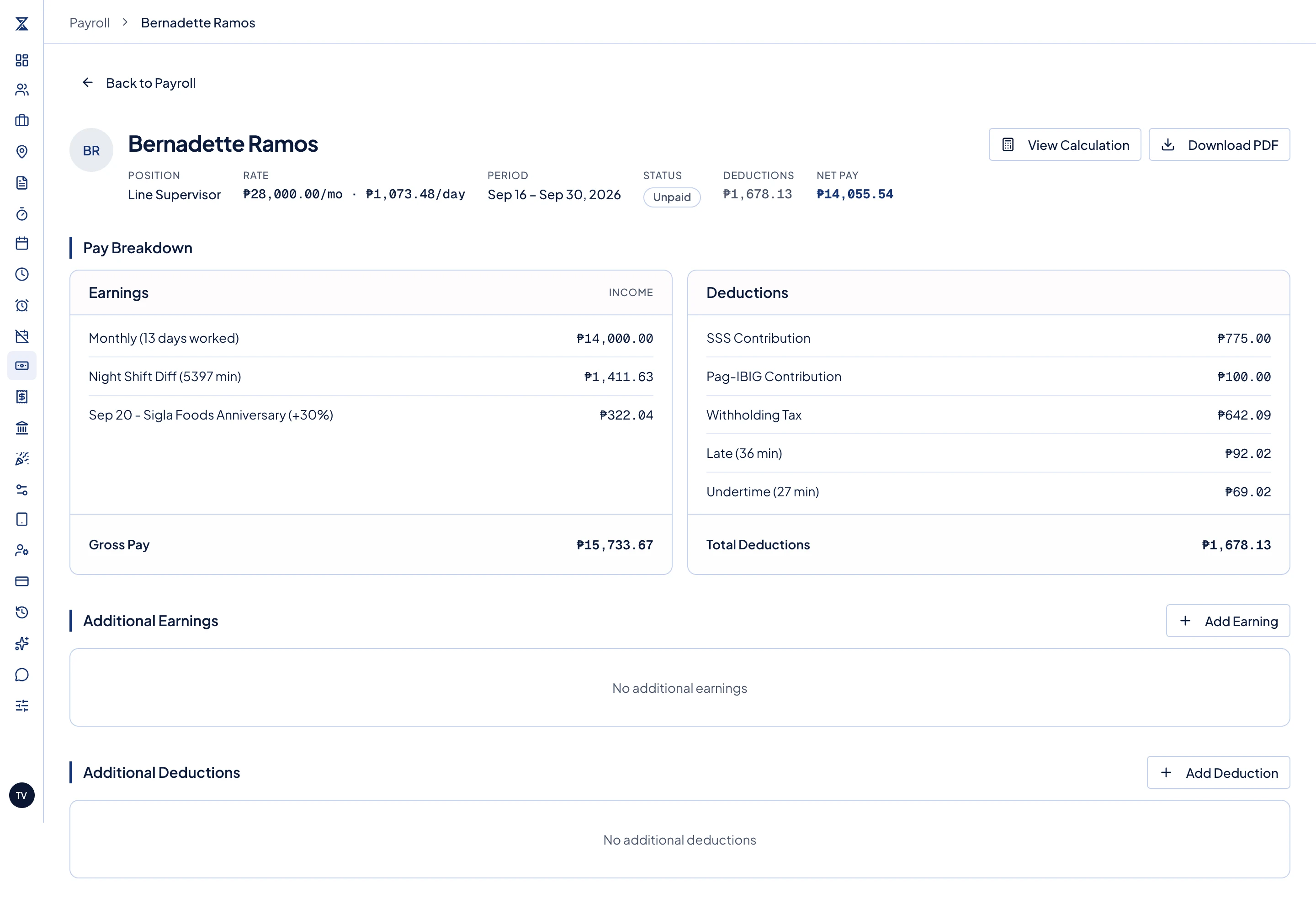
An employee's payslip. Additional Earnings and Additional Deductions are below the pay breakdown, each with its own add button on the right. Click Add Earning beside Additional Earnings, or Add Deduction beside Additional Deductions.
Choose the Earning Type or Deduction Type.
- Earnings: Allowance, Bonus, Commission, 13th Month Pay, Overtime Adjustment or Other.
- Deductions: Loan Deduction, Cash Advance, Shortage, Damage or Other. The list starts at Loan Deduction, so change it if that is not what you mean.
In Description (optional), say what the amount is for, such as "Sep 1–15 correction". It is printed with the type.
Enter the Amount in pesos. It must be more than zero, even for a deduction.
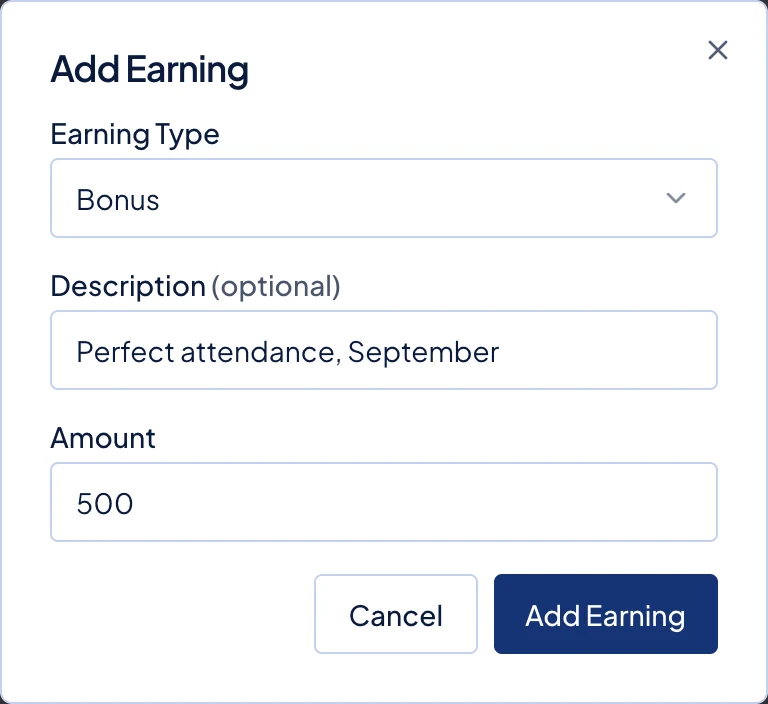
The Add Earning dialog with a ₱500 Bonus for perfect attendance. Click Add Earning or Add Deduction.
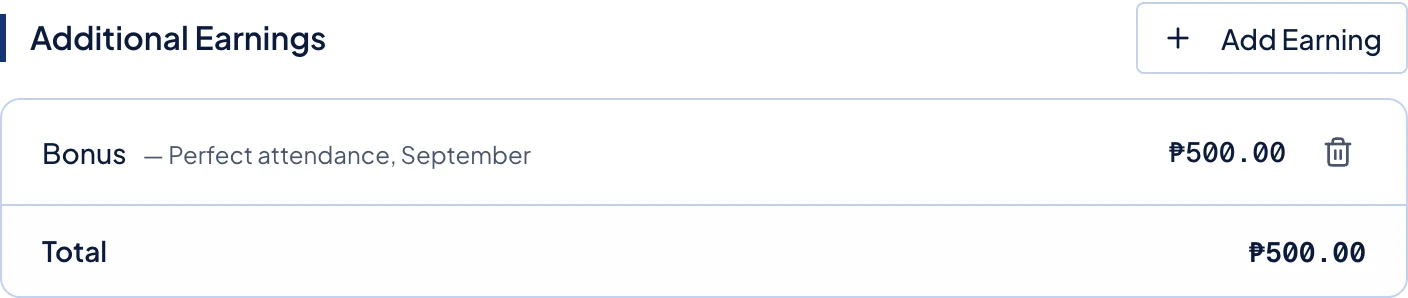
The Bonus now listed under Additional Earnings, with the trash button at the end of its row.
What happens next
The item appears in its section, and Net Pay at the top of the payslip changes.
Timekeep adds or subtracts the amount after tax. It does not change withholding tax, SSS, PhilHealth or Pag-IBIG, even for a Commission or Overtime Adjustment. Ask your accountant if an amount should be taxed.
The item stays when you click Run Payroll again on a draft run.
On a locked run, employees see the change in the portal straight away. Each added deduction is listed with its description. Added earnings are shown together as one "Other Earnings" line, and the downloaded PDF lists each one.
To remove an item, click the trash button at the end of its row, then click Remove.
Common problems
- Add Earning and Add Deduction are greyed out. The run is already paid. Add the amount to the employee's payslip in your next payroll run instead.
- I need to correct a paid payroll. Paid runs cannot change, so use the employee's payslip in the next run. Use Add Earning for an underpayment or Add Deduction for an overpayment, and name the old cutoff in the description.
- The loan balance did not go down. A Loan Deduction added here is not linked to Loans. To track a balance, follow Add an employee loan.
- The whole payslip disappeared after Run Payroll. The employee no longer belongs in the run, for example because they were deactivated or their resignation date is before the cutoff. Their payslip and its items are removed. Correct their record, run payroll again, and add the items again.